M ANAGING SMARTA PPLETS
Changing the Startup SmartApplet for NEOs
30 AlphaSmart Manager 2 User Manual
. . . . .
Changing the Startup SmartApplet for NEOs
Normally, AlphaWord Plus is the SmartApplet that starts when you turn on a
NEO. If you want to change the startup SmartApplet, you can choose a
different one in the System settings on the Settings tab. Follow these steps:
1. Make sure your NEO or SmartOption Mobile Lab is connected to your
computer.
2. In AlphaSmart Manager, click the Settings tab.
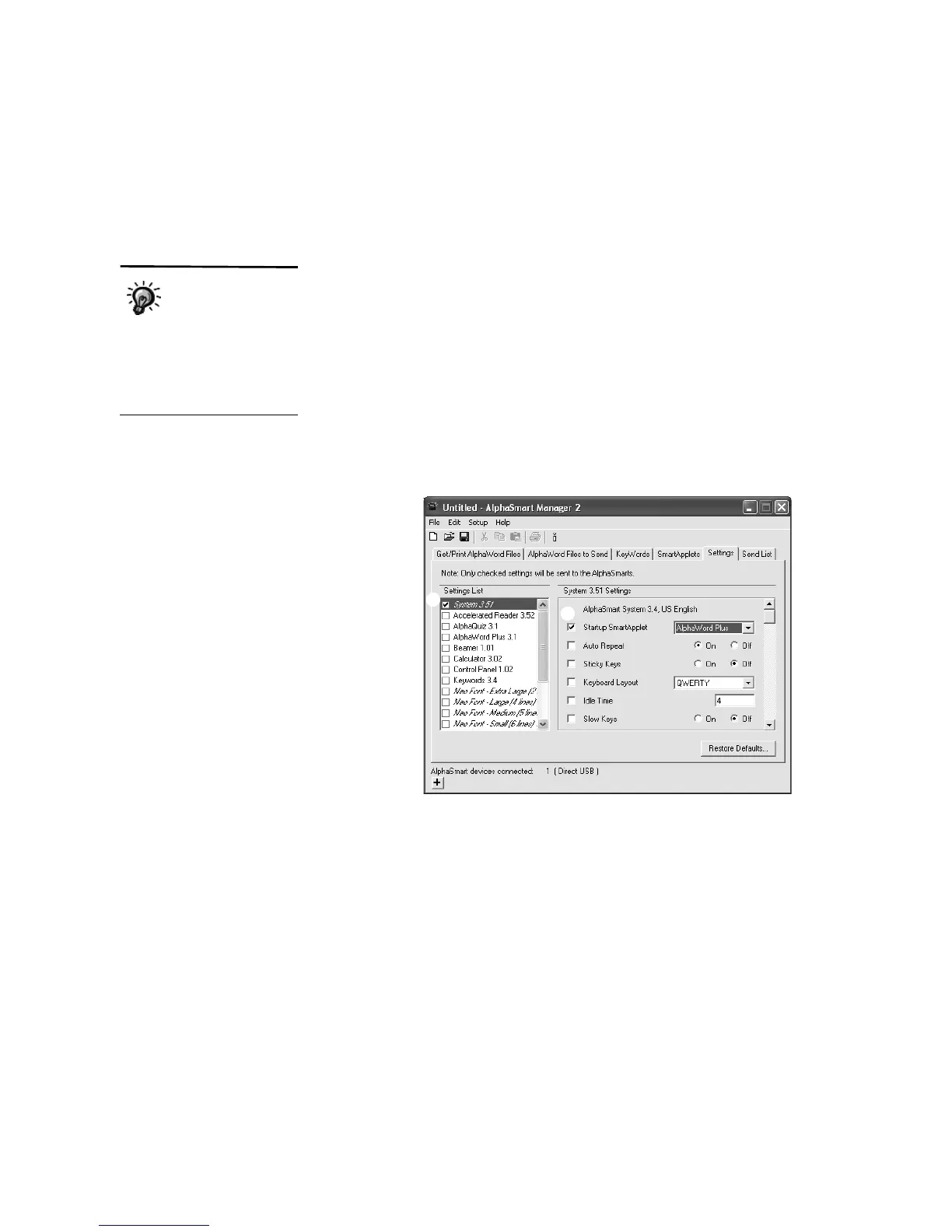
3. Click System in the settings on the left
A.
4. In the settings list on the right, click the drop-down list next to Startup
SmartApplet B and choose the SmartApplet that you want to start when
the NEO(s) are turned on. When you do this, the box for the setting will
automatically be checked.
5. Click the Send List tab and verify that your system setting change
appears in the send list.
6. If you are using a SmartOption Mobile Lab and you want to send the
setting change to some, but not all, of the NEOs, click Select Devices,
check the numbers to which you want to send the change, then click OK.
(To send to all connected NEOs, skip this step.)
7. Click Send. If you have set a send list password (see page 63), you must
enter that password and click OK.
If you don’t set a
startup SmartApplet,
when you turn on your
NEO, it goes to the
SmartApplets list, with the
cursor next to the SmartApplet
you were working in when you
turned the NEO off.
A
B



 To Next Page