C HANGING NEO SETTINGS
Restoring Default Settings
AlphaSmart Manager 2 User Manual 57
. . . . .
Restoring Default Settings
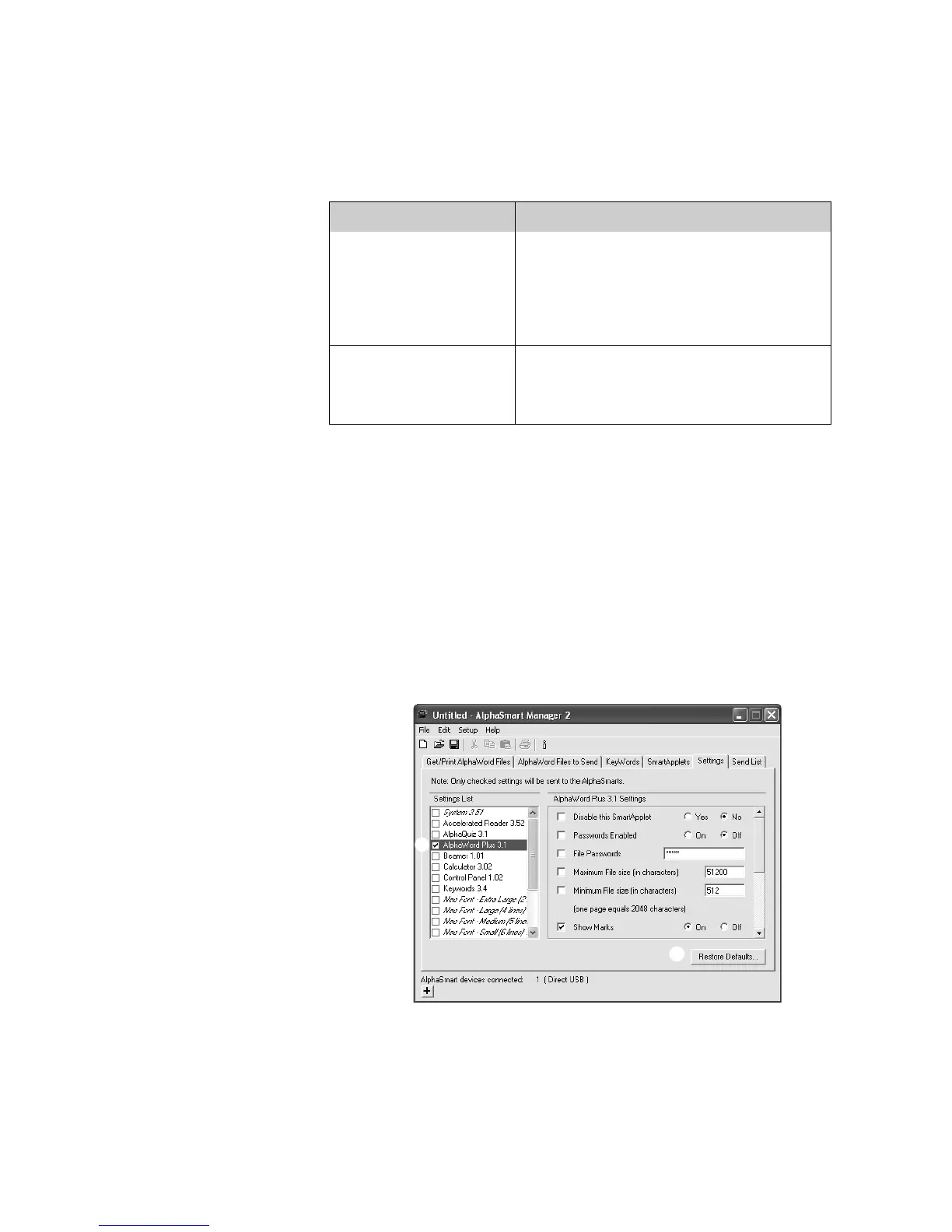
How to Restore the Default Settings (SmartApplets and System Settings)
By following the steps below, you can restore the default settings for one
SmartApplet or all SmartApplets on the connected NEOs.
1. In AlphaSmart Manager, click the Settings tab.
2. If you want to restore settings for just one SmartApplet (not all), click the
SmartApplet in the Settings List on the left
A.
3. Click Restore Defaults
B.
Turn Home Row
Confirmation ON
When this requirement is on, students must type
the home row keys from left to right at the
beginning of each accuracy and speed builder
activity and each test (a s d f j k l ;). Students
can’t go on to the activity until they type the
home row characters correctly and in order.
Set Spaces Between
Sentences
Determines whether students will be required to
type one or two spaces between sentences. (One
space is the standard used by most typesetters,
word processing programs, and Web pages.)
Setting What It Does
A
B



 To Next Page