C HANGING NEO SETTINGS
Changing System Settings
50 AlphaSmart Manager 2 User Manual
. . . . .
Examples of Keyboard Layouts
In the NEO system settings, you can choose from four different keyboard
layouts:
• QWERTY, the standard default layout of most keyboards
• Dvorak, a scientifically-designed keyboard layout that requires much less
finger reaching and stretching for the most commonly used keys, and
results in faster and easier typing
• Right hand only
•Left hand only
The Right Hand Only and Left Hand Only layouts help those with special
needs type faster.
When you switch keyboard layouts, all dialog boxes and keyboard commands
conform to the new layout. The command keys (ctrl, option, or z, for
example) remain in the same location, but letter keys are derived from the
new layout. For instance, to access the transfer speed, you still press option-
z-S, but the S key is in a different location.
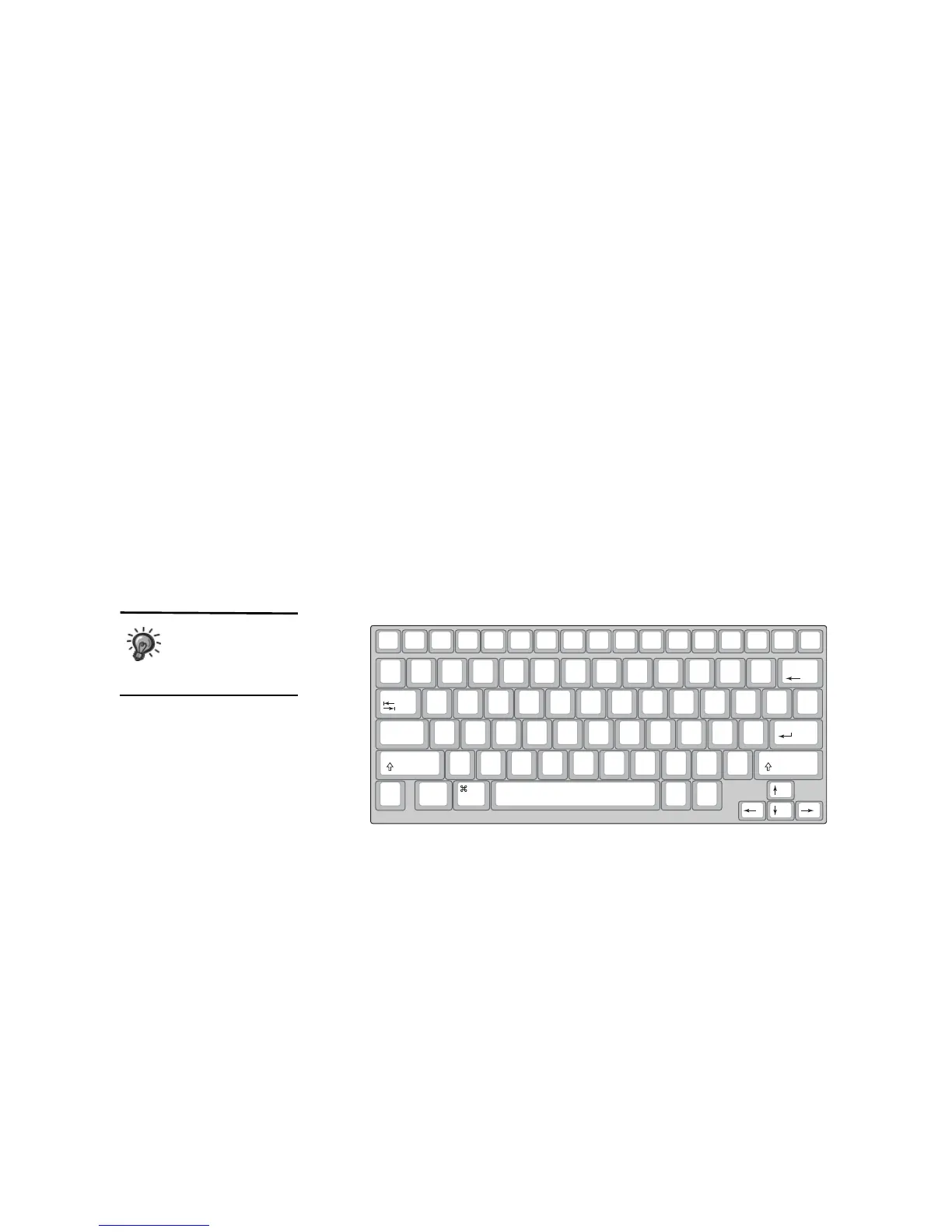
Examples of each keyboard layout appear below and on the next page.
Some language
versions of NEO do
not support
alternate keyboard layouts.
on/off file 1 file 2 file 3
file 4 file 5
file 6 file 7 file 8 print
spell
check
find
clear
file
home end applets send
tab
Q W E
R
T Y U I O P
{
[
}
]
|
\
entercaps lock
A S D F G H J K L
:
;
"
'
shift
Z X C V B N
M
<
,
>
.
?
/
shift
control
alt
option
deleteesc
!
1
@
2
#
3
$
4
%
5
^
6
&
7
*
8
(
9
)
0
_
-
+
=
back
space
~
`
cmd
The standard QWERTY keyboard layout



 To Next Page