Service manual AlphaCom XL transceiver Rev. 1.4 10-08-2011 Blz. 24/74
This opens a DOS screen, which, among other things, can be used to ping a certain IP address:
C:\>ping 192.168.0.48
Pinging 192.168.0.40 with 32 bytes of data:
Reply from 192.168.0.48: bytes=32 time=4ms TTL=100
Reply from 192.168.0.48: bytes=32 time=4ms TTL=100
Reply from 192.168.0.48: bytes=32 time=4ms TTL=100
Reply from 192.168.0.48: bytes=32 time=4ms TTL=100
Ping statistics for 192.168.0.48:
Packets: Sent = 4, Received = 4, Lost = 0 (0% loss),
Approximate round trip times in milli-seconds:
Minimum = 4ms, Maximum = 4ms, Average = 4ms
The IPCONFIG command can be used to show information of the PC’s network configuration:
C:\>IPCONFIG
Windows 2000 IP Configuration
Ethernet adapter Local Area Connection:
Connection-specific DNS Suffix . :
IP Address. . . . . . . . . . . . : 192.168.0.119
Subnet Mask . . . . . . . . . . . : 255.255.255.0
Default Gateway . . . . . . . . . : 192.168.0.16
To see even more information, the command „ipconfig/ all’ can be used.
Alphatronics Equipment Discovery Tool
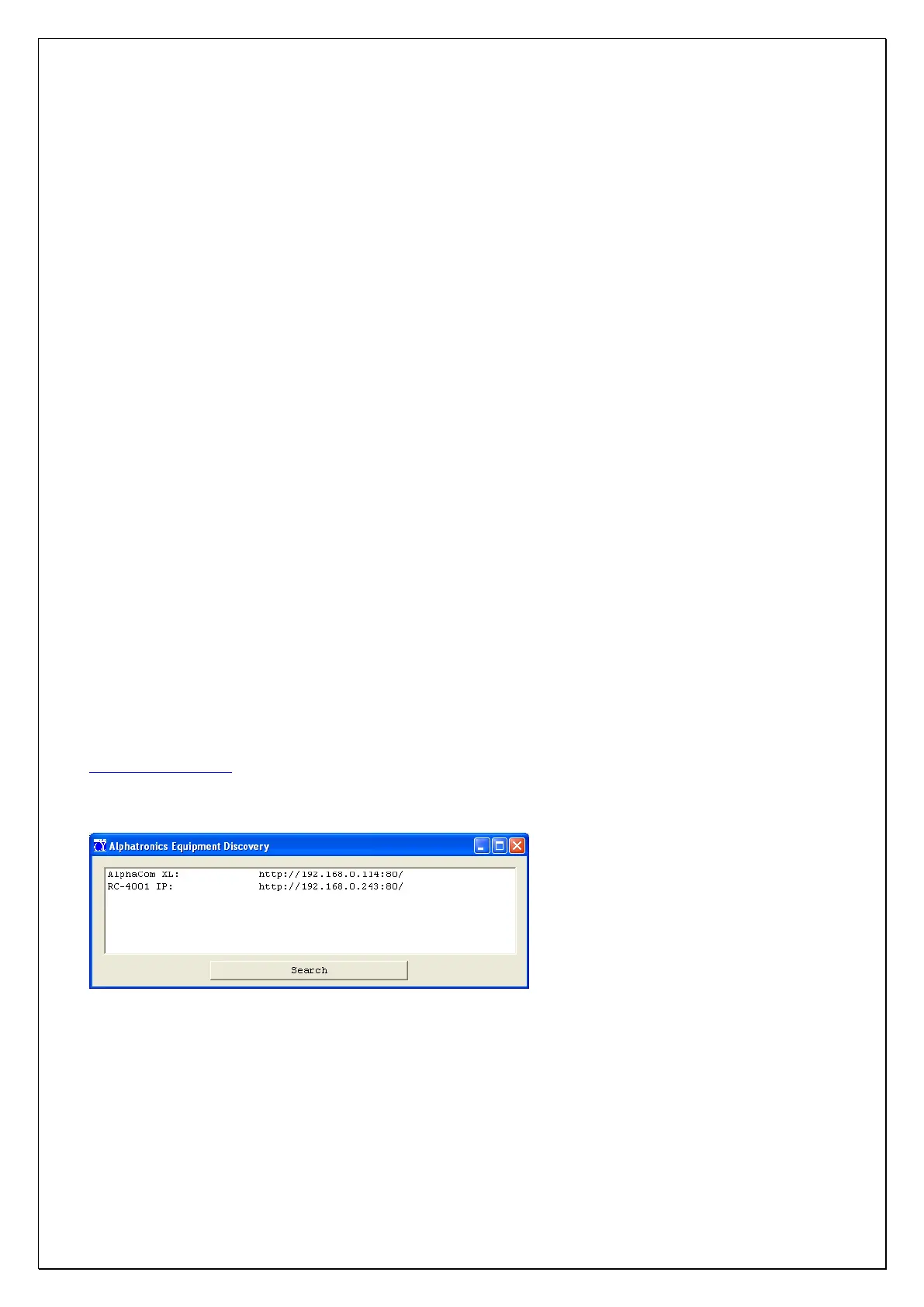
The AlphaCom XL can also be found on the network using the so-called „Alphatronics Equipment
Discovery tool‟. This tool is freeware and can be downloaded from the Alphatronics website
www.alphatronics.nl (installer, service & support). Start the program, press the „search‟ button and then
dubble-click on the desired IP address. Now your standard web-browser will be opened and will
automatically surf to the appropriate IP address.
Log in
After the right IP address has been entered in the browser, the following screen will appear:



 To Next Page