⑦ Function page selection.
⑧ Editing area of function page
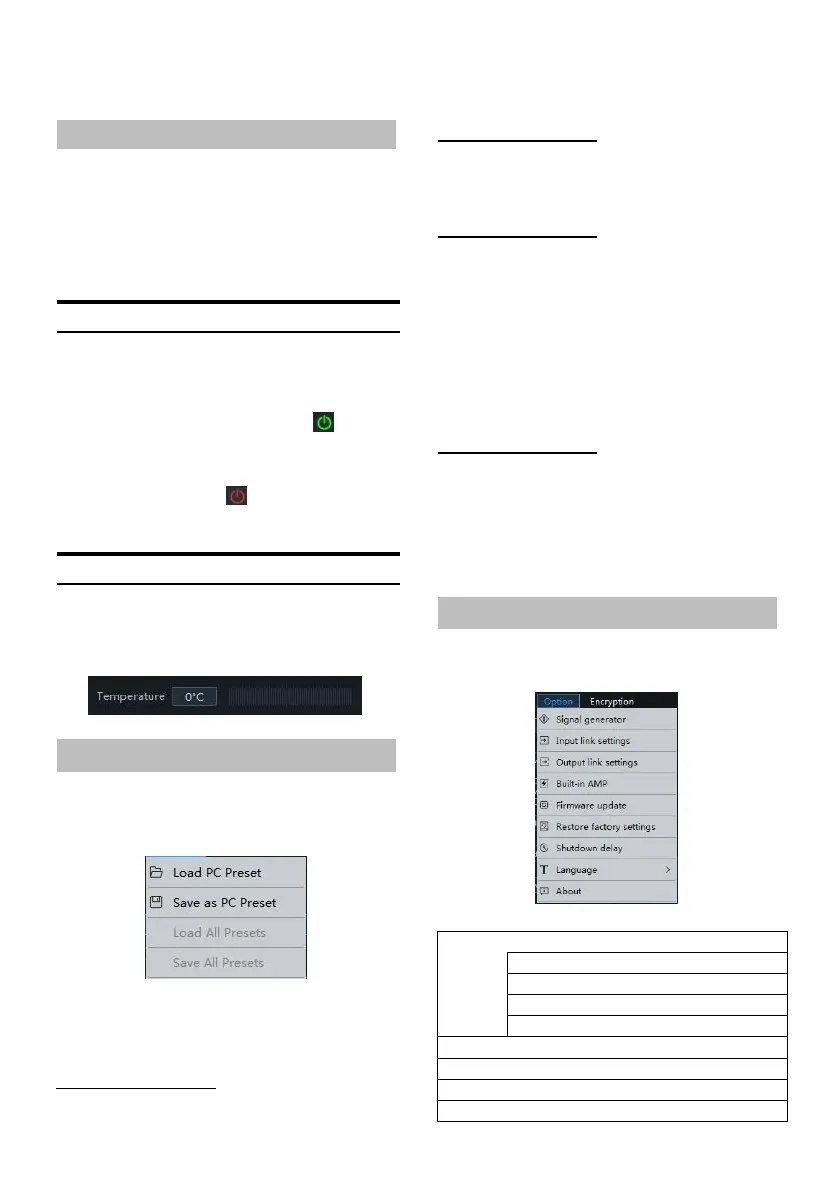
Connection and Temperature Display
Setting items:
Connection and temperature display
Setting content:
Connection/disconnected/temperat ure
display
Connection Settings
1 Conne ct th e USB cable and open the
software, it wil l automatically go online .
After the connection is successful , the
connection icon will show green [ ]。
2 After online, click th e connection icon to
disconnect. When not online, the connection
icon will displ ay red [ ], an d click the
connection icon again to go online again.
Temperature Display
Detect the temperature on the surface of t he
machine a nd display the cu rrent temperature
value.
File S etti ngs
Click [File] to enter the loading or sav ing scene
file page.
Load or sa ve presets file page
Setting items:File
Setting content:Load PC Preset/Save a s PC
Preset/Load All Presets /Save All Presets
Load PC Preset
The scene file previously sav ed on the
computer can be loaded as the current
machine working scene.
Save a s PC Preset
The cu rrent machine work scene file can be
saved to the computer for later recall.
Load All Presets
Load the files of th e ent ire machine previousl y
saved on the computer to the machine
(including t he current working scene, mac hine
preset scene, output chann el configurati on
data, etc.), and copy all th e mach ine data that
has been debugged to th e cu rrently connected
machine.
Save A ll Presets
Save all data on the current online mach ine a s
a computer file (includin g th e current working
scene, machine preset scene, output channel
configuration data, etc.) for la ter recall when
the whol e machine is copied.
Option Setting
Click [O ption] to enter the setting page.
Setting page
<Setting item>


 To Next Page