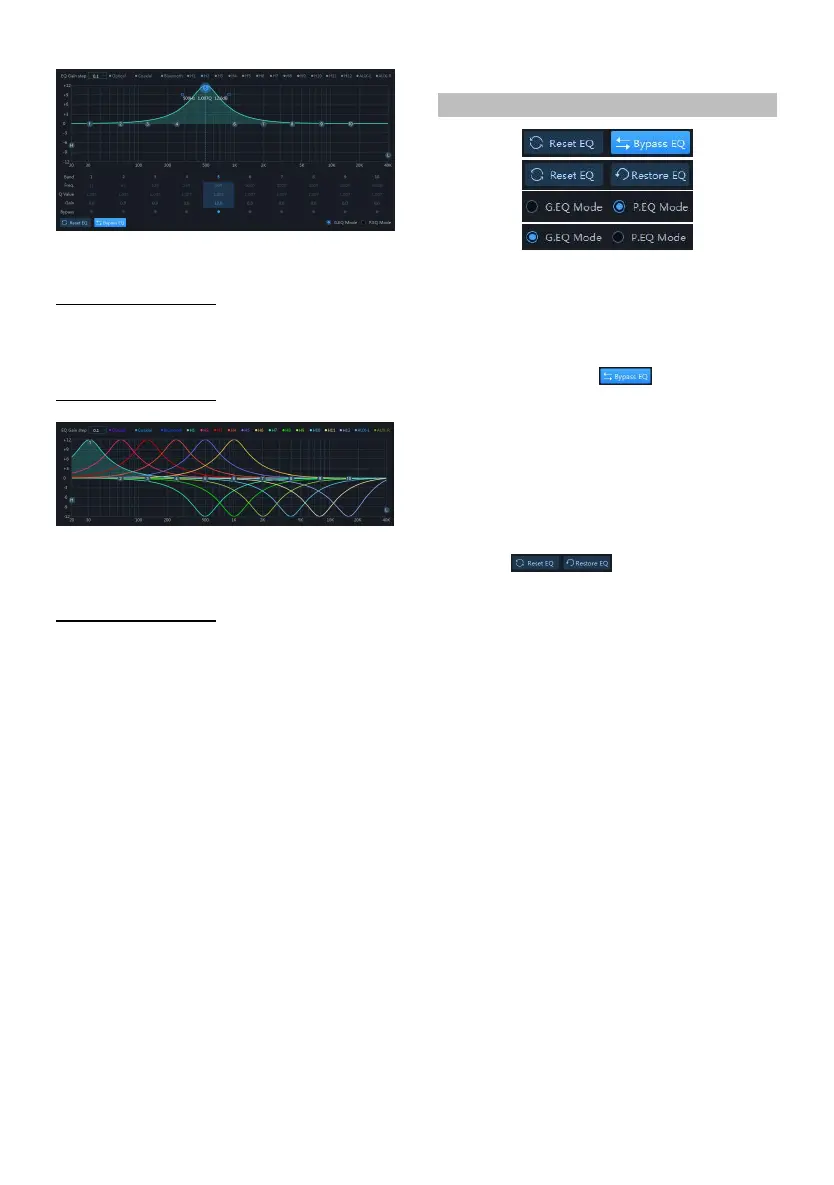
GEQ page
EQ gain step
Setting items:EQ gain step
Setting content:0.1 (init ial setting)/0.5/1
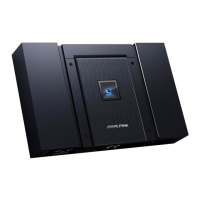
EQ curve display
Click the channel display select ion button to
display the cu rve of the cha nnel.
EQ settings
1 Select the input channel to be adjusted.
2 When the mouse moves to the serial
number position, hold down, drag up and
down to adjust the equalizer gain, drag
left and right to adjust the equalizer
frequency; when the mouse moves to the
left and right blue boxes, hold down and
drag to adjust the equalizer Q value. You
can also set the frequency, Q value and
gain by directly inputting the value,
scrolling the mouse wheel, a nd the up
and down keys on the keyboard.
Adjustable frequency range: 20Hz~40kHz;
Adjustable range of Q value: 0.404~2 8.852;
Gain adju stable range: -12.0 dB ~+12.0 dB.
Note: The gain is adjustable in the graphic
equalization interface, and the frequency
and Q value are not adjustable. In the
parameter equalization interface, th e
frequency, Q value and ga in are
adjustable.
Equalizer Settings
1. When there is EQ adjustment, the direct
equalization button appears.
2. Through Equalization: When the current
channel equalizer is turned on, th is button
will be displayed [ ], click [Through
Equalization] or the th rough dot to make all
equalizers of the current channel inactive
(through).
3. After clicking the "Yes" button, t he button
will be restored to the [Restore Balance]
state [ ]. Then cli ck [Restore
EQ] and all equalizers of t he current channel
will return to the last activated state.
4. Click [Reset EQ], th e parameters of all
equalizers of the current channel return to
the initial state: the frequen cy is evenly
distributed, the input Q value i s 2.515, the
output Q value is 1.007 , and the gain is
0.0dB.
5. Click [Para metric Equalization] to pop up a
warning box "Confir m GEQ to PEQ mode?",
press OK to switch to [Graphic Equalization],
click [Graphic Equalization] to pop up a
warning box "Confir m PEQ to GEQ mode?",
press OK to confirm Switch [parameter
equalization]. In the parametric
equalization mode, the frequency, Q value
and gain are adju stable , while in th e graphic
equalizer mode, the frequency and Q value
are fixed, and only the equalizer gain can be
adjusted.


 To Next Page