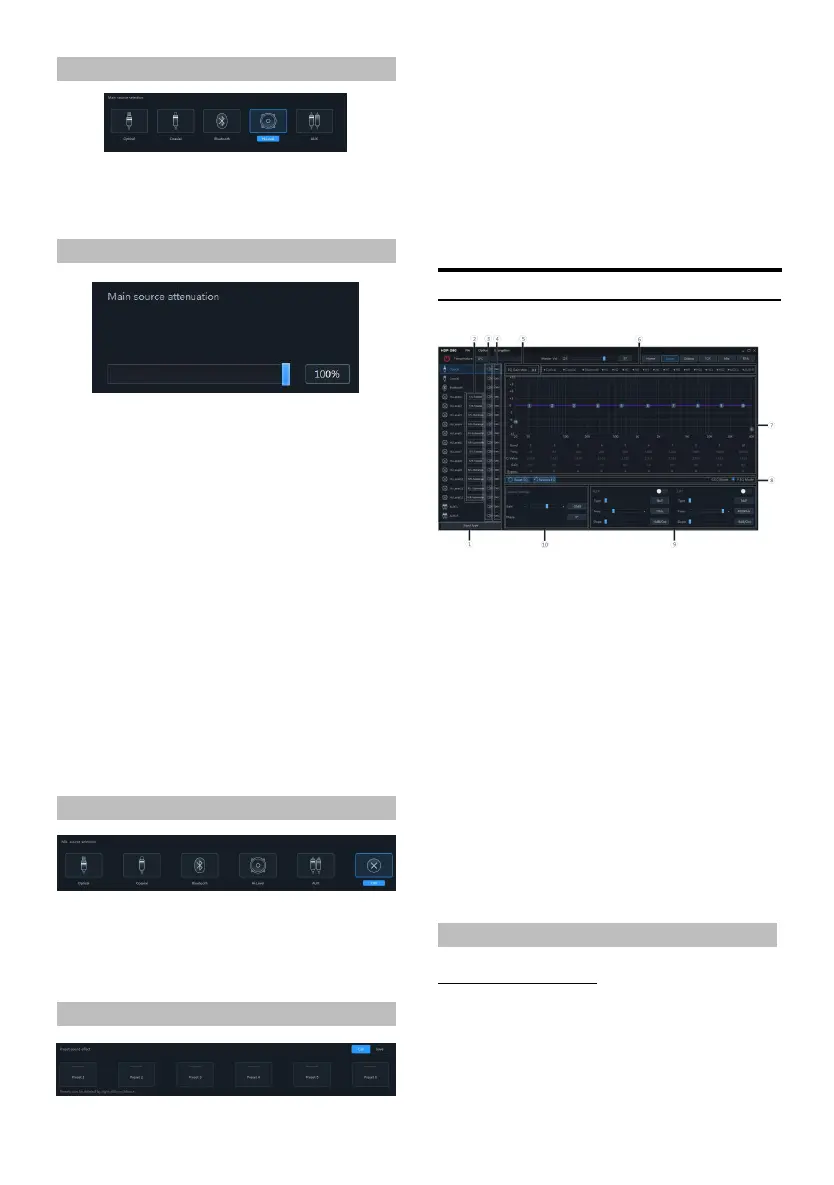
Main Source Selection
Setting items:Main source selection
Setting content:Optical/Coaxial/Bluetoot h/
High Level/AUX
Main Source Attenuat ion Setting
You ca n press and hold th e left button of th e
mouse to move the fader left or right or scroll
the mouse wheel, or press the up and down
keys of the keyboard to set the attenuation .
The Mix source is equivalent to mixing. The
greater the attenuation of the main sou nd
source, t he lower the main volume, adjustable
value: 0%~10 0%.
Setting items:Main source atten uation
Setting content:0% to 100% (default 100%)
Note: When the current audio source mode
is s elected, the audio source mode can no
longer be superim posed, other wise th e
Mix s ource is invalid, a nd the optical fiber
and coaxial cannot be mixed and
superimposed.
Mix Source Selection
Setting items:Mix source
selection
Setting content:Optical/Coaxial/Bluetooth/
High Level/AUX/OFF
Preset Sound Effect S ettings
1 Click [Call] to recall the pre-stored sou nd
effects.
2 Click [Save] to store the adjusted sound
effect data.
3 Click the right mouse but ton to delete t he
preset sound effects.Or [Save] 6 groups of
preset sound effects can be set
Setting items:Preset sound effect settings
Setting content:Call/save/delete
Enter EQ
Enter EQ page
Setting items:Enter EQ
Setting content:Type selection/channel
mute/link setting/ EQ adjustment/equalizer
setting/channel setting/ X-Over setting
① Click to enter the input t ype sele ction box.
② Customize the input cha nnel type.
③ Mute bu tton.
④ Joint adjustment button.
⑤ EQ gain step selection.
⑥ Chan nel display s election button.
⑦ EQ editing and display area.
⑧ Equalizer settings.
⑨ X-Over.
⑩ Chan nel settings.
Type selection
Custom input channel type
You can configure your favorite channel type
accordin g to y our hobby.
Input type custom page


 To Next Page