• Lock: Accumulated all locked channels and list in the last of
TV Channel List.
• Name (A-Z): Sorting in Alphabetical Order, ignore ”$” symbol.
• Name (Z-A): Sorting in Alphabetical Order, ignore ”$” Symbol.
7. Press [Up/Down] key to move highlight and press [OK] key to
play the highlighted channel.
8. Press [Page Up/Down] key to page up and page Down.
9. Press [Exit] key to exit the channel list.
8.12 SLEEP
1. This function can set sleep timer. When you set a sleep timer
and the time arrive, the system will enter to standby automati-
cally.
2. Pressing [SLEEP] key, it will switch the mode between Sleep
Timer Off /10/30/60/90/120 minutes.
8.13 PAGE UP/PAGE DOWN
In Channel list, press [Page+/Page-] key can page up and page
down the channel list.
8.14 TEXT
1. Press [TTX] key in full screen, you can open teletext page on
the channel which has teletext information.
2. If the channel has no teletext information, it will show ”No
Teletext Data” on the screen.
8.15 SUBTITLE
1. Press [SUBTITLE] key in full screen you can select the subti-
tle language or off on the channel which has subtitle.
2. If you set the Auto subtitle option as ON in Miscellaneous set-
tings menu, the subtitle will be showed automatically.
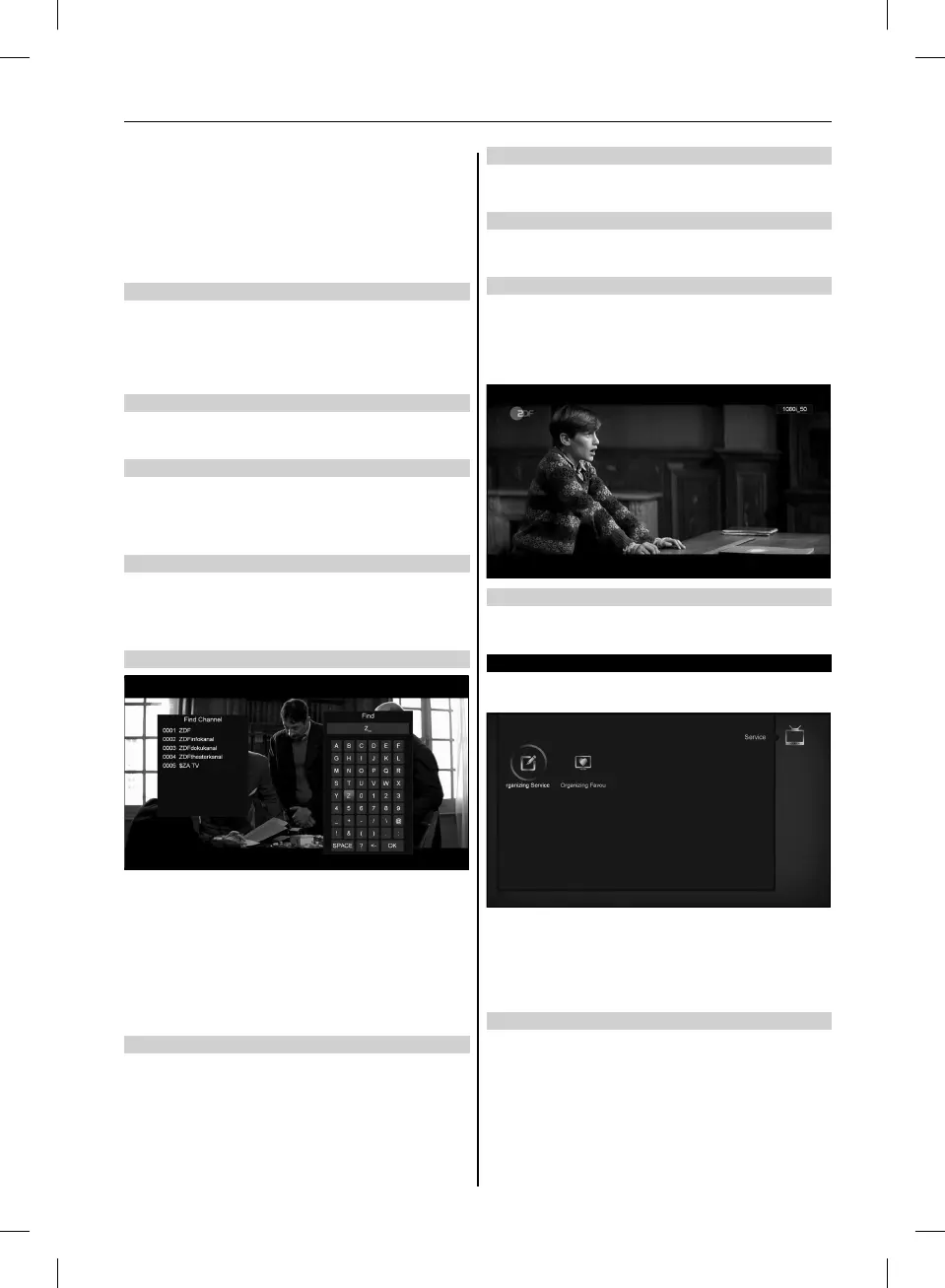
8.16 FIND
1. Press[Find] key in full screen can open the ”Find” window like
above. You can press[Up/Down/left/right ]key to move high-
light and press[OK]key to input the selected symbol or letter
into the dialogue.
2. After input each character, the program list on the left will
search the channel according your input, and list the matched
channel.
3. Move highlight to ”OK” and press [OK] key can close ”Find”
window and you can select channel from the channels list
directly.
8.17 ZOOM
1. The [ZOOM] key allows you to magnify a certain area on the
images
2. Press [ZOOM] key again, the image will enlarge rotate as x1,
x2, x4, x6, x8, x12, x16.
3. In ”x2 ~ x16” image, using [Up/ Down/ Up/ Down] keys to
move the image center area you want to see.
4. In zoom mode, press [Exit] to close ”Zoom” window.
8.18 TV/SAT
Press [TV/Sat] key can switch between TV mode and STB
mode
8.19 MENU
Press [MENU] key can open the menu, exit the current menu to
last menu or close the window.
8.20 VIDEO FORMAT
Press [V. Format] key under Full Screen playback for 1st, it
will show the current system outputting video resolution, con-
tinuously press this key, system will switch its outputting video
resolution by sequence ” 480i-> 480P-> 576i-> 576p-> 720P->
1080i->1080p”.
8.21 EXIT
1. Press [EXIT] key can exit the current menu to last menu or
close the window.
9. SERVICE
When you press [Menu] key to enter menu, there will display the
picture like below:
1. Press[Left/Right] key you can select the submenu of
Organizing services and Organizing favourites.
2. Press [OK] key to enter the ”Organizing Service”. If Menu
Lock is ”On”, it will display an dialogue for user to key in
password. The default Password is ”0000”.
3. Press [Menu] key to go back to main menu.
9.1 ORGANIZING SERVICE
When you enter to ”Organizing Service” menu, there will display
the screen like below.
1.
You can move highlight by press [Channel Up/Channel Down]
key and [OK] key to select the programs which you want to edit.
2. You can press [Page Up/Page Down] key to implement the
Page Up/Page Down function.
3. You can use [Red] key to switch different Group.
4. You can press [Green] key to select the programs by different
select mode.
17
USER’S MANUAL



 To Next Page