We provide two CI slots (option, some model only has one
slot) for user to use. Using different CAM & cards provided by
different CAS operator, user can view many type or scrambled
channels.
We provide this menu to display the detail information of the
CAM & cards inserted in the slots. User can check all this infor-
mation according to the help message at the bottom of each
menu.
Note: All information showed in this menu and submenu is
abstract from CAM & card. In case something is wrong, it may
be the problem of CAM or card.
When you insert the CAM correctly at any time, a message
will show in the screen to tell you that which CAM has been
detected by the receiver and is available now.
CI Message
It is used to turn on or turn off the CI info display function by
using
◄/►
buttons or ” OK ” button to select.
ON: To display the CI info.
OFF: Don’t display the CI info.
13. MEDIA
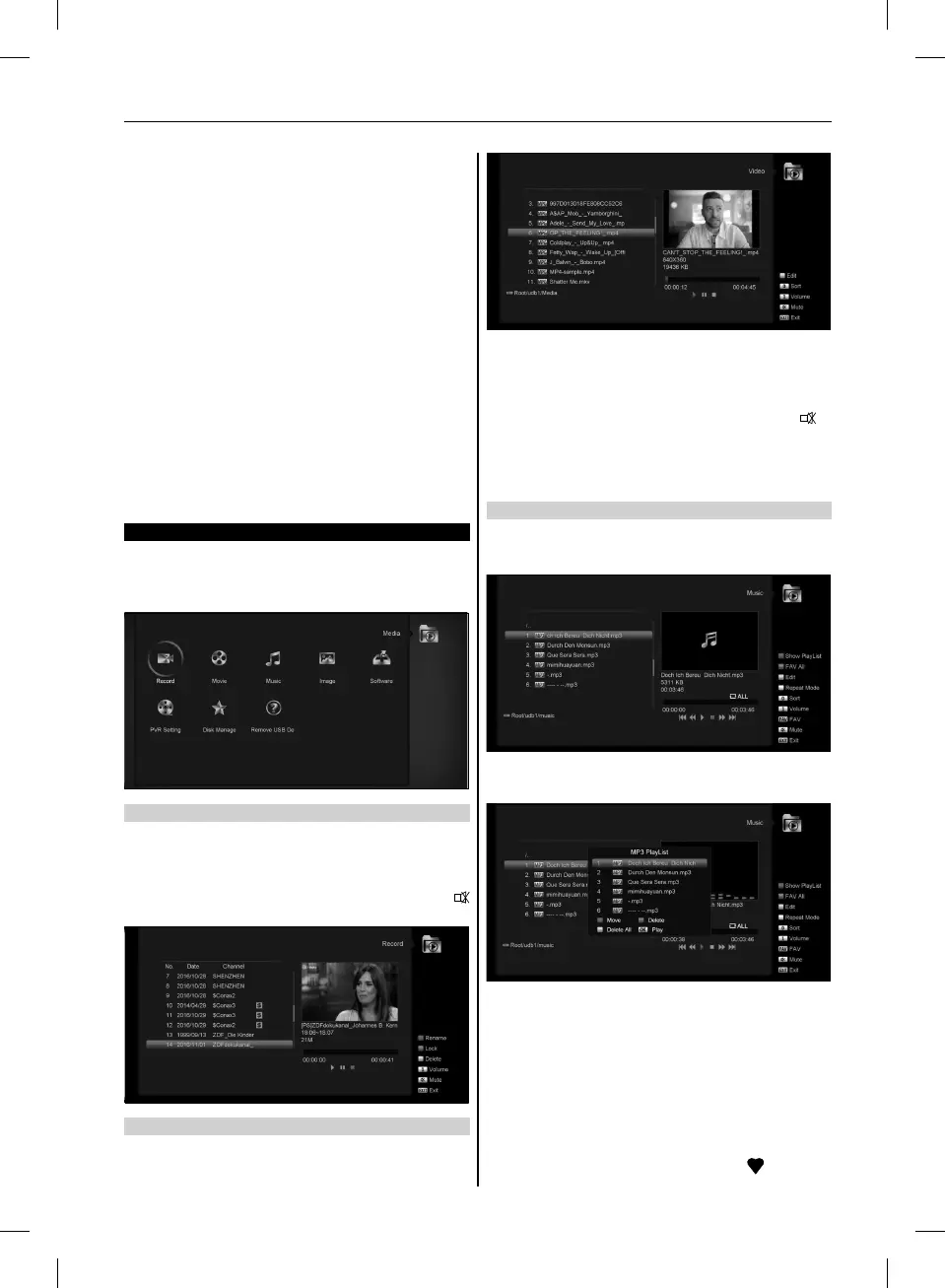
if you enter to the ”Media” Menu, you will see the picture like
the below.
Note: If no USB Hard Disk insert to the receiver this menu is
not available.
13.1 RECORD
In this menu you can playback the record files, and you can
press [Red] key to rename the file, or press [Green] key to lock
the file, or press [Yellow] key to delete the file.
You can press [1] key to adjust the volume while you preview
the record file on top of the right corner .and you can press
to enable or disable the audio.
13.2 MOVIE
In this menu you can press [left/right] button to select the USB
disk that you want to visit. Then Press [ok] button to enter the
Video list.
You can see the video files in this menu, it can support .mpeg
and .ts format file.and press [play] key, you can preview the
video at the top right corner.if you want to watch the video in full
screen you can press [OK] button.
You can press [1] key to adjust the volume while you preview
the video file,press [0]key to sort the file list. and press
to
enable or disable the audio
• Yellow key
To edit the files or folders. Include rename, copy, delete and cre-
ate folder function. You can press [Exit] key to previous menu.
13.3 MUSIC
In this menu you can press [left/righ] button to select the USB
disk that you want to visit. Then Press [ok] button to enter the
music list
In this menu you can select the MP3 file to play by press [OK]
key or [PLAY] key. Also you can setting the play list..
[Red] key: Show play list as the picture bellow:
• Red Key:
Move the selected file by press Red key and [UP][DOWN] key.
• Green Key:
Delete the selected file by press Green key.
• Yellow Key:
Delete all the file by Yellow Key, but there is one remind ”Delete
All” before practical operation, if select Yes, all file will be delet-
ed, and close the Play list window.
• Press OK button to play file.
[Green] key:
All the MP3 files in current directory are added into MP3
play list by press [Green] key, and will display ”
” behind the
MP3 files.
27
USER’S MANUAL



 To Next Page