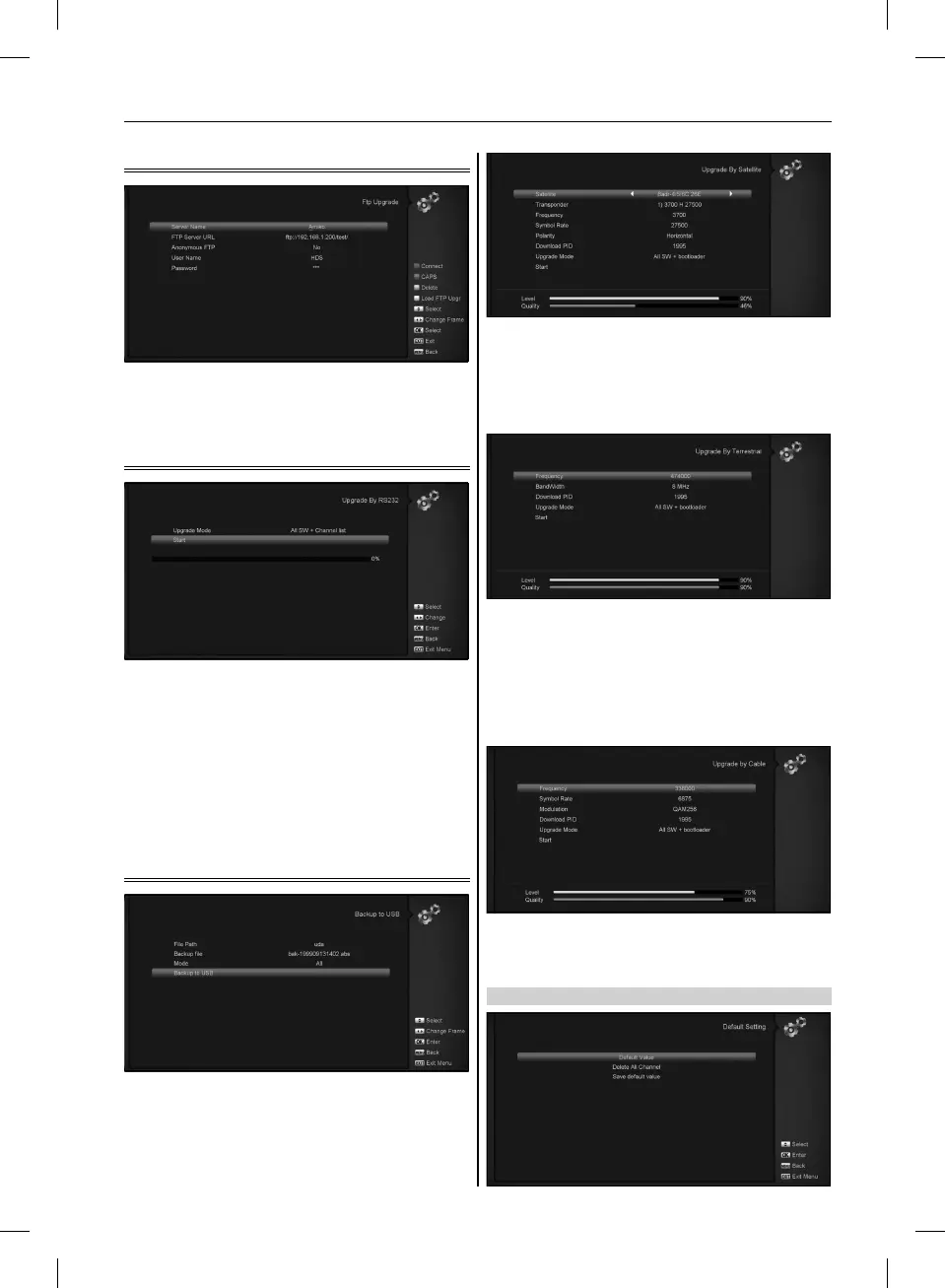
11.8.3 Ftp Upgrade
When connected to the Internet, receiver can make software
update from file from FTP server.
Note: This function depends on connection with external server.
In case of no software on server, this function will not work.
11.8.4 Upgrade by RS232:
1. We offer the functions for user to connecting receiver
(Master) to the other receiver (Slave) via serial interface.
Connect master receiver to slave receiver via serial inter-
face. Enter ”Software Upgrade” menu in master receiv-
er and press[left/right]keys to switch upgrade mode All
SW+bootloader /All SW+Channel list/Software(no channel
list)/Channel list.
2. Moving highlight to ”Start” on master reeciver and press[OK]
key to start upgrade.
3. Turn on slave receiver and it needn’t operate any setting.
4. Press [Exit]key to draw back.
11.8.5 Backup to USB
In this menu ,you can dump the software to the USB equipment
1. In ”Backup file”,you can press [OK] key to edit the file name.;
Press ”Left/Right” button select USB A or USB B;
2. In ”Backup to USB”, you can press [OK] to start backup
software.
a) Upgrade By Satellite:
This function can upgrade the software through signal lines from
the satellite
1. Select the satellite and TP or input the TP value and down-
load PID, these parameters you can get from your provider.
2. Then move the highlight to the start button and press [OK]
button to start upgrade.
b) Upgrade By Terrestrial:
This function can upgrade the software through signal lines from
the Terrestrial
1. Select or input the Frequency, Bandwidth and download PID,
these parameters you can get from your provider.
2. Then move the highlight to the start button and press [OK]
button to start upgrade.
c) Upgrade by Cable
This function can upgrade the software through signal lines from
the cable.
1. Input the frequency, symbol rate value and download PID,
and select scan mode.
2. Then move the highlight to the start button and
3. press [OK] key to begin to upgrade.
11.9 DEFAULT SETTING
25
USER’S MANUAL



 To Next Page