In case of no any files on server, this function will not work.
14.6 WEB TV
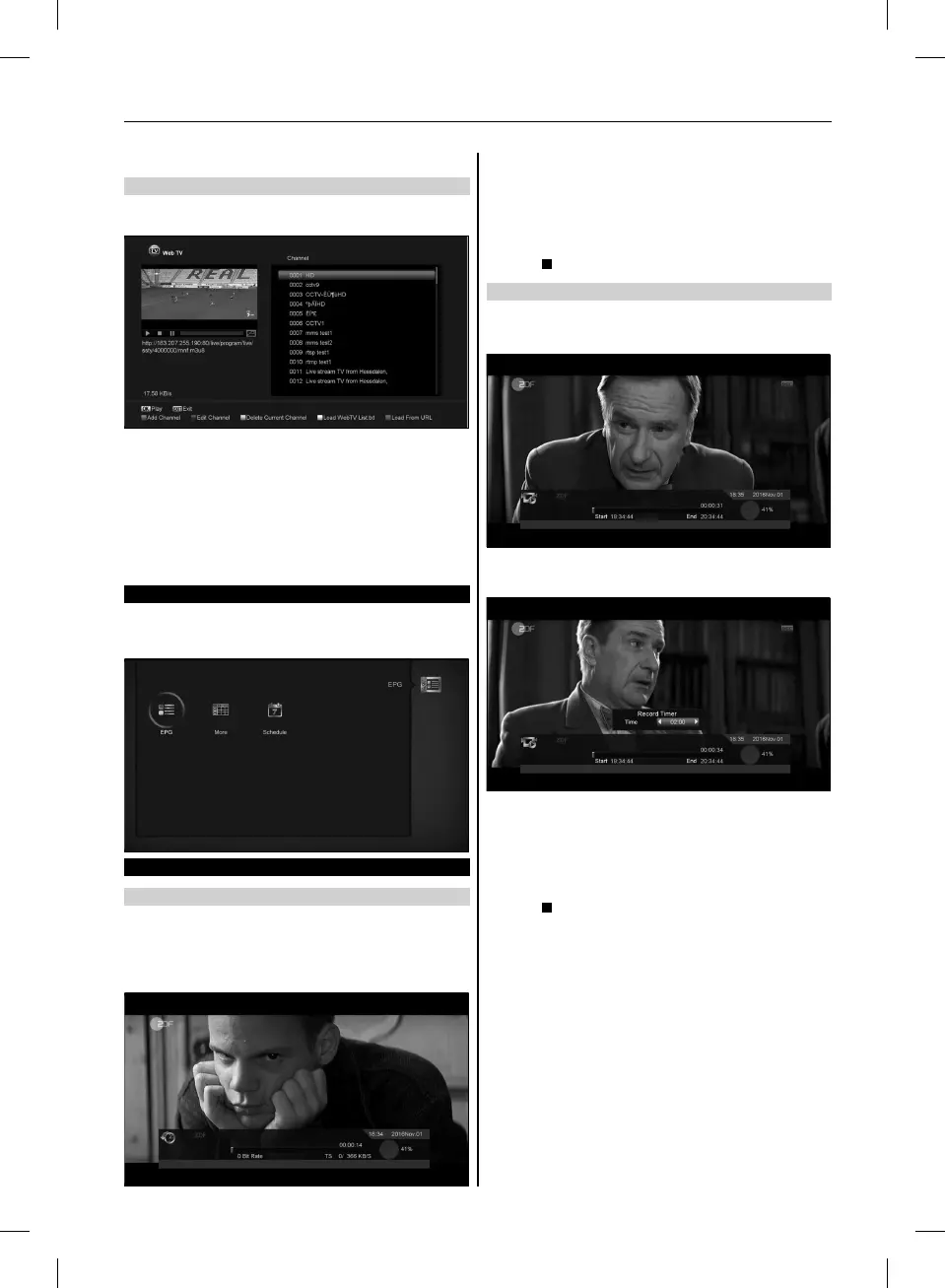
When you enter to ”Web TV” menu, you will see a screen like
below:
1. In this menu you can select your favorite channel to view,
press [OK] key play in full screen, you can press [up / down]
key to change channels, and press [left / right] key or [volume
+ / -] key to adjust volume level.
2. Press [green] key to add channel URL;
3. Press [blue] key to edit channel URL;
4. Press [yellow] key to delete channel URL.
5. If you get the ”WebTV List.txt” file, you can add more chan-
nels and press [white] key to update the channels from USB.
15. EPG
Press ‘OK’ button to this menu you can see the picture like the
below, you can select EPG more and Schedule.This Function is
same as EPG.
16. NEW FEATURES
16.1 TIME SHIFT
If you connect the USB HDD, and enable the Time Shift function
in the menu ”Main Menu/ Media/ PVR Setting/Time Shift”,
It will start the Time Shift function automatically after you switch
the program, and when you press the ”Tms” button the Time
Shift info bar will displayed as the following picture:
1. You can press ”II” button to pause the video.
2. You can press ”
◄◄
” or ”►►” button to Fast Backward or Fast
Forward.
3. You can press ”
◄I
” or ”
I►
” button to Slow Backward or
Slow Forward.
4. Press ”left” or ”right” button to jump to different position, then
press ”OK” button to confirm.
5. Press ”
” button to exit the playback.
16.2 RECORD
If you connect the USB HDD.
You can press ”
G
” button to start record function, as following
picture:
1. Press ”
►
” button to display the record info bar when you
recording.
2. Press ”
G
” button again to setting the record time.
3. You can press ”II” button to pause the video.
4. You can press ”
◄◄
” or ”►►” button to Fast Backward or
Fast Forward.
5. You can press ”
◄I
” or ”
I►
” button to Slow Backward or
Slow Forward.
6. Press ”left” or ”right” button to jump to different position, then
press ”OK” button to confirm.
7. Press ”
” button to stop the recording.
31
USER’S MANUAL



 To Next Page