M7225 User’s Guide
34
Configuration with ZeroConfig
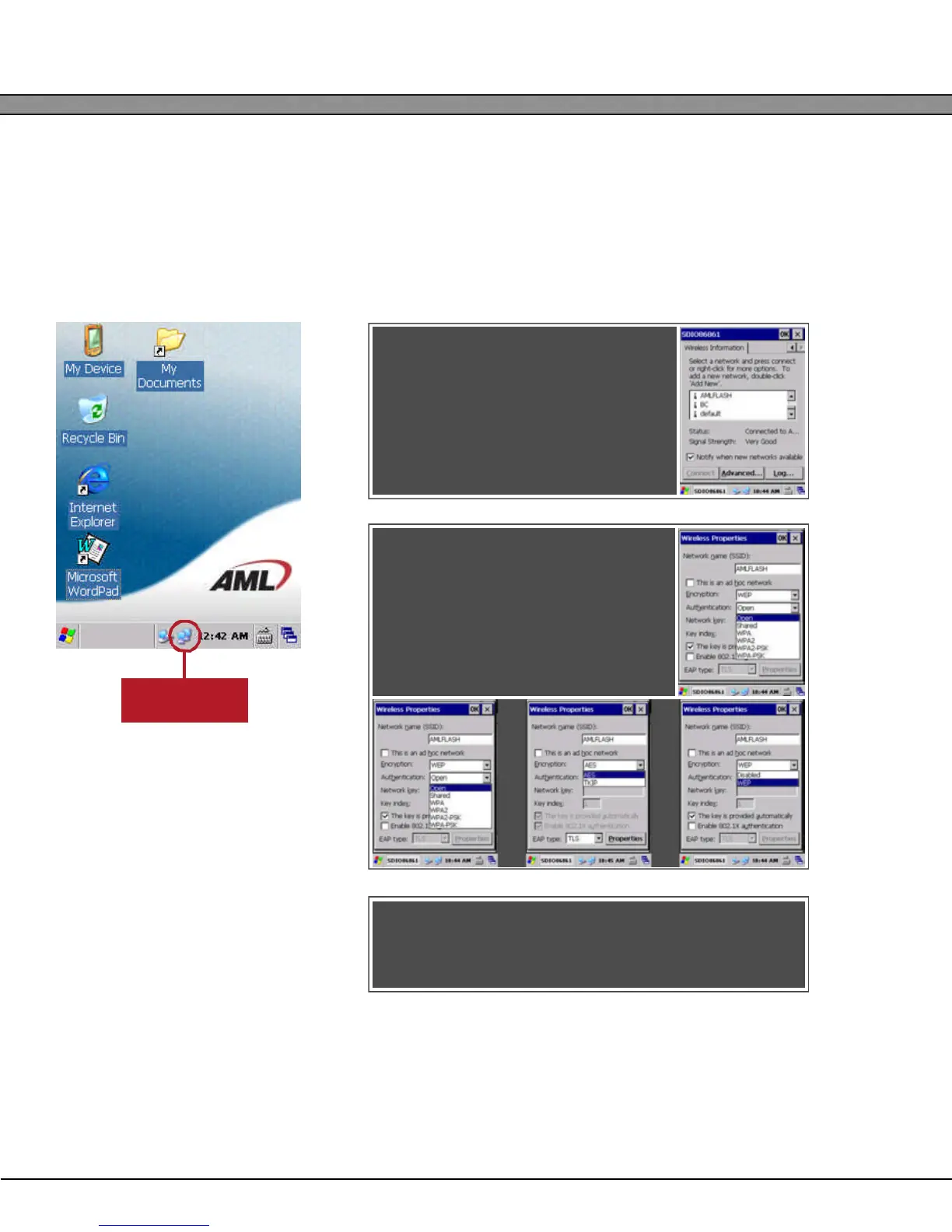
To configure the M7225’s wireless radio, enter the Windows Embedded CE 6.0 Wireless ZeroConfig utility by
selecting the Network Status Icon on the desktop and scrolling over to the Wireless tab.
To configure the M7225’s wireless radio, enter the Windows Embedded CE 6.0 Wireless ZeroConfig utility by
selecting the Network Status Icon on the desktop and scrolling over to the Wireless tab.
1 Select the wireless network you
wish to connect to and select
“Connect”.
2 Select the proper Encryption
and authentication types for your
network. Note that not all encryp-
tions are usable with all authentica-
tion types.
3 Once all values are
configured for your network, select “OK”.
Network Status
Icon



 To Next Page