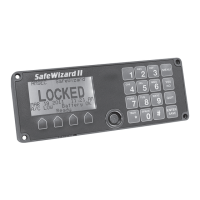
SafeWizard Operating Instructions American Security Products Company
Last Revision 10/17/2008 Page 12 of 73 Document 4305199
Chapter 3-1-1
Add A New User
Menu 3-1-1 Adding New Users. There are 5 Validation Modes available for New Users.
3-1-1.1 New User Validation Menu
Select User
Validation Mode
0 None
1 Dallas Key
2 Card Swipe
3 Fingerprint
4 Proximity
QUIT
Adding New Users can be accomplished by:
0. None: Select this validation mode for PIN-only type users. It is
critical when adding this type of User that the new user take note
of their “User Number”, it will be used as the first 2 digits of their
8-digit PIN.
1. Dallas Key (option): Select this validation mode for Dallas Key
type users.
2. Card Swipe (option): Select this validation mode for magnetic
card swipe users. Note: No information is transferred from the
card into the lock system.
3. Fingerprint (option): Select this validation mode for fingerprint
users. This validation type is used with the optional fingerprint
reader pad.
4. Proximity: This item is currently under development.
3-1-1.2 New User Validation Menu
New User ID No. 01
Fingerprint Read
Pass 1 of 3
Present New User’s
Finger
QUIT
After selecting 3 for Fingerprint you will be prompted to present a
finger to the reader pad. After a successful read, you will be
advanced to “New User Setup by Permission Screen”.
3-1-1.3 New User Validation Menu
New User Permission
Setup by
1 Selecting A Profile
2 Copying A User
3 Custom Setup
4 Copy From a Key
QUIT back
The specifics of adding new users from these menus are outlined in
detail in the rest of this Chapter of the manual.


 To Next Page