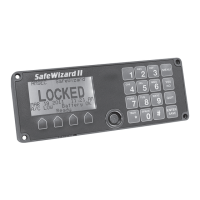
SafeWizard Operating Instructions American Security Products Company
Last Revision 10/17/2008 Page 6 of 73 Document 4305199
Navigation through the menus is accomplished generally by selecting a menu item by its number. For the
above example, pressing 1 will take you to the “Doors” Menu.
I.4 Doors Menu
1 Open Door 1
2 Open Door 2
7 Timelock a Door Now
QUIT BACK
By Selecting item 1 Doors from the Main Menu, you have navigated
to the next menu for a Door selection. All doors enrolled in the system
will be listed on this screen, if a user does not have permission to
open a door, the message “Access Denied” will be displayed.
Pressing the “QUIT” or “BACK” keys will take you back up one level
to the Main Menu.
Navigation is further simplified with the “MENU” hotkey, which takes you back to the Main Menu from any
submenu. So, with the “MENU” hotkey, you can egress and navigate to any desired menu very quickly.
For example, from the Doors Menu above you can press MENU- 3 - 1 - 5 and navigate to the “User
Listing” screen as fast as you can press the keys.
I.5 User Listing Screen
User Listing
01
User
Last Login 10/10/02
12:43 AM
NEXT-BACK User
BACK-QUIT
From any screen in the SafeWizard you can easily navigate to other
menus or features, by pressing the MENU hotkey and the required
numbers to get to the desired screen.
While reading this manual you will notice the SafeWizard screen shot to the left of the page. That is an
exact replica of what the SafeWizard display should look like as you are being guided through the various
Menus and screens.
Note:
The previous example in I.2 is for logging in using the Dallas key validation mode.
There is also the choice of a P.I.N. only, Card Swipe, and Bio-Metric (Fingerprint) Reader.
Card Swipe & Bio-Metric (Fingerprint) require optional hardware to be ordered.


 To Next Page