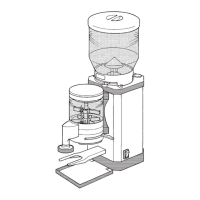
11
Luna/Alba | EN
Updates and user-defined logos can be transferred via the integrated micro SD card
slot (5). The micro SD card (20) must be inserted in the enclosed card holder (4) for
this purpose. You will find detailed information about this in the software manual (see
“Reading and storing the instructions” section).
Checking the grinder and scope of delivery
1. Remove the grinder from its packaging.
2. Make sure the delivery is complete.
3. Check for damage to the grinder or any of the individual parts. If this is the case,
do not use the grinder.
Contact your supplier (see “Maintenance and service” section).
Setting up and connecting the grinder
1. Place the grinder on a level and stable surface that does not vibrate.
2. Make sure that the grinder is switched off (on/off switch (7) in the 0 position) and
connect the grinder to the power supply by inserting the power plug (9) into a
properly installed grounded socket.
3. Insert the drip tray (11) in the corresponding recess in the casing.
Inserting the hopper
1. Place the bean hopper (1) on the grinder.
When positioning the bean hopper intake (2), ensure that the nose of the bean
hopper is located in the corresponding recess in the bean hopper intake.
2. Push the bean hopper down slightly into the bean hopper intake and rotate the
bean hopper clockwise to lock it in place on the grinder.
If the bean hopper cannot be fixed in place by rotating it, it may not be posi-
tioned correctly. Align the bean hopper correctly and try again to lock it in place
by rotating it (see also “Troubleshooting” section).
3. Tighten the securing screw(18) for the bean hopper clockwise.
The grinder switches off automatically when the bean hopper is not
inserted or not properly locked in place.



 To Next Page