How to process a Pre-Authorisation Transaction
Perform card security checks and keep pressing
ENTER until the PRE-AUTH screen is displayed.
Select AUTH by pressing the CHQ soft-function key.
Key in the amount to be authorised then press
ENTER.
Swipe or insert the customer’s card or press FUNC
to handkey card details. (Magnetic Stripe cards are
to be swiped through the Magnetic Stripe Card
Reader whereas Chip Cards are to be inserted and
left in the Chip Card Reader.)
If hand keyed, key in the card number then press
ENTER.
Key in the expiry date then press ENTER.
Credit account will automatically be selected.
Have the cardholder enter their PIN if known then
press ENTER or if the card allows just press ENTER.
The terminal prints out a single copy of the
Pre-Authorisation record.
Please ensure that the Transaction is approved
before completing the Authorisation. Return the
card to the customer. If rejected, the terminal will
display an error message outlining the reason
(please refer to section 18). Notify the customer
and advise them to contact their Card Issuer.
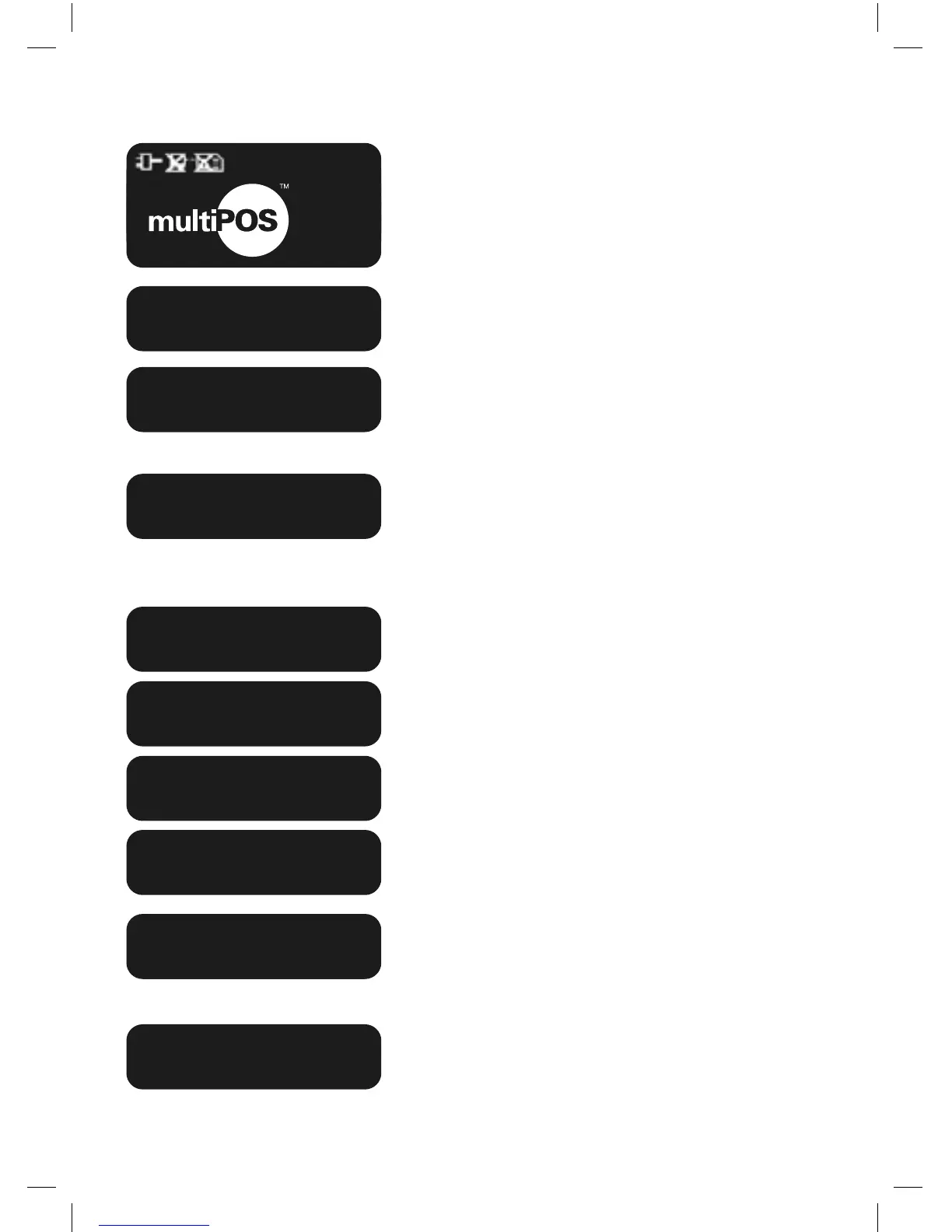
CARD NUMBER
SWIPE OR
INSERT CARD
AUTH AMOUNT?
$600.00
PREAUTH
AUTH COMP CNCL
01/01/2005 12:08
SWIPE OR
INSERT
CARD
EXPIRY DATE <MMYY>
CREDIT ACCOUNT
$600.00 KEY PIN
PROCESSING
PLEASE WAIT
APPROVED



 To Next Page