18 19
CONNECT TO A NETWORK USING
A BROWSER
STEP 2: Connect to the thermostat using a
computer or mobile device.
On your computer or mobile device, scan for
available networks. The thermostat should appear
as APRILAIRE8840 followed by a unique identifier,
corresponding to the last 6 digits of the MAC address.
Connect to the thermostat you want to configure.
If you are installing multiple thermostats, the MAC
address of each thermostat will be displayed on the
Wi-Fi Settings screen, and can be found on the back of
the thermostat.
STEP 3: Configure the thermostat to connect
to the Wi-Fi network.
Open a web browser on your computer or mobile device.
In the browser enter:
http://192.168.1.99/index.html
In the web browser interface select the network you
want to connect the thermostat to, and enter the
network’s security credentials.
STEP 4: Verify the thermostat is connected to
the Wi-Fi network.
Once all the required information is entered in the web
browser interface, the thermostat will connect to the
Wi-Fi network you selected. After the thermostat is
connected to the Wi-Fi network, the thermostat will
display the radio bars based on the Wi-Fi signal strength.
Note: If you are not using the thermostat with a home
automation system, but are instead using an Aprilaire
account to communicate with the thermostat, refer to
Wi-Fi Thermostat App User Guide and then Start Up
Guide on my.aprilaire.com for instructions on connecting
to Wi-Fi and registering to an Aprilaire account.
The 8840 can be connected to a Wi-Fi network either at the thermostat or another Wi-Fi device with a web browser.
STEP 1: Verify the thermostat is in Wi-Fi Connection Mode.
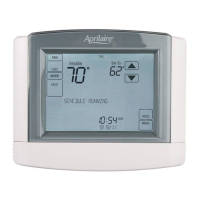
The thermostat by default will be in Wi-Fi Connection Mode. To confirm that the thermostat is in Wi-Fi Connection
Mode, verify that the radio bars on the thermostat are strobing as shown below.
Note: If the thermostat is not in Wi-Fi Connection Mode, refer to the online owner’s manuals found at my.aprilaire.com.
CONNECT TO A NETWORK USING
THE THERMOSTAT
STEP 2:
Navigate to the Connect without App screen:
Menu > Wi-Fi Settings > Advanced > Connect
without App.
STEP 3:
Select a network from the list of scanned networks.
STEP 4:
Enter a password and press Done.
STEP 5:
Press Done on the Credentials screen to connect.
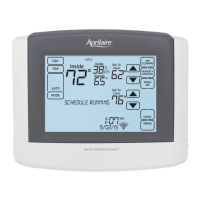
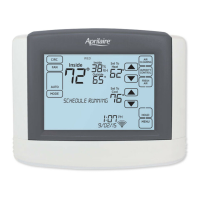
QUICK REFERENCE TO CONTROLS & DISPLAY
HOME SCREENWI-FI SETUP
MAIN MENU
NOTE: SCREEN BRIGHTENS AFTER FIRST TOUCH.
OUTDOOR
TEMPERATURE
& HUMIDITY
(IF INSTALLED)
SET SCREEN
BRIGHTNESS
AND SCREEN
SAVER
HEATING AND
COOLING
EQUIPMENT
STATUS
SET DATE & TIME
HOLD MENU
& STATUS
CONNECT TO
WI-FI NETWORKS
SYSTEM MODE
SELECTION
SET SCHEDULE
DETAILED
EQUIPMENT STATUS
HEAT BLAST MODE &
STATUS (IF INSTALLED)
WEATHER FORECAST
& ALLERGY REPORT
VIEW CONTRACTOR
INFORMATION OR
ACCESS INSTALLER
MENU WITH
10 SECOND PRESS
& HOLD
ACTIVE ALERTS &
ALERT SETTINGS
SET VACATION
HOLDS
CURRENT SCREEN
RELATED HELP
MAIN MENU
HUMIDIFIER AND
OR DEHUMIDIFIER
INDOOR AIR
QUALITY SCREEN
& SIMPLE STATUS
AIR CLEANING
INDOOR AIR
QUALITY SCREEN
& SIMPLE STATUS
COOL SETTING CURRENT DATE AND TIME
(AUTOMATICALLY UPDATED IF
CONNECTED TO INTERNET)
WI-FI INDICATOR
(STROBES IN
SETUP MODE)
FRESH AIR INDOOR
AIR QUALITY
SCREEN & SIMPLE
STATUS
TEMPERATURE
SCALE, LOCKOUTS,
AWAY MODE
SETTING
(IF ENABLED)
AWAY MODE &
STATUS (IF INSTALLED)
FAN MODE
SELECTION
CLEAN DISPLAY
(TOUCHSCREEN
IS OFF FOR
30 SECONDS)
ROOM TEMPERATURE
& HUMIDITY
HEAT SETTINGTHERMOSTAT NAME
SETUP & TESTING


 To Next Page
 Loading...