15
Method 1: Change on Application
Users can change play mode on the Application, WiFi, Bluetooth, Line input and USB. To change from
Bluetooth/line input/USB to WiFi, only need choose the online streaming services such as TIDAL, Qobuz or
Spotify or cell phone local storage music or any music via DLNA or UPnP streaming.
Method 2: Change with Remote Control
Users can use the remote control to change the play modes-WiFi, Bluetooth, Line input and USB.
Method 3: Press the Mode Button
User can press the mode button once to switch source mode, WiFi, Bluetooth, Line input, USB.
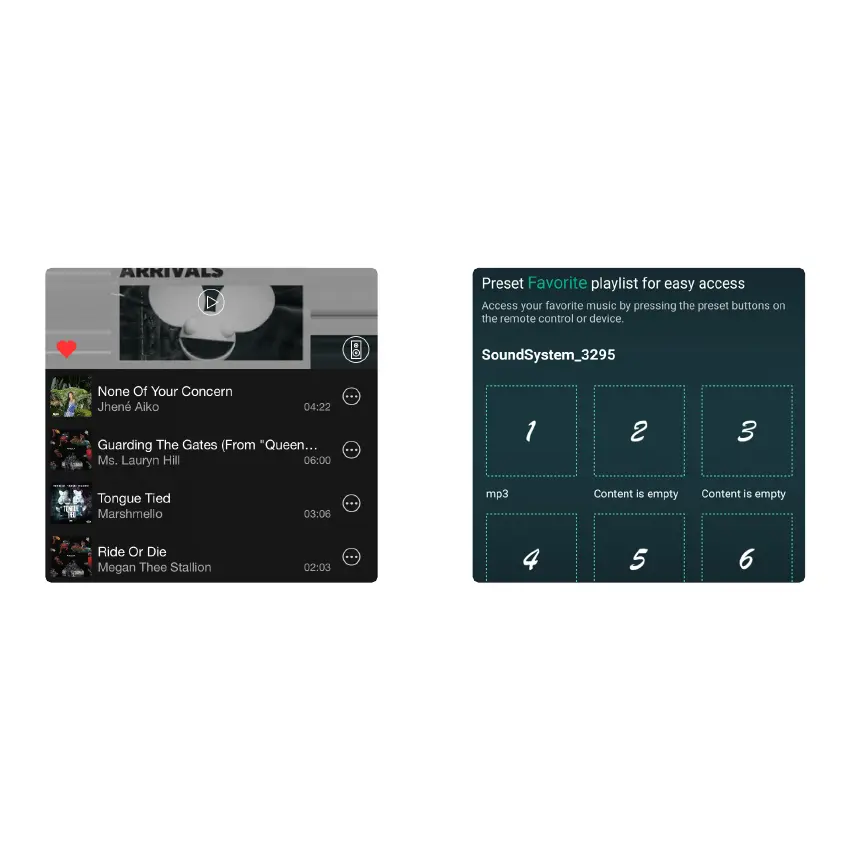
There are 6 buttons on the remote control, users can preset play lists (Only the lists with speaker icon can
preset) on the Application from 1~6 for example, then when you press button 1 on the remote, the preset
list 1 will play. (Users can Preset 10 Playlists on the Application, but the remote control can only save from
1-6).
Users can choose the right channel or left channel or stereo mode on the Application, or choose left
channel on device A and choose right channel on device B, and group them together and play in sync to
make stereo.
8.6 Left and Right Channel
8.7 Preset
8.8 Source Mode Change



 To Next Page