V1.1 22/01/15 Page 13 of 28
6. ADDING KEYS
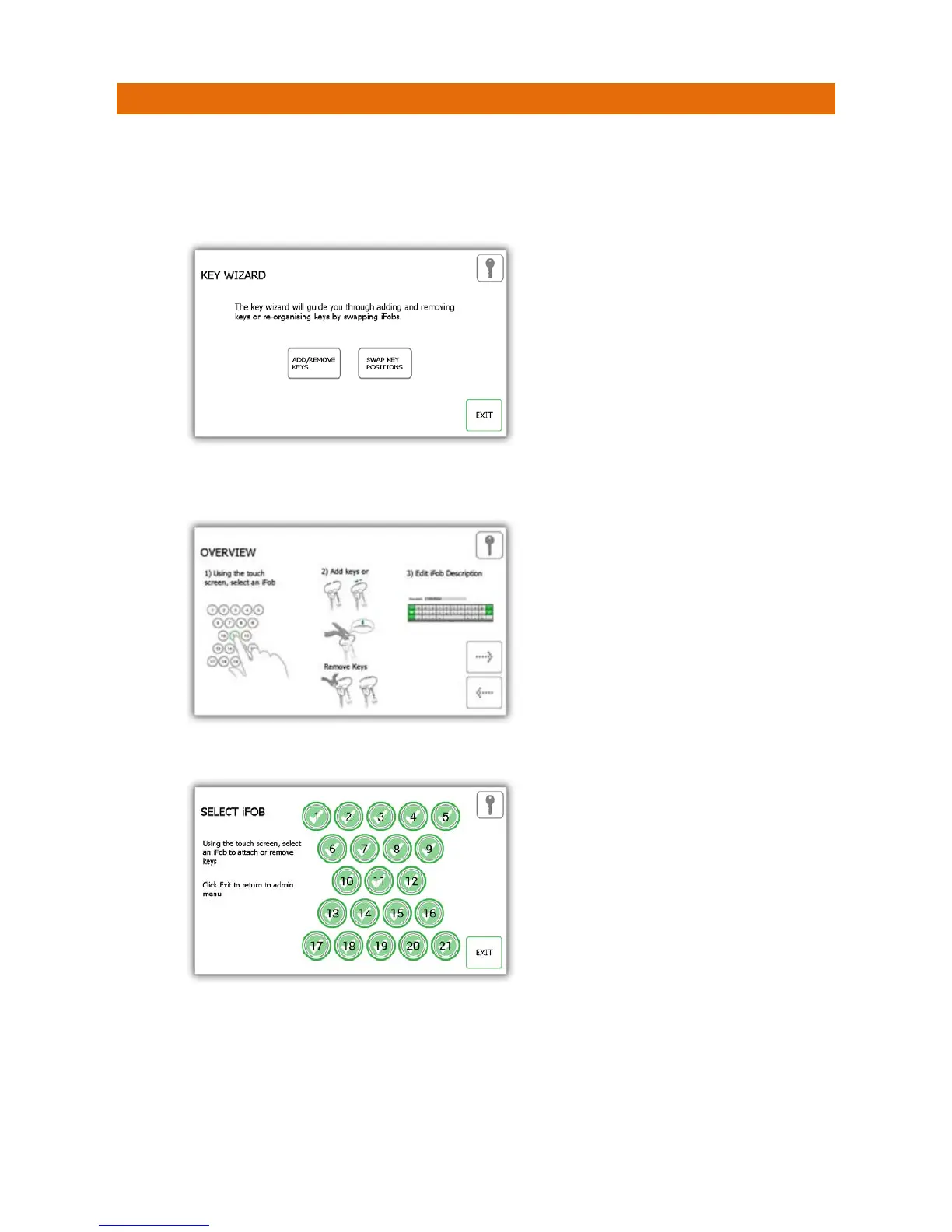
Next you can add keys to the iFobs in the system. When the Key Wizard appears you will be given two options to
select from.
1. Select the Add/Remove Keys button from the key wizard menu.
2. The overview screen will appear providing you instructions on how to add keys to an iFob. Read these
instructions and click the forward button.
3. Select the desired iFob using the touch screen.
4. The iFob will then be released from the system.
NOTE: If at any time you wish to exit the Key Wizard, close the door or select the Exit button.
5. Remove the iFob from the system. The touch screen will display an orange ‘removed’ icon for the iFob you
have taken.


 To Next Page