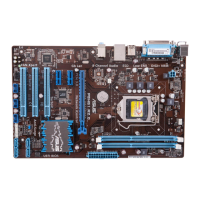
IPIBL-LA(Berkeley-GL8E)4
• ThismotherboardsupportsIntel
®
Mainstream/Value FMB processor in the
775-landpackagewithHyper-ThreadingTechnology.
• Hyper-ThreadingTechnologyissupportedunderWindows
®
XP/2003Server/
VistaandLinux2.4.x(kernel)andlaterversionsonly.UnderLinux,usethe
Hyper-Threadingcompilertocompile thecode.Ifyouareusing anyother
operating systems, disable the Hyper-Threading Techonology item in the
BIOStoensuresystemstabilityandperformance.
• Installing Windows
®
XPServicePack1orlaterversionisrecommended.
• MakesuretoenabletheHyper-ThreadingTechnologyiteminBIOSbefore
installingasupportedoperatingsystem.
• FormoreinformationonHyper-ThreadingTechnology,visitwww.intel.com/
info/hyperthreading.
TousetheHyper-ThreadingTechnologyonthismotherboard:
1. Install an Intel
®
Intel
®
Mainstream/ValueFMBprocessorthatsupportsHyper-
ThreadingTechnology.
2. PowerupthesystemandentertheBIOSSetup.UndertheAdvancedMenu,
makesurethattheitemHyper-ThreadingTechnologyissetto[Enabled].
TheitemappearsonlyifyouinstalledaCPUthatsupportsHyper-Threading
Techonology.
3. Rebootthecomputer.
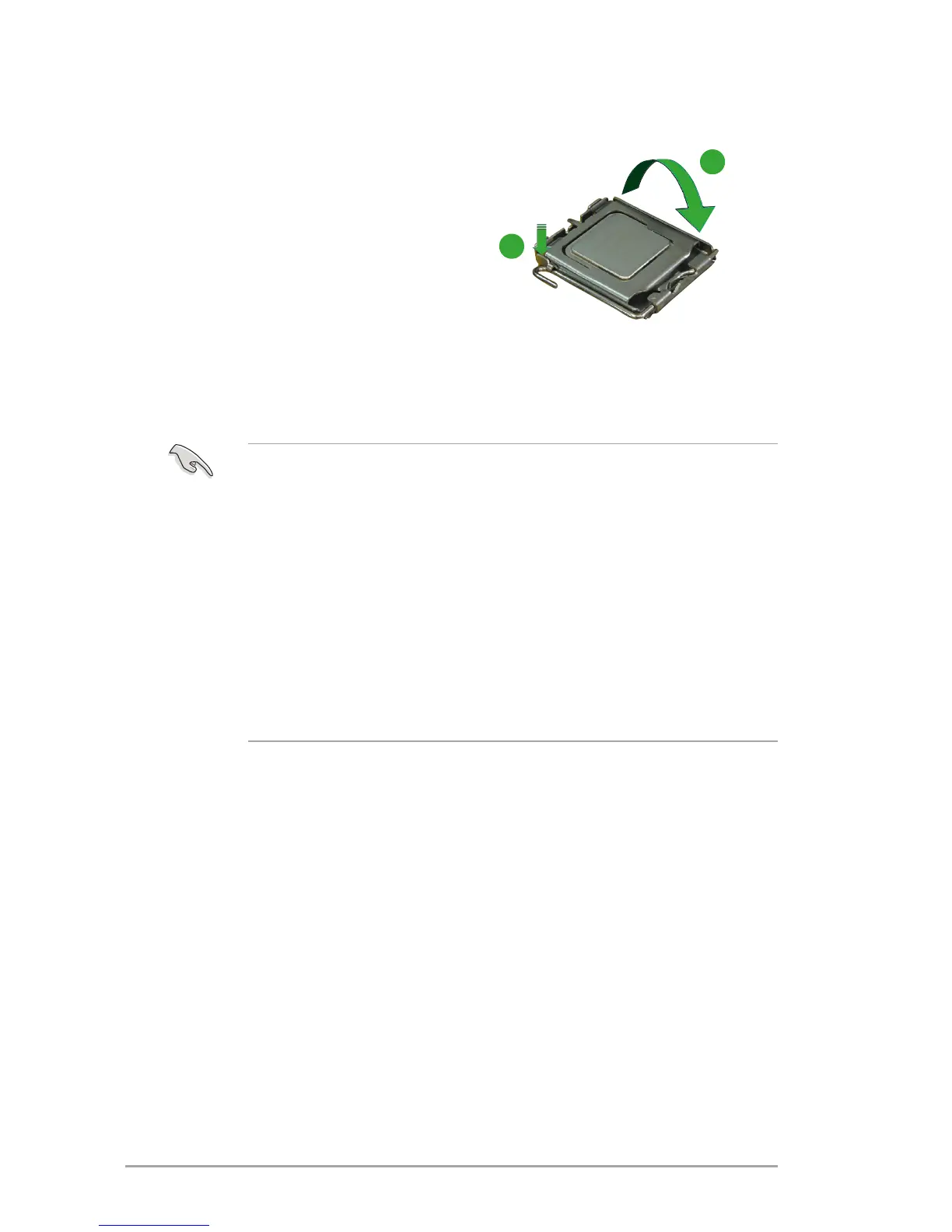
6. Closetheloadplate(A),then
pushtheloadlever(B)untilit
snaps into the retention tab.
7. Ifinstallingadual-coreCPU,
connect the chassis fan cable
to the CHA_FAN1 connector to
ensuresystemstability.
A
B
Notes on Intel
®
Hyper-Threading Technology


 To Next Page