153
Synchronizing your calendar
Downloading events from Google Calendar
To download agenda or events form your Google Calendar:
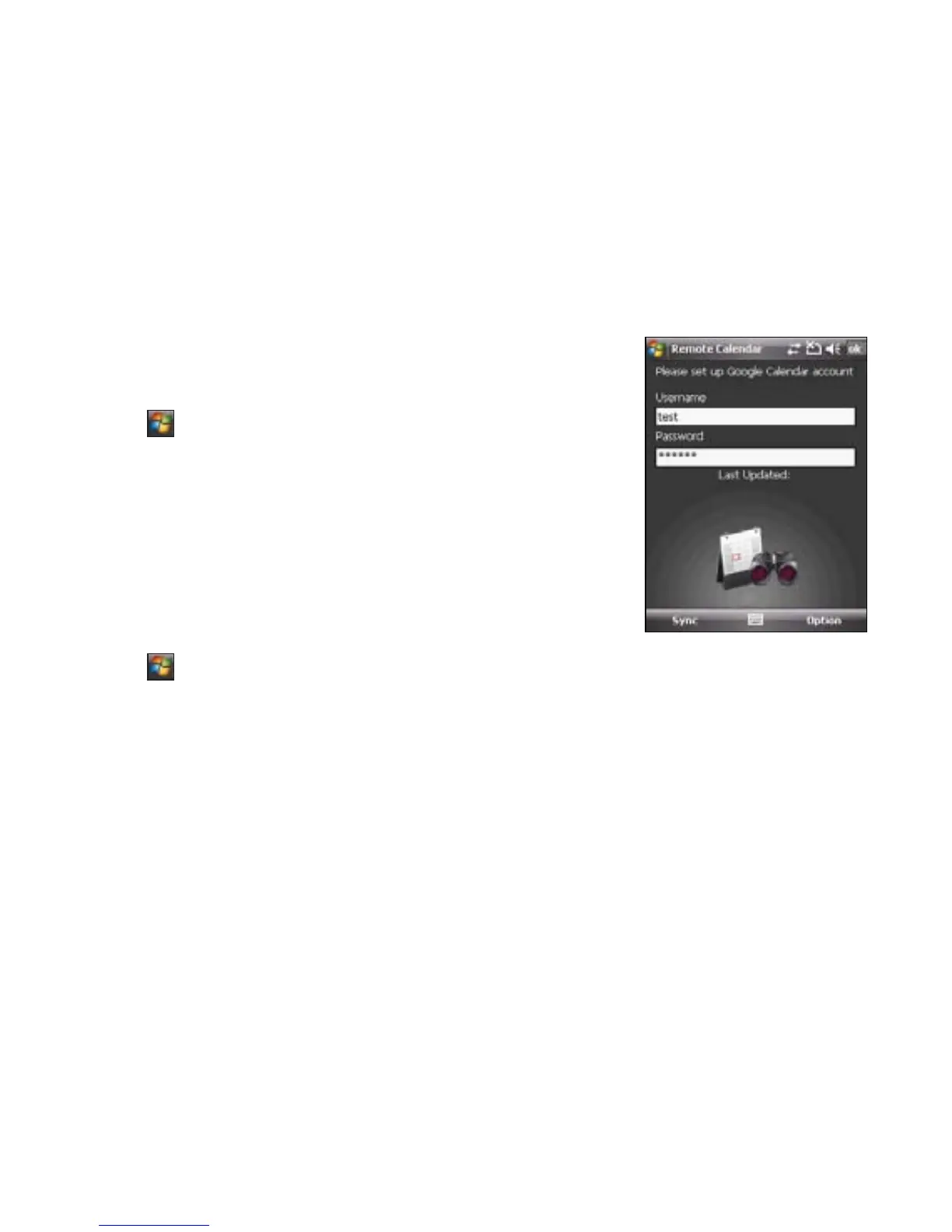
1. Tap > Programs > Remote Calendar
2. Key in the Username and Password, then tap Sync to start
synchronizing.
3. When the calendar is synchronized successfully, a pop-up message
appears. Tap Yes to open the calendar or tap No to exit.
Uploading events to Google Calendar
To upload new events or modied events to your Google Calendar:
1. Tap > Calendar.
2. Select the event you want to upload to Google Calendar, then tap Menu > Upload to Google.



 To Next Page