Chapter 2: Hardware Information
2-32
2.5.6 Installing an ASUS PCIE-NVME4-OCuLink card and
ASUS PCIE-NVME2-OCuLink cards
(optional for RS700-E9-RS12)
YoucaninstallanASUSPCIE-NVME4-OCuLinkcardtotherisercardbracketonthePCIE1
slot,andtwoASUSPCIE-NVME2-OCuLinkcardstothebutteryrisercardbracketonthe
PCIE2slottosupporteightNVMEstoragedevicesonBay5toBay12.
ToinstallanASUSPCIE-NVME4-OCuLinkcardandASUSPCIE-NVME2-OCuLinkcards:
1. InstallanASUSPCIE-NVME4-OCuLinkcardtoyoursystem.Formoreinformation,
see steps 1 to 9 in the section
Installing an ASUS PCIE-NVME4-OCuLink card (for
RS700-E9-RS12 only)
.
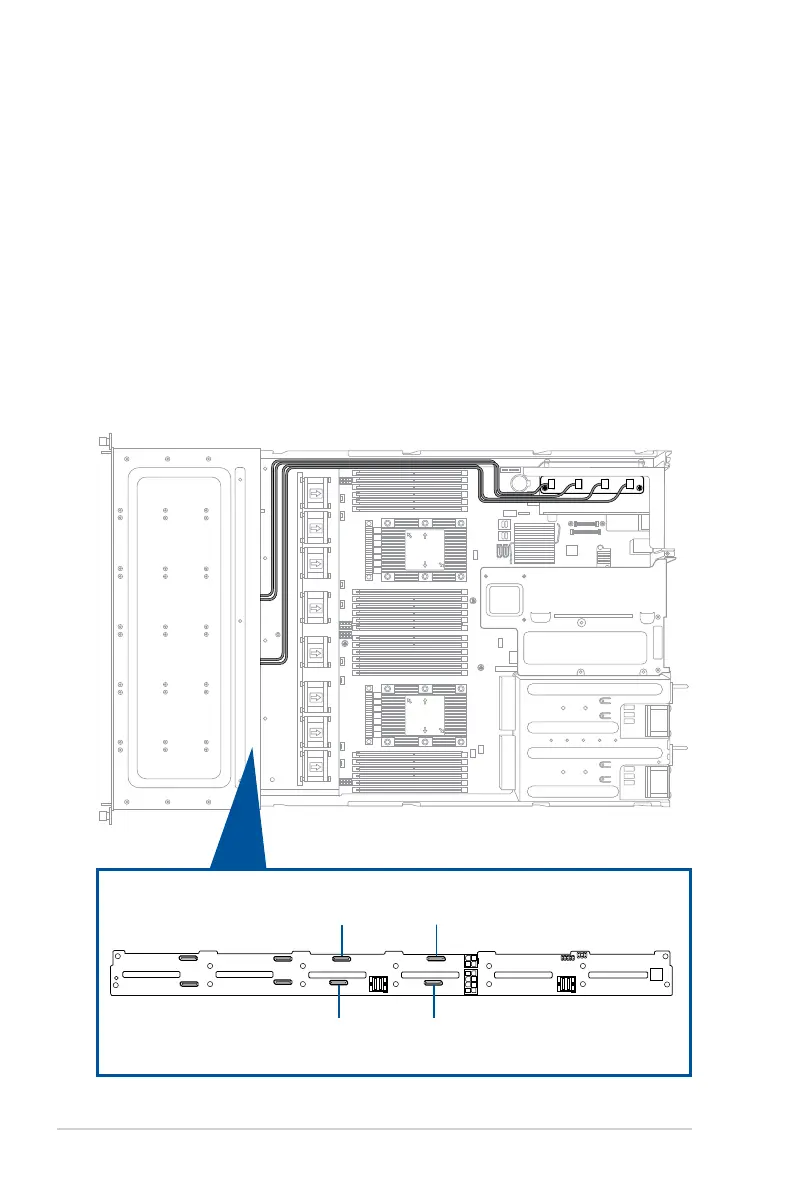
2. ConnecttheOCuLinkcablesfromtheASUSPCIE-NVME4-OCuLinkcardto
OCUPCIE1-4 slots on the backplane. Ensure that the cables follow the path as shown
below.
1
4
1
2
3 4
OCUPCIE4: Connect OCuLink cable from OCuLink
port 4 on ASUS PCIE-NVME4-OCuLink card
OCUPCIE2: Connect OCuLink cable from OCuLink
port 2 on ASUS PCIE-NVME4-OCuLink card
OCUPCIE3: Connect OCuLink cable from OCuLink
port 3 on ASUS PCIE-NVME4-OCuLink card
OCUPCIE1: Connect OCuLink cable from OCuLink
port 1 on ASUS PCIE-NVME4-OCuLink card



 To Next Page