A-7
Appendix A
2. Select each item and
press [Enter] to select a
device.
Security Setting
To set the password:
1. On the
Security
screen, select Change
Supervisor or Change
User Password.
2. Type in a password and
press [Enter].
3. Re-type to conrm the
password and press
[Enter].
4. Password is then set.
Select Screen
Select Item
+-
Change Option
F1 General Help
F10 Save and Exit
ESC Exit
v02.61 (C)Copyright 1985-2006, American Megatrends, Inc.
BIOS SETUP UTILITY
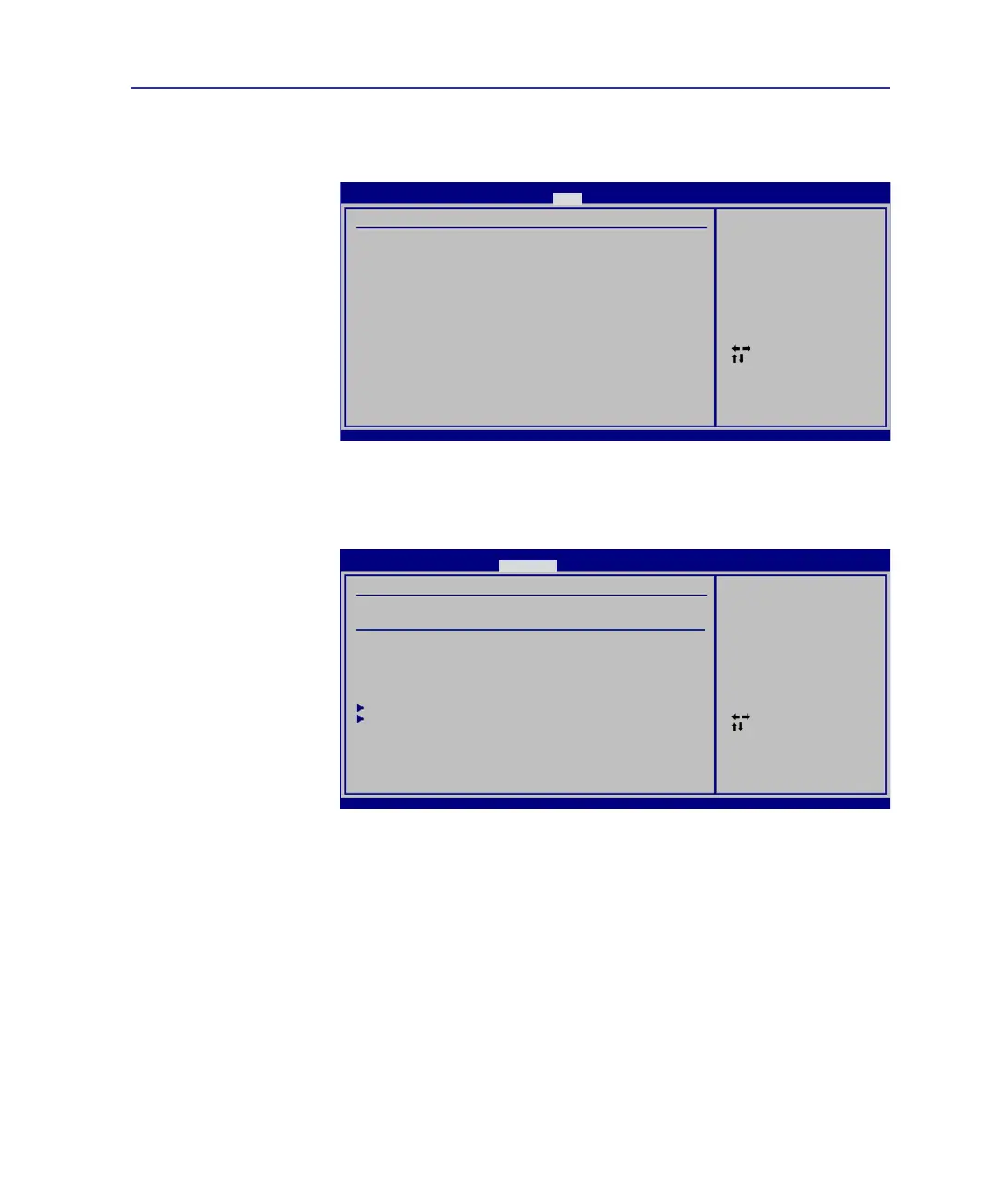
Boot
Boot Device Priority
1st Boot Device [Network]
2nd Boot Device [CD/DVD]
3rd Boot Device [Removable Device]
4th Boot Device [Hard Drive]
Speciestheboot
sequence from the
availabe devices.
A device enclosed
in parenthesis has
been disabled in the
corresponding type menu.
Select Screen
Select Item
Enter Change
F1 General Help
F10 Save and Exit
ESC Exit
v02.61 (C)Copyright 1985-2006, American Megatrends, Inc.
BIOS SETUP UTILITY
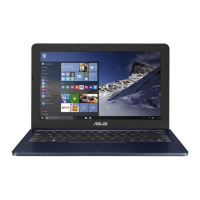
Security
Security Settings
Supervisor Password : Not Installed
User Password : Not Installed
Change Supervisor Password
Change User Password
Boot Sector Virus Protection [Disabled]
Hard Disk Security Setting
I/O Interface Security
<Enter> to change
password.
<Enter> again to
disabled password.
System BIOS Settings (cont.)
To clear the password:
1. Leave the password eld blank and press [Enter].
2. Password is then cleared.


 To Next Page