39
Double-clicking/Double-tapping - These actions allows you to launch your selected program. Move
your nger over the program that you want to launch, press the left button or tap the pad twice in rapid
succession, and the system launches your selected program. If the interval between the clicks or taps
is too long, the operation will not be executed. You can set the double-click speed using the Windows
Control Panel “Mouse.” The following two examples produce the same results.
Press the left button twice and
release.
Lightly but rapidly strike the
touchpad twice.
Press the left pointer button and
release.
Lightly but rapidly strike the
touchpad.
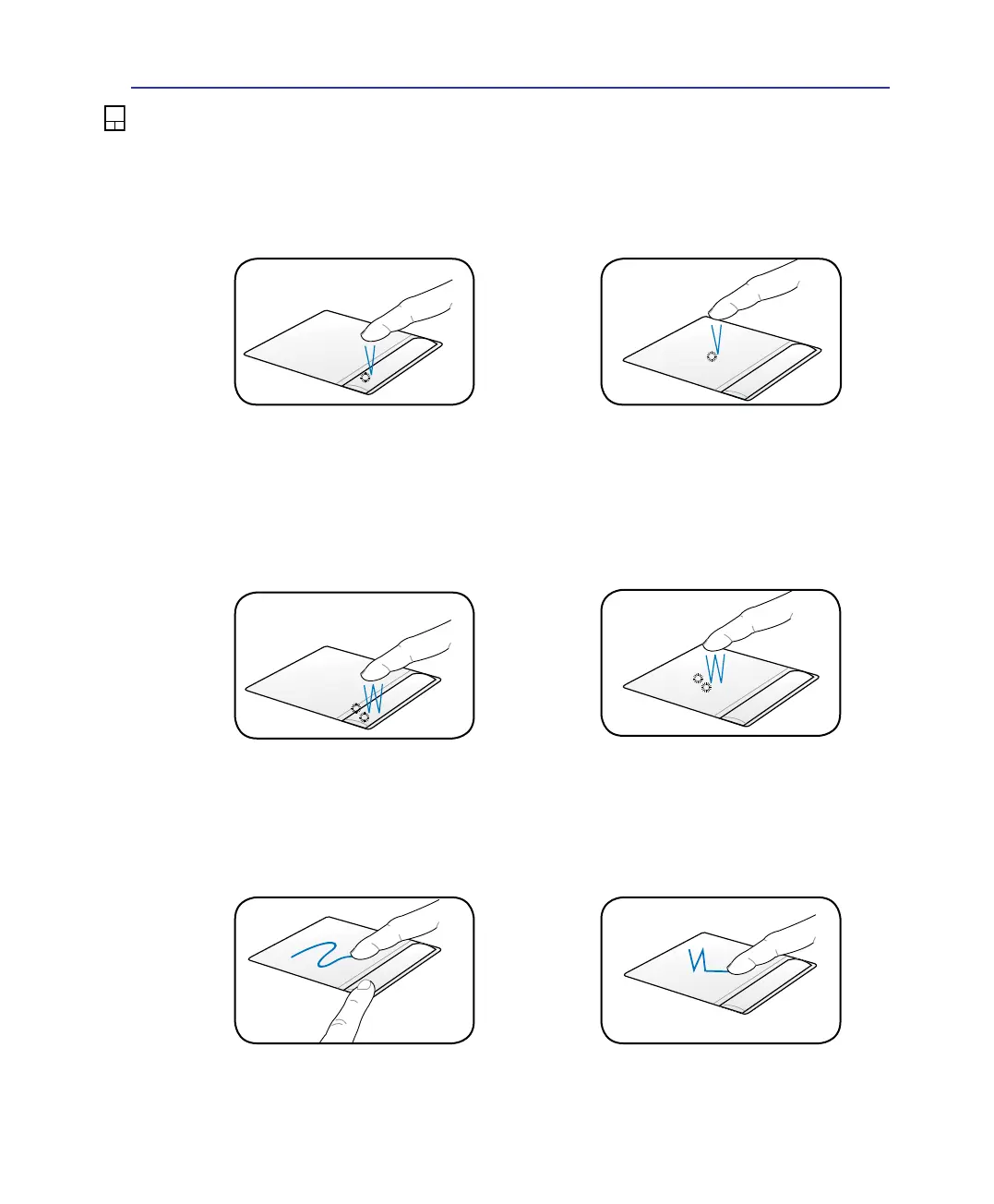
Clicking/Tapping -
With the pointer over an item, press the left button or use your ngertip to touch the
touchpad lightly, keeping your nger on the touchpad until the item is selected. The selected item will
change color. The following two examples produce the same results.
Clicking
Tapping
Double-
Clicking
Double-
Tapping
Touchpad Usage Illustrations
Single-nger gesture input
Dragging - Dragging refers to moving an item to another location. Move your nger over an item,
while simultaneously pressing the left button, move the item to your desired location, then release the
left button. You can also double-tap and hold the item while dragging it with your nger. The following
illustrations produce the same results.
Hold left button and slide nger
on touchpad.
Lightly strike the touchpad
twice, sliding nger on touchpad
during second strike.
Dragging-
Clicking
Dragging-
Tapping
Using the Notebook PC 4


 To Next Page