A-13
Software Problem - BIOS
Updating the BIOS.
1. Please verify the Notebook PC’s exact model and download the latest BIOS le for your model
from the ASUS website and save it in your ash disk drive.
2. Connect your ash disk drive to the Notebook PC and power on the Notebook PC.
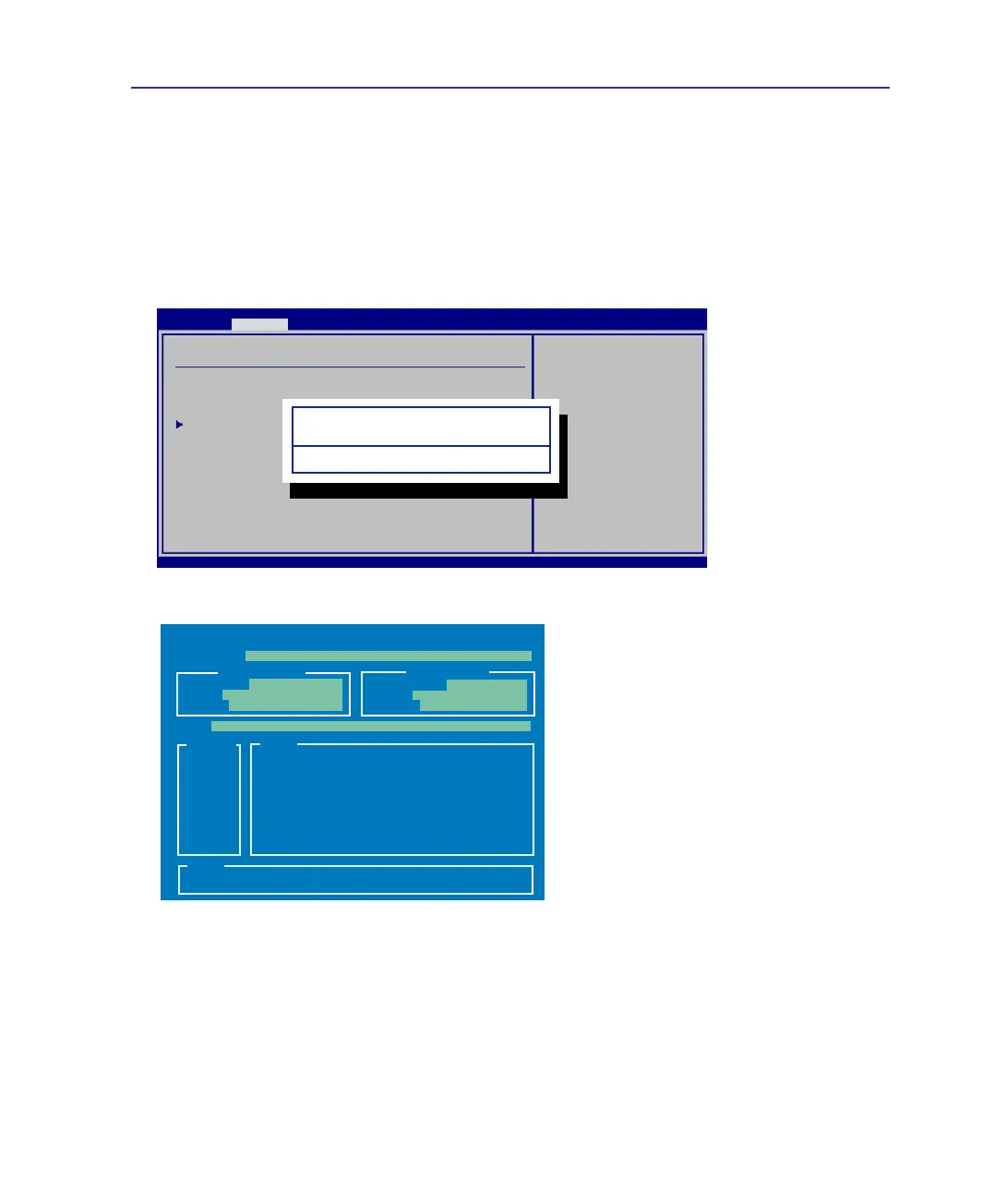
3. Use the “Easy Flash” function on the Advanced page of the BIOS Setup Utility. Follow the
instructions shown.
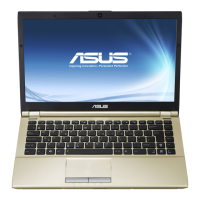
4. Locate the latest BIOS le and start updating (ashing) the BIOS.
Select Screen
Select Item
+-
Change Field
Enter Go to Sub Screen
F1 General Help
F10 Save and Exit
ESC Exit
v02.61 (C)Copyright 1985-2006, American Megatrends, Inc.
BIOS SETUP UTILITY
Main Advanced Security Power Boot Exit
Advanced Settings
WARNING: Setting wrong values in below sections
may cause system to malfunction.
IDEConguration
Start EZ Flash
Internal Pointing Device [Enabled]
Internal Numeric Pad Lock [Enabled]
Play POST Sound [Yes]
Speaker Volume [4]
Press ENTER to run
the utility to select
and update BIOS.
Press Hotkey F4 at
POST to invoke the
Utility. This
utility doesn't
support :
1. CDROM
2. USB HDD
3. Secondary HDD
Start EZ Flash Utility?
[OK] [Cancel]
AsusTek BIOS ROM EZ Flash Utility V1.12
Current ROM
Update ROM
A:
Note
<Up/Dn> to move ,<Enter> to determine ,<BSpace> to drive select
FLASH TYPE: SST 25LF080
PATH: A:\
PLATFORM: U50
VER: 100
DATE: 09/01/2008
PLATFORM: Unknown
VER: Unknown
DATE: Unknown
5. You must “Load Setup Defaults” on the Exit page after updating (ashing) the BIOS.
Drive File
Appendix A


 To Next Page