Conguring Client Settings
Conguring System Settings
41
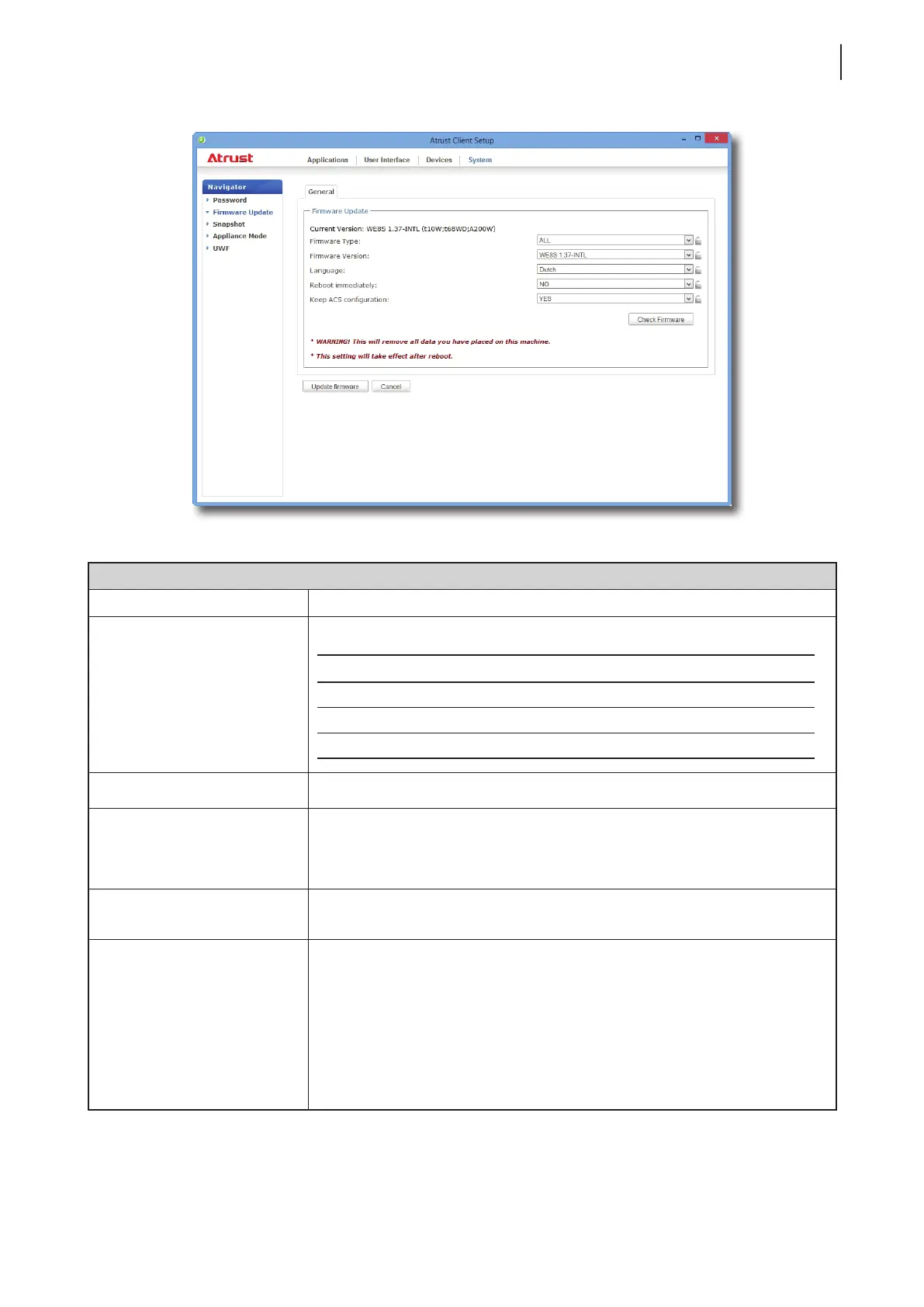
Firmware Update Options
Item Description
Firmware Type
Click to select the desired rmware type.
Type Description
ALL All rmware types, Firmware and Snapshot.
Firmware The system image of a client.
Snapshot The system image of a client coming from another client of the same model.
Firmware Version Click to select the desired rmware version from the Firmware list.
Language
Click to select the interface language of the system, including the Atrust Client
Setup console.
NOTE: Available languages may vary with the rmware version.
Reboot immediately
Click to choose whether to restart the system immediately for rmware update
or manually restart the system later.
Keep ACS conguration
Click to choose whether to keep client settings under Atrust Client Setup.
NOTE: If Yes is selected, all client settings under Atrust Client Setup will remain
unchanged after rmware update.
If No is selected, all settings will be restored to the factory default.
NOTE: If the client is managed by Atrust Device Manager and here No is
selected, Atrust Device Manager will fail to manage the client after
rmware update. For more information on Atrust Device Manager, please
refer to the User’s Manual for Atrust Device Manager.
5. Click Update rmware to conrm your selections. The system will start updating its rmware after restart.



 To Next Page