Conguring Client Settings
Conguring System Settings
47
4.2.9 Enabling or Disabling the Appliance Mode
The Appliance mode allows your thin client to start up directly with the desired Microsoft Remote Desktop, Citrix
ICA, VMware View or Horizon View session. After existing a session, the client will be turned o.
NOTE
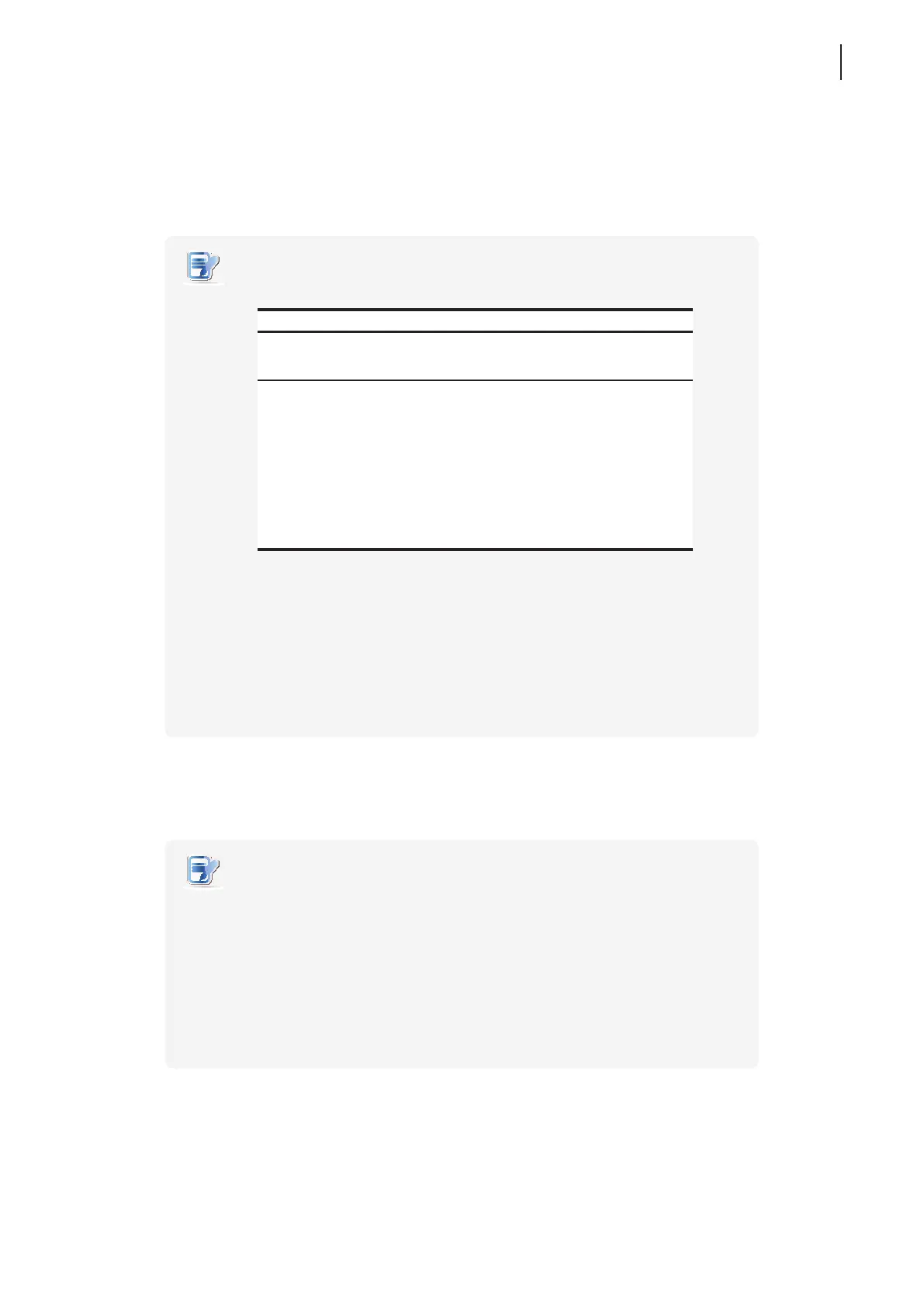
• There are two similar but dierent modes for your thin client:
No. Mode Description
1 Appliance
The client will start up directly with the desired
RDP / ICA / View session and turn off after
existing the session.
2 Autostart
The client will start up directly with the desired
RDP / ICA / View session and perform the
congured action after existing the session.
Available actions include:
• Returning to the local desktop
• Re-launching a new session
• Restarting the thin client
• Turning off the thin client
• For more information on above modes, please refer to sections:
4.2.9 on page 47 (Appliance mode)
4.5.5 on page 72 (Autostart mode for RDP sessions)
4.5.8 on page 100 (Autostart mode for ICA sessions)
4.5.11 on page 115 (Autostart mode for View sessions)
Enabling the Appliance Mode
To enable the Appliance mode, please do the following:
NOTE
• Ensure that you have congured the connection settings for the desired Microsoft
Remote Desktop, Citrix ICA, VMware View or Horizon View session under
Applications tab. You need to specify which service type and connection settings
entry will be used under the Appliance mode. For detailed instructions, please
see sections:
“4.5.3 Conguring Basic RDP Connection Settings” on page 60
“4.5.6 Conguring Basic ICA Connection Settings” on page 85
“4.5.9 Conguring Basic VMware View Connection Settings” on page 111



 To Next Page