Telephone
Opening the directory
Applies to: vehicles with telephone
After connecting the cell phone, the contacts in
it are automatically imported into the /\1/\11.
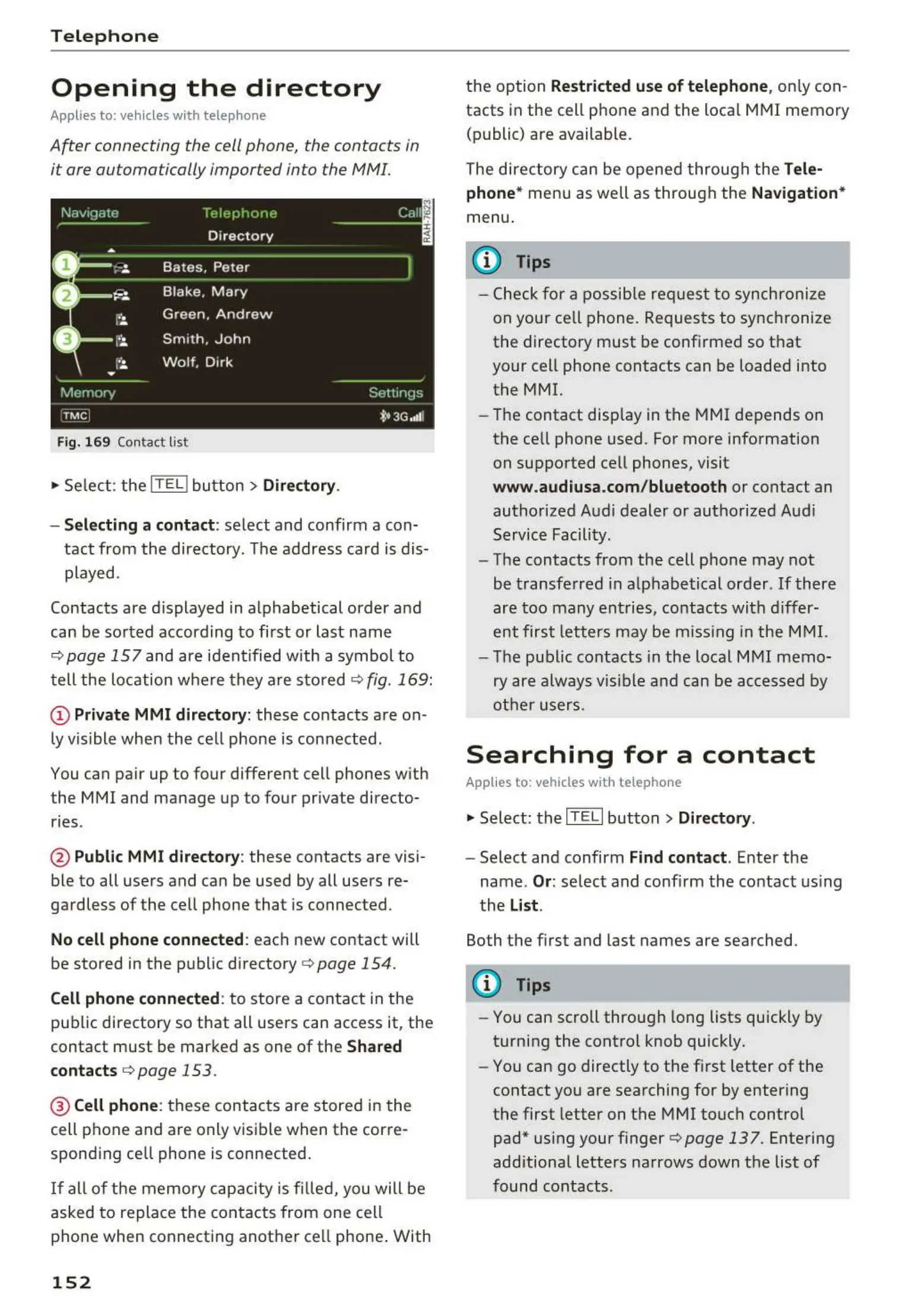
Fig. 169 Contact list
.,. Select: the ITEL! button> Directory.
- Selecting a contact:
select and confirm a con-
tact from the directory. The address card is dis-
played.
Contacts are displayed in alphabetical order and
can be sorted according to first or last name
¢page 157 and are ident ified with a symbol to
tell the location where they are stored ¢
fig. 169:
(D Private MMI directory: these contacts are on-
ly visible when the cell phone is connected .
You can pair up to four different cell phones with
the MMI and manage up to four private directo-
ries .
@ Public MMI directory: these contacts are visi-
ble to all users and can be used by all users re-
gardless of the cell phone that is connected.
No cell phone connected: each new contact will
be stored in the public directory ¢
page 154.
Cell phone connected: to store a contact in the
public directory so that all users can access it, the
contact must be marked as one of the
Shared
contacts
¢ page 153 .
@ Cellphone : these contacts are stored in the
cell phone and are only visible when the corre -
sponding cell phone is connected.
If all of the memory capacity is filled, you will be
asked to replace the contacts from one cell
phone when connecting another cell phone . With
152
the option Restricted use of telephone , on ly con-
tacts in the cell phone and the loca l MMI memory
(public) are available.
The directory can be opened through the
Tele-
phone*
menu as we ll as through the Navigation*
menu .
(D Tips
- Check for a possib le req uest to synch ronize
on your cell phone. Requests to synchronize
the directory must be confirmed so that
your cell phone contacts can be loaded into
the MMI.
- The contact disp lay in the MMI depends on
the cell phone used . For more information
on supported cell phones, visit
www.audiusa.com/bluetooth or contact an
authorized Audi dealer or authorized Audi
Service Facility.
- The contacts from the cell phone may not
be transferred in alphabetical order . If there
are too many entries, contacts with differ-
ent first letters may be missing in the MMI.
- The publ ic contacts in the local
MMI memo-
ry are always visible and can be accessed by
other users.
Searching for a contact
Applies to: vehicles with telephone
.,. Select: the ITELI button > Directory .
- Select and confirm Find contact. Enter the
name .
Or : select and confirm the contact using
the
List.
Both the first and last names are searched.
(D Tips
- You can scroll through long lists quickly by
turning the control knob quickly.
- You can go directly to the first letter of the
contact you are searching for by entering
the first letter on the MMI touch control
pad* using your finger¢
page 137. Entering
additional letters narrows down the list of
found contacts .



 To Next Page