lL
t:0
....
'""
......
'""
....
0
0
:c
'<I"
- Entering a destination using a street: select
and confirm
Street. Select and confirm a city
from the list. Enter a street . To enter a street
regardless of the city, turn the contro l knob to
In
all cities and press the control knob . Se lect
and confirm additional details about the desti -
nation such as
House number or Intersection.
Start route guidance .
Assistance when entering an address: when en-
tering an address, locations that have been en -
tered in the past are prov ided as suggestions in
the input field . By press ing the
List control but-
ton, you can accept th e suggested locat ion as a
destination. Additiona l cities t hat match your en-
try are listed below. The number of locations
found is also listed @ ¢
fig. 179.
When the des ired city is shown in the spe ller in-
put field or the list below , you can press and hold
the control knob to switch to the city list.
Destination on the map
You can se lect a new destination from the map
by mov ing the crosshairs horizontally, vert ically
or diagonally using the MMI touch
¢ page 137
¢ page 167.
Coordinates
Display of the geocoord inates where the cross -
hairs are located (latitude and longitude).
Storing in the directory
Individual destinations can be stored direct ly in
the directory after they are entered. Two naviga-
tion destinations,
Private/ Business, can be as-
signed to each contact .
Navigation
Setting a destination from the map
Applies to : vehicles with navigat ion syste m
A location on the map can be used as a destina-
tion or be entered in the directory.
E Lu•o, O,
1·
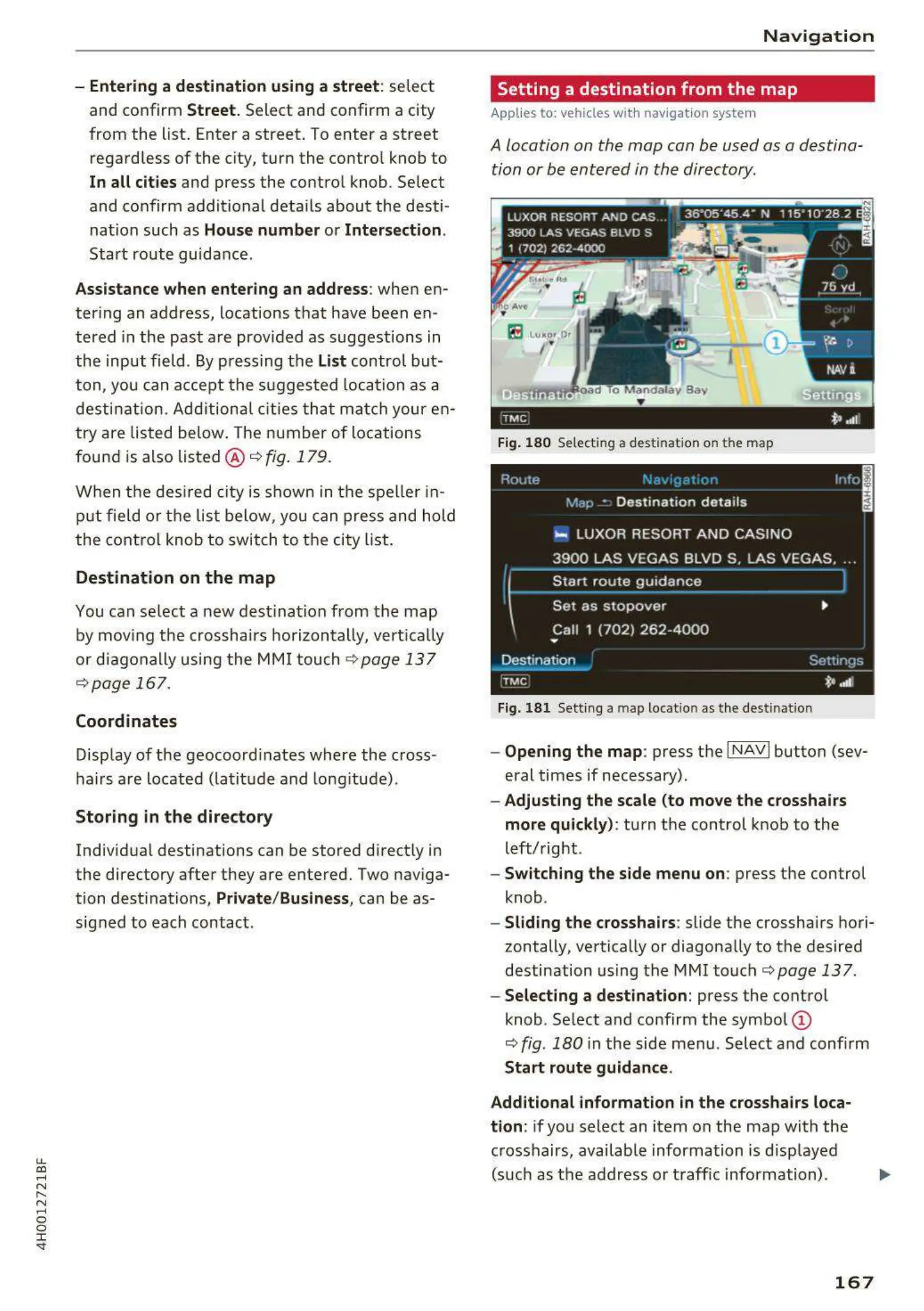
Fig. 180 Selecting a dest ination on the map
Fig. 181 Sett ing a map locatio n as the destinat ion
- Opening the map: press t he I NAVI button (sev-
eral times if necessary).
- Adjusting the scale (to move the crosshairs
more quickly) :
turn the control knob to the
left/right .
- Switching the side menu on: press the control
knob .
- Sliding the crosshairs: slide the crosshairs hori-
zontally, vertically or diagonally to the desired
destination using the MMI touch ¢
page 137 .
- Selecting a destination: press the control
knob . Select and confirm the symbol @
¢
fig. 180 in the side menu. Select and confirm
Start route guidance.
Additional information
in the crosshairs loca-
tion :
if you select an item on the map with the
crosshairs, available information is d isp layed
(such as the address or traffic information) .
167



 To Next Page