Connect a TV antenna or CATV cable or Satellite system to the TV antenna terminal before scanning
for TV channels.
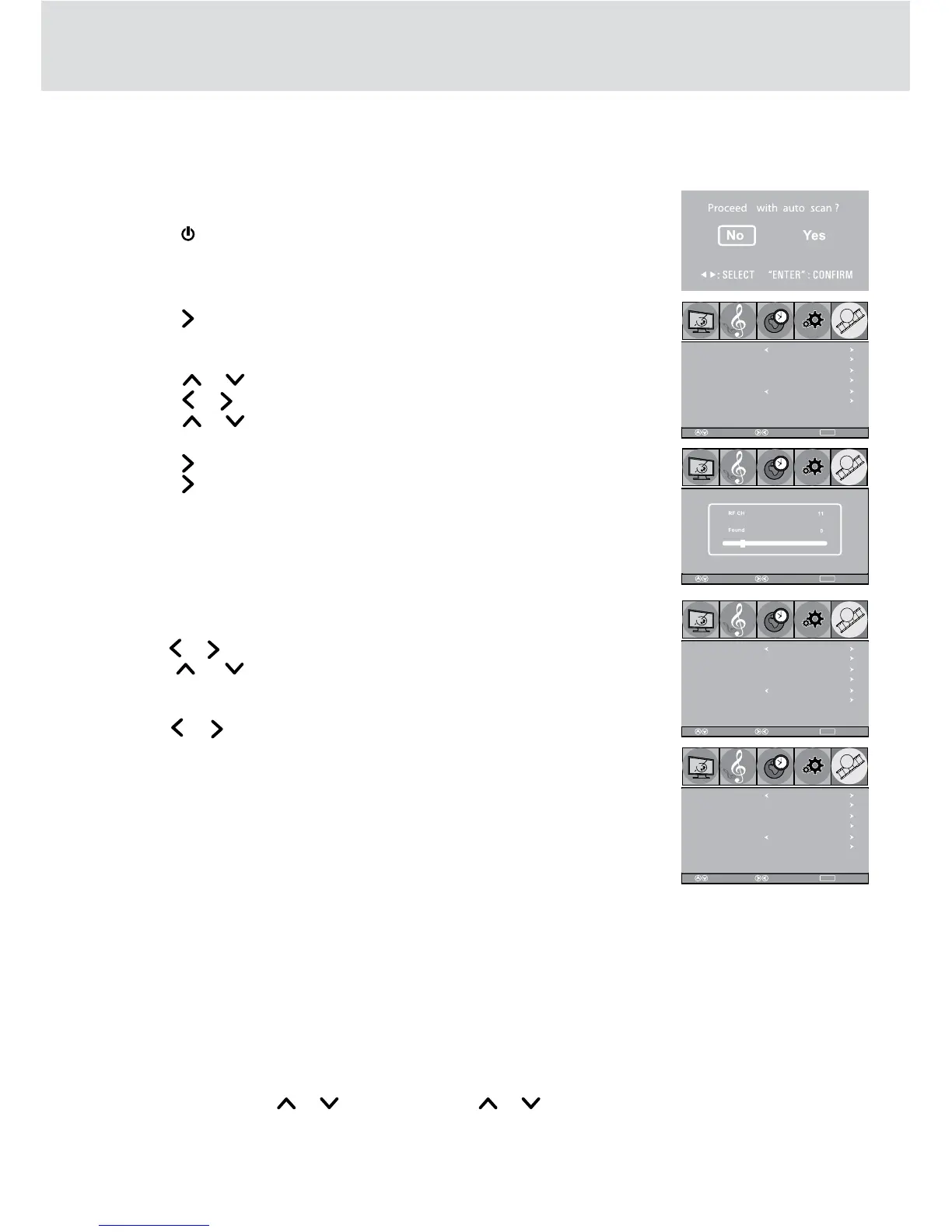
Scanning for TV Channels Automatically (Only appears to the first time power on)
1. Connect the TV antenna.
2. Connect the AC power cord.
3. Press the ON/OFF button to turn on the unit.
4. Press the DVD/TV/RADIO button (the FUNCTION button on the remote
control) to select TV mode.
5. Press the button to select “Yes”.
6. Press the ENTER button.
7. Press the
or button to select Antenna.
8. Press the or button to select Air.
9. Press the or button to select Auto Scan.
10. Press the button to enter.
11. Press the / ENTER button.
12. The unit will immediately search all channels for those with adequate signal
strength and store those channels with signals in memory. The unit will take
a short minutes to finish auto scan and after this is completed, the unit will
switch to the first channel found.
USING THE TV
TV Channel Setting
1. Press the TV MENU button.
2. Use the or button to select TV.
3. Use the or button to select the options (Antenna / Auto Scan /
Auto Scan Add CH / Channel Skip / Channel No. / Channel Label / DTV
Signal).
4. Use the or button to make adjustment. The screen will change to your
selected mode immediately. Press the TV MENU button to return to the previous
menu.
5. Repeat steps 2 to 4 to adjust other options.
6. To exit the MAIN MENU and return to the normal screen, press the EXIT button
on the remote control.
NOTE: Channel No. : 2-69 Channel for Air, 1-135 Channel for Cable.
Antenna : Select “Cable” to receive cable signals. Select “Air” to receive “over the air” (broadcast)
signals.
Auto Scan : Automatically scan all channels for those with adequate signal strength.
Auto Scan Add CH : The already-stored channels will not be cleared and the newly-scanned channels will
be added.
If you have selected Cable in Antenna, then you can select Cable System (AUTO / STD / HRC / IRC) in the
submenu. We recommend you pick “AUTO”. “HRC” and “IRC” are custom station frequencies used by some
Cable Service Providers. “STD” refers to the standard frequencies used by many Cable Service Providers.
“AUTO” will cause the product to scan all frequencies.
Channel Skip : You may switch ON/OFF the skip function of each stored channel by selecting the channel
with
or button (and using or button to select page if the amount of stored
channels is more than 1 page), and followed with pressing the ENTER button.
Channel No. : Select a different TV channel.
DTV Signal : Display the signal strength (for digital TV channels only).
MENU
ReturnAdjustSelect
Antenna Air
Auto Scan
Auto Scan AddCH
Channel Skip
ChannelNo.
ChannelLabel
DTVSignal
Picture
Audio
Time
Setup TV
MENU
ReturnAdjustSelect
Picture
Audio
Time
Setup TV
MENU
ReturnAdjustSelect
Antenna Air
Auto Scan
Auto Scan AddCH
Channel Skip
ChannelNo.
ChannelLabel
DTVSignal
Picture
Audio
Time
Setup TV
MENU
ReturnAdjustSelect
AntennaCable
Auto Scan
Auto Scan AddCH
Channel Skip
ChannelNo.
ChannelLabel
DTVSignal
Picture
Audio
Time
Setup TV


 To Next Page