English
57
3. Install the “Smart Life” app and create an account.
4. Press and hold on the robot for 6 seconds to turn on the
robot.
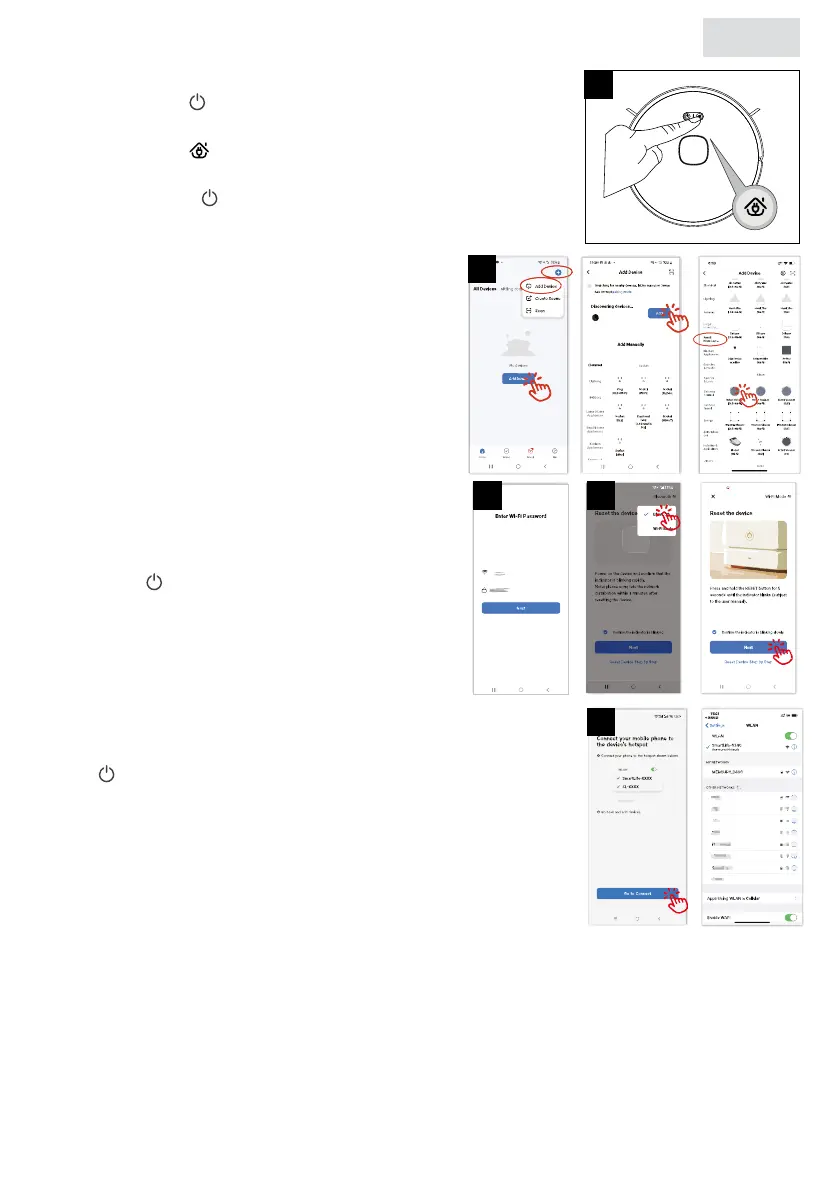
5. Press and hold on the robot for at least 4 seconds until the
robot gives a voice prompt “Start app connection mode”. The
indicator light of turns green and starts blinking. The robot
starts network distribution mode.
6. In the “Smart Life” app, tap “+” and then “Add
Device” in the drop-down list. The app will
search for the robot and display it as soon as it
is available. Then tap “Add” to add the robot to
the app.
• You can also connect the robot via Wi-Fi
connection: In the “Smart Life” app, tap “+” and
then “Add Device” in the drop-down list. Then
tap “Small household” and then “robot vacuum
cleaner (BLE+WI-FI)” to add the robot to the app.
7. Select your Wi-Fi network (Note: You can
only connect this product to a 2.4GHz Wi-Fi
network) and enter the password. Tap “Next”.
8. After hearing the voice prompt, tap “Next”
when the ashes slowly. As shown in the
images, you can connect via Wi-Fi and
Bluetooth.
9. To connect your cell phone to the robot’s
hotspot, choose the hotspot named
“SmartLife” to connect to the network.
10. After your cell phone is connected to the hotspot “SmartLife,
return to the app interface to connect to the robot. Make sure
the green light is blinking and that the Wi-Fi is 2.4GHz (Note:
this product cannot be connected to a 5G network). After the
robot is successfully connected, the following control interface
appears.
5
6
9
87


 To Next Page