58
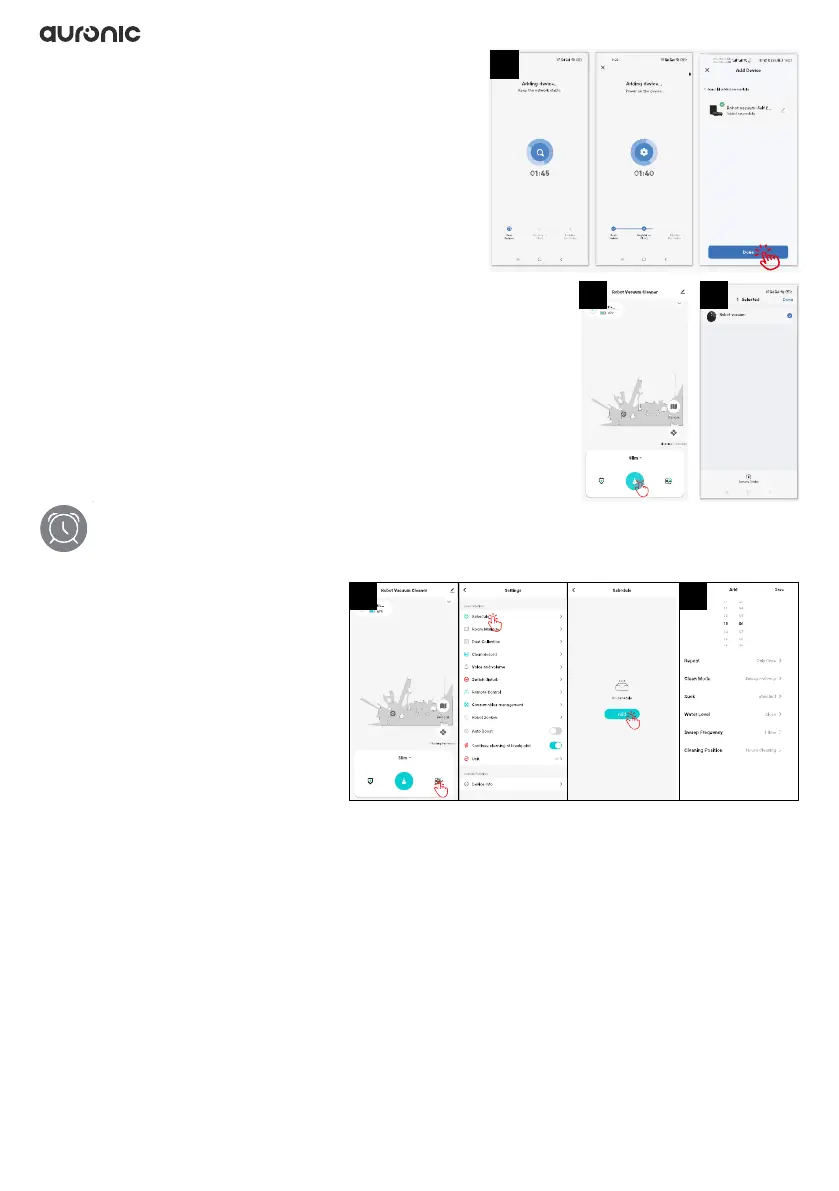
11. Click on “Robot Vacuum Cleaner” to open the
interface as shown here.
12. To remove the robot from the app, hold down the
device name and click “Remove Device”.
3.9.1 Set scheduled cleaning
You can schedule a cleaning time so that the robot
automatically starts cleaning at the specied time.
After cleaning, the robot goes to the charging station
to recharge.
1. Tap “Settings > Schedule > Add”.
2. Set the desired time and options.
• Repeat: Choose whether you
want to use this schedule once
(“Only Once”) or on specic days
of the week. The default option is
“Only Once.”
• Clean Mode: Choose whether you want the robot to vacuum (“Sweep”), mop (“Mop”) or both
(“sweep and mop”). The default option is “Sweep and mop.”
• Suck: Choose which mode you want the robot to vacuum at. The default option is
“standard”.
• Water Level: Choose how wet you want the mop setting to be. The default option is “close”.
• Sweep Frequency: Choose how often you want the robot to vacuum. The default option is “1
time”.
• Cleaning Position: Choose in which area the robot should clean.
3. Tap “Save” to save the set time.
10
11 12
1 2


 To Next Page