English
59
3.9.2 Setting up automatic cleaning
After startup, the robot will pause to map the area and position itself.
It starts by scanning the area by passing by the corners. It then plans
the cleaning zone in an S pattern. The robot automatically creates a
cleaning zone allowing it to clean efciently and automatically returns
to the charging station to recharge after cleaning.
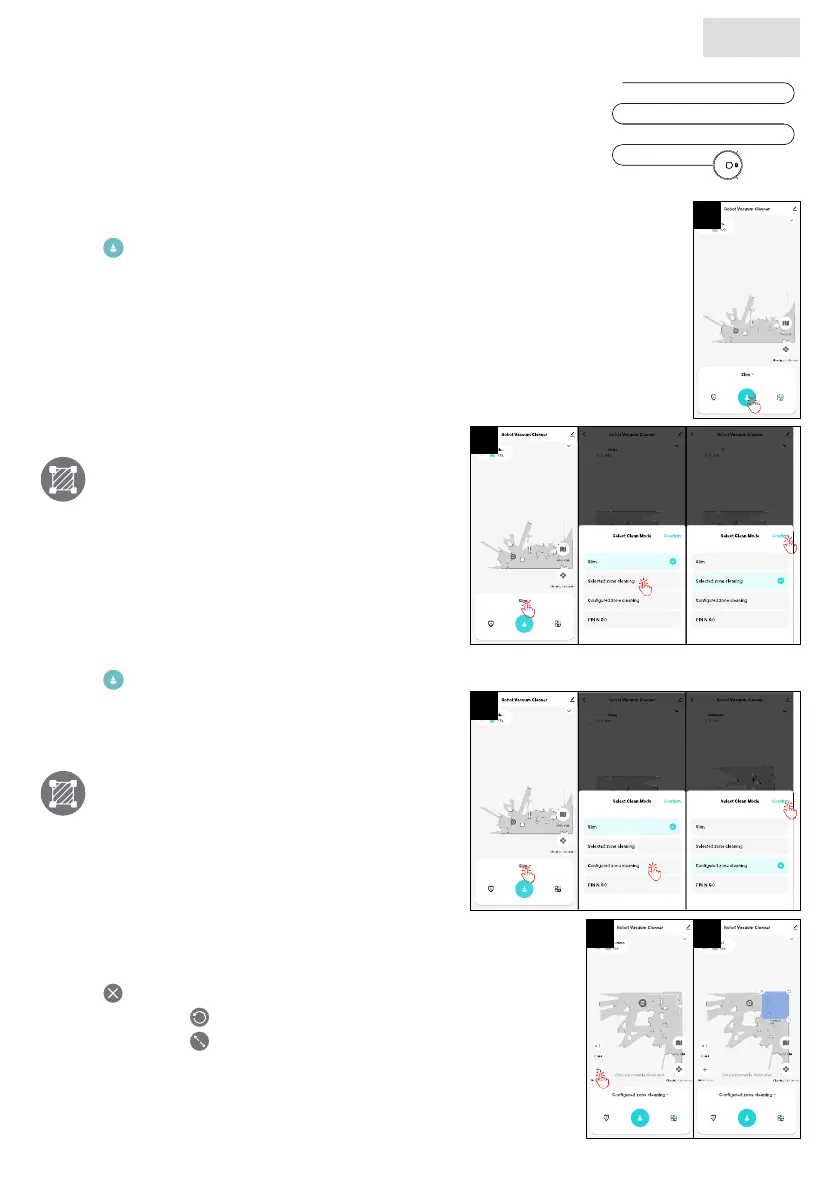
1. Tap to automatically start a new cleaning process so the robot can clean
the zone efciently.
2. After the cleaning is nished, the robot will automatically return to the
charging station to recharge.
Advice: Save the zone immediately after the robot scans it for the rst time so
that it is saved for the next times.
3.9.3 Selected zone cleaning
You can set the range and location of one
zone to be cleaned. The robot will then
clean the set zone.
1. Tap “Smart > Selected zone cleaning > Conrm”
to clean a specic zone.
2. Tap the desired zone in the map. The selected
zone will light up. You can select multiple zones
on the map.
3. Tap to start a new cleaning process.
3.9.4 Congured zone cleaning
You can set the range and location of
multiple zones to be cleaned. The robot then
cleans the congured zones.
1. Tap “Smart > Congured zone cleaning >
Conrm” to clean a new specic zone.
2. Tap “+” to add a new zone.
3. Set the zone by adjusting the blue block:
• Tap
to delete the zone.
• Press and hold to rotate the zone.
• Press and hold to increase/decrease the zone.
1
1
2 3
1


 To Next Page