57
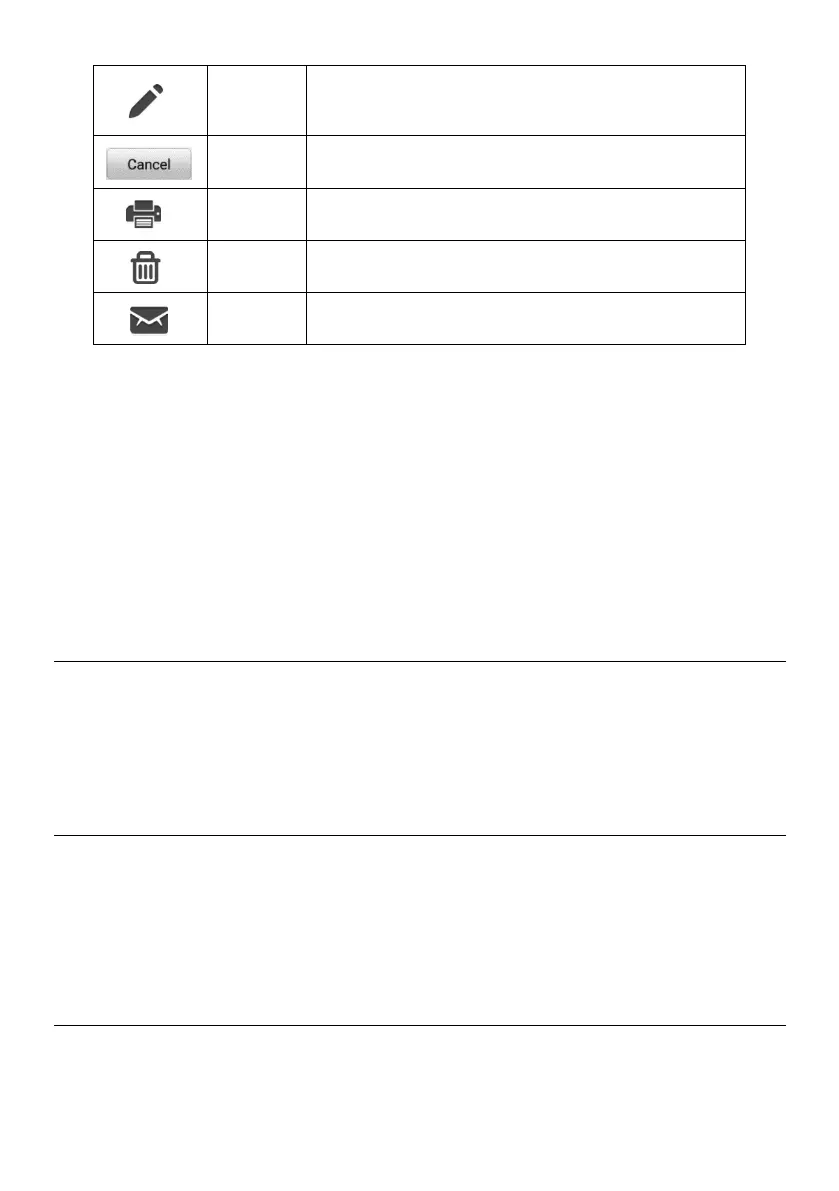
Tap to display the editing toolbar to delete, print or
email images.
Tap to close the editing toolbar or cancel file search.
Tap to print the selected image.
Tap to delete the selected image.
Tap to send the selected image to an email address.
To edit/delete images
1. Select Data Manager from the Job Menu.
2. Select Image to access the image database.
3. Tap Edit on the top-right corner of the screen. The editing screen will appear.
4. Select the image(s) you want to edit.
5. Tap Delete to delete the selected images or delete all images. Tap Print to
select to print the selected image(s), or tap Email to send the selected images
to an email address.
7.5 Cloud Report
This section stores and displays all diagnostic reports. The reports stored in this area will
be uploaded automatically when you set ON to the Report upload to Cloud in Report
Settings. See Report Settings for further details. Tap one of the reports to view it or share
it. See Diagnostics Report Saving, Viewing, and Sharing for more information.
7.6 PDF Files
The PDF section stores and displays all PDF files of saved data. After entering the PDF
database, select a PDF file to view.
This section uses the standard Adobe Reader application for file viewing and editing.
Refer to the Adobe Reader manual for more detailed instructions.
7.7 Review Data
The Review Data section allows you to play back recorded data frames of live data
streams.









 To Next Page