11
Chapter 3 Getting Started
Make sure the MaxiSys Display Tablet has a charged battery or is connected to the DC
power supply (see 2.1.2 Power Sources on page 5).
3.1 Powering Up
Press the Lock/Power button on the top left side of the display tablet to switch
the unit on. The system boots up, and shows the lock screen. Press and drag
the inner ring to the edge of the circle to unlock the screen; the MaxiSys Job
Menu is shown.
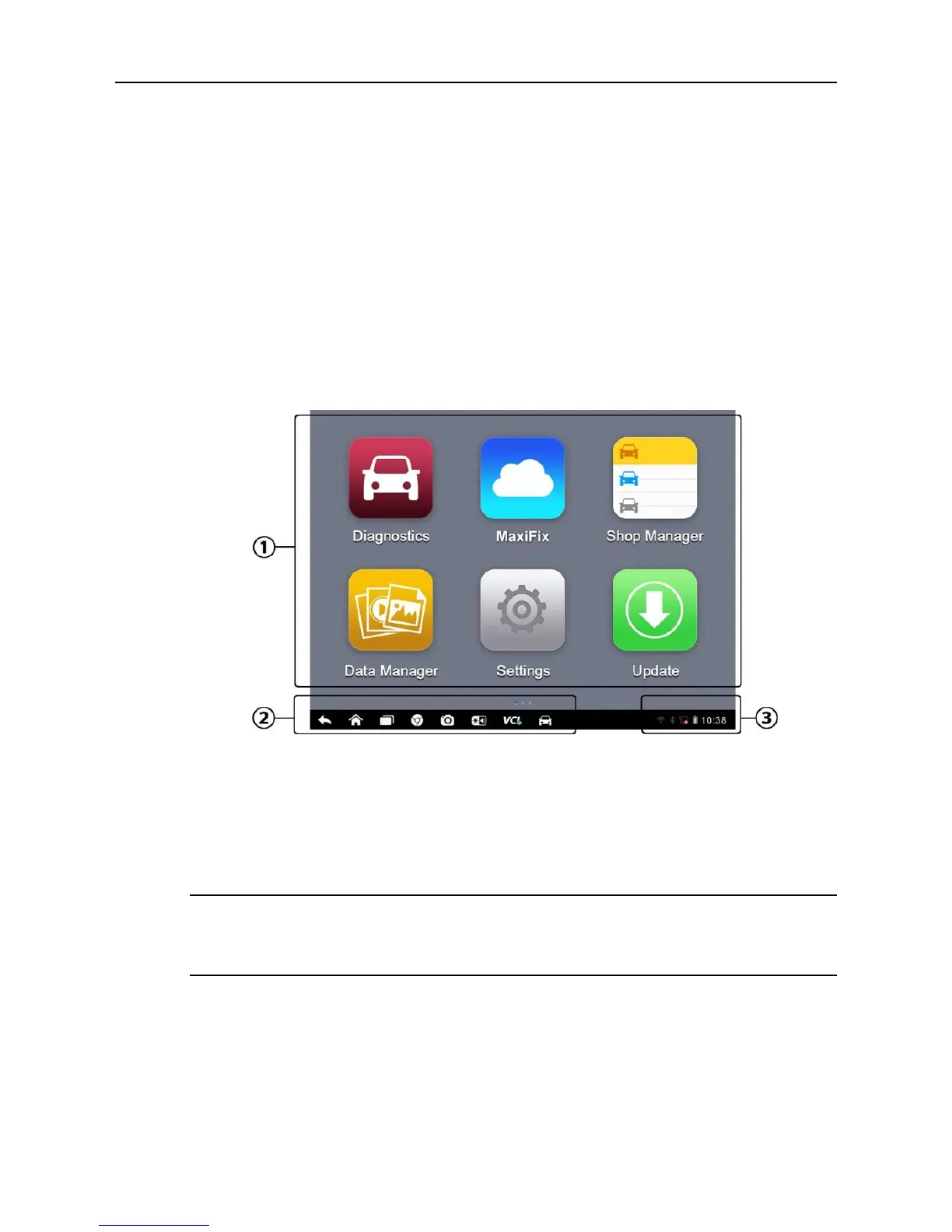
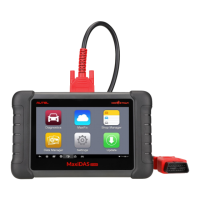
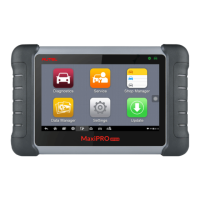
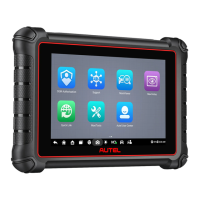
Figure 3-1 Sample MaxiSys Job Menu
1. Application Buttons
2. Locator and Navigation Buttons
3. Status Icons
NOTE: The screen is locked by default when you first turn on the display tablet.
It is recommended to lock the screen to protect information in the system and
reduce battery usage.
Almost all operations on the display tablet are controlled through the touch
screen. The touch screen navigation is menu driven, which allows you to
quickly locate the test procedure, or data that you need, through a series of
choices and questions. Detailed descriptions of the menu structures are found
in the chapters for the various applications.



 To Next Page