Getting Started Powering Up
13
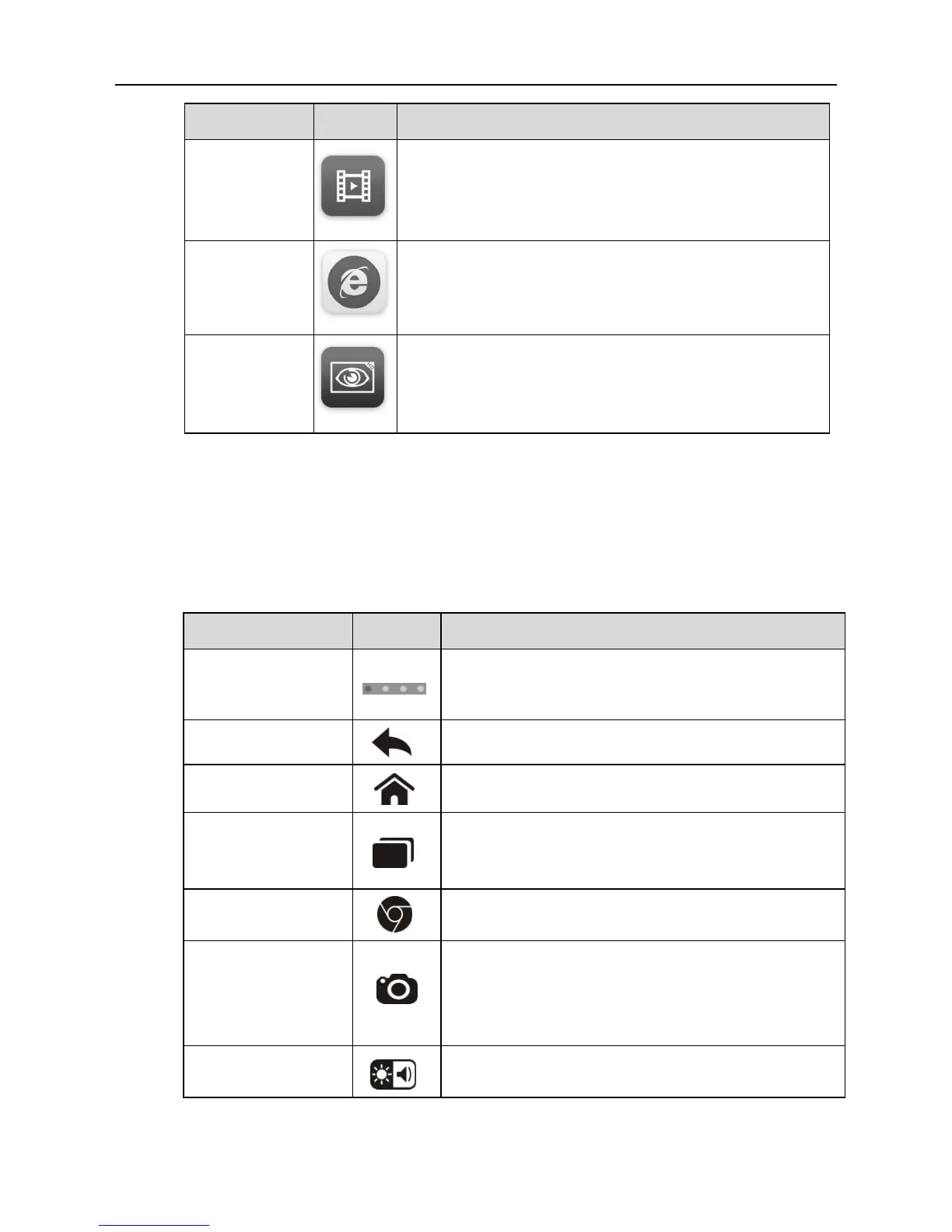
Allows you to store and play technical tutorial and
training videos about the device usage or vehicle
diagnostic techniques. See Training Operations
on page 92.
Provides associated website bookmarks to allow
quick access to product update, service, support
and other information. See Quick Link Operations
on page 94.
Configures the unit to operate as a video scope
device by connecting to an Imager head cable for
close vehicle inspections. See Digital Inspection
Operations on page 95.
3.1.2 Locator and Navigation Buttons
Operations of the Navigation buttons at the bottom of the screen are described
in the table below:
Table 3-2 Locator and Navigation Buttons
Indicates the location of the screen. Swipe the
screen left or right to view the previous or next
screen.
Returns to the previous screen.
Returns to Android System’s Home screen.
Displays a list of applications that are currently
working. To open an app, touch it. To remove
an app, swipe it to the right.
Launches the Chrome browser.
Opens the camera with short press; takes and
saves screenshot image with long press. The
saved files are auto-stored in the Data
Manager application for later reviews. See
Data Manager Operations on page 54.
Allows you to adjust the brightness of the
screen and the volume of the audio output.



 To Next Page