Getting Started Powering Up
12
3.1.1 Application Buttons
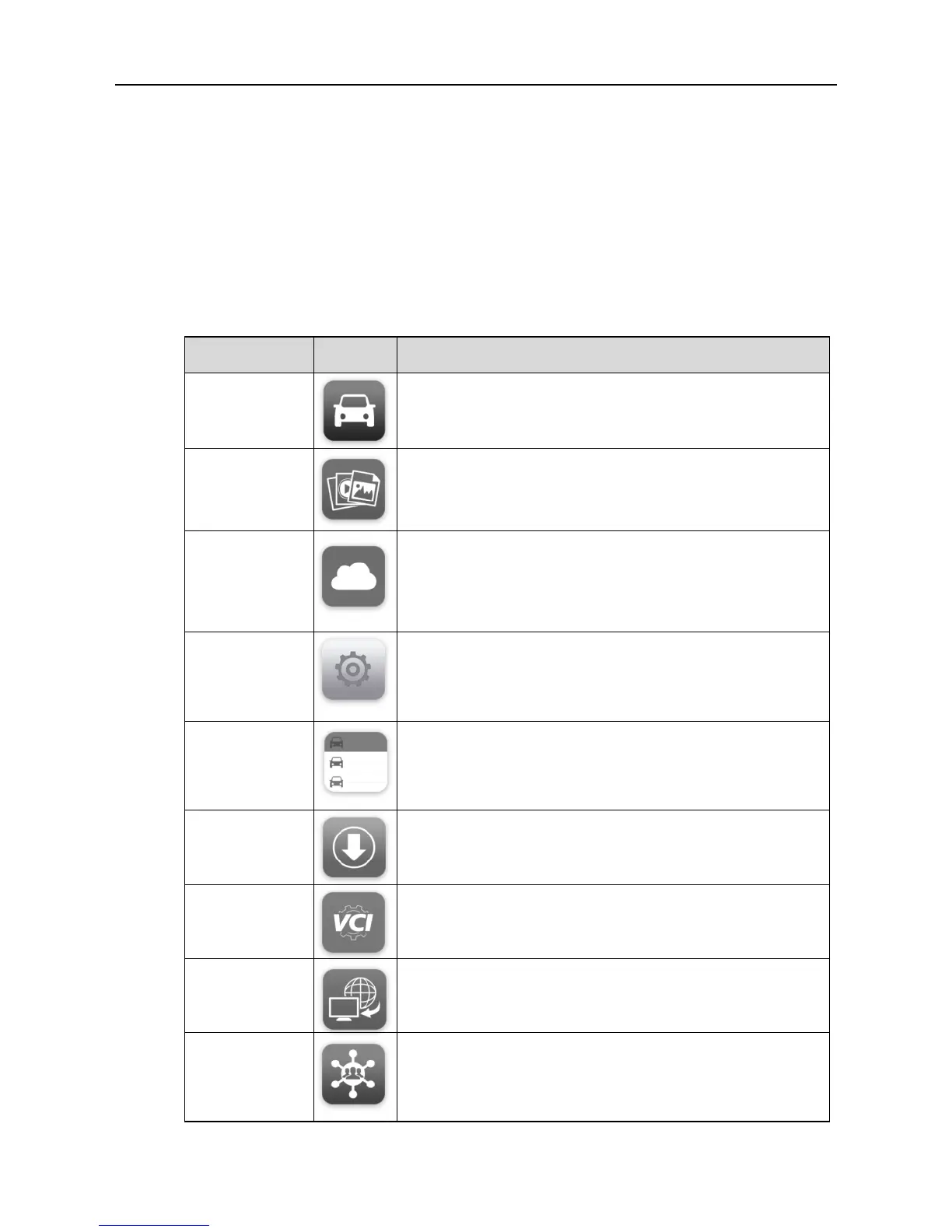
The Application buttons configure the MaxiSys for the type of operation or
activity to be performed. The table below gives brief descriptions of the
available applications.
Use the stylus pen or your finger tip to select an application from the Job
Menu.
Table 3-1 Applications
Configures the unit to operate as a diagnostic
tool. See Diagnostics Operations on page 17.
Opens the organization system for saved data
files. See Data Manager Operations on page 54.
Launches the MaxiFix platform which provides the
most compatible and abundant repair techniques
and diagnostics database. See MaxiFix
Operations on page 58.
Allows you to set the MaxiSys system settings,
and to view the general information about the
Display Tablet. See Settings Operations on page
66.
Allows you to edit and save workshop information
and customer data, as well as reviewing test
vehicle history records. See Shop Manager
Operations on page 69.
Checks for the latest update available for the
MaxiSys system, and performs updating
procedures. See Update Operations on page 77.
Establishes and manages Bluetooth connection
to the VCI device. See VCI Manager Operations
on page 79.
Configures your unit to receive remote support
using the TeamViewer application program. See
Remote Desk Operations on page 81.
Launches the Support platform which
synchronizes Autel’s on-line service base station
with the MaxiSys tablet. See Support Operations
on page 83.



 To Next Page