Shop Manager Operations Customer Manager
76
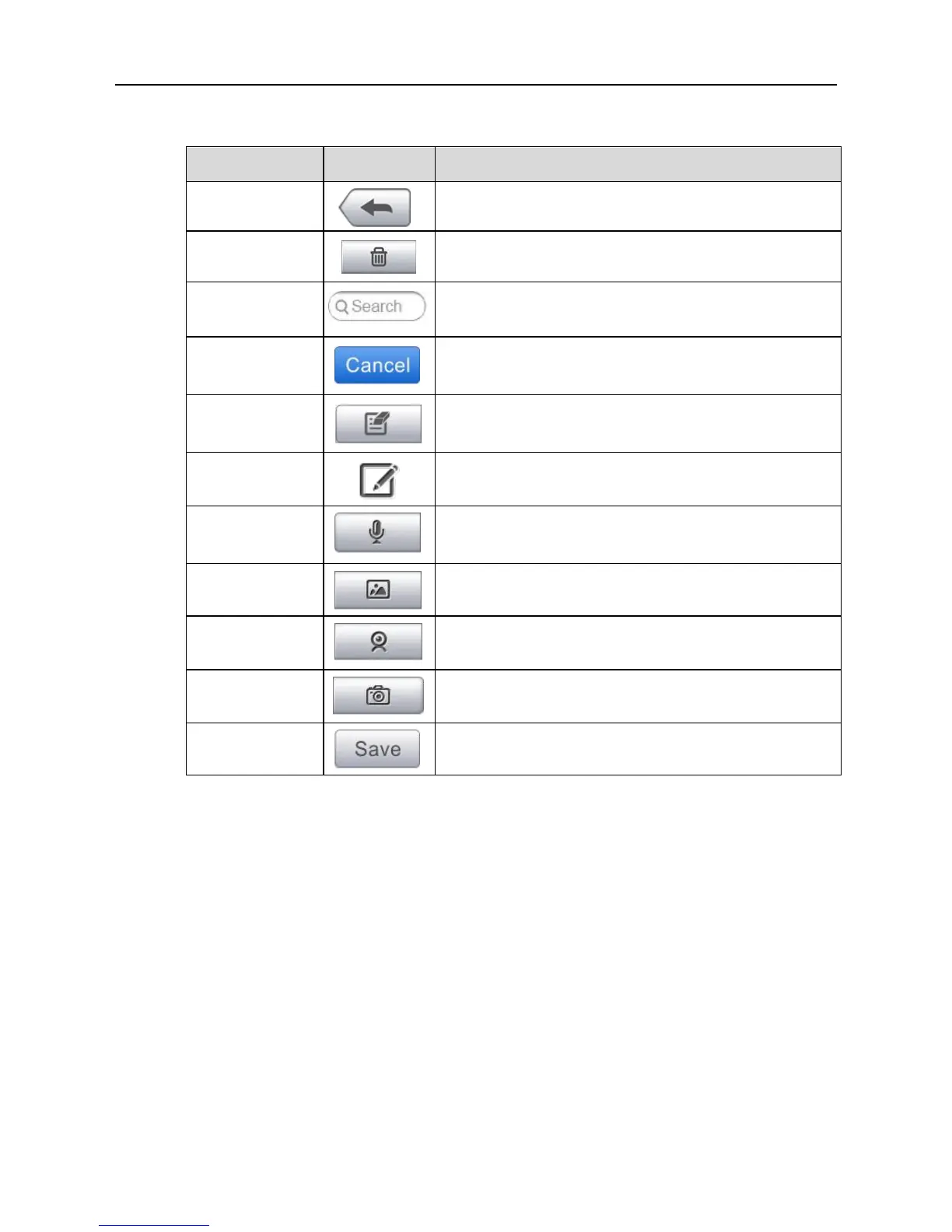
Table 8-2 Function Buttons in History Notes
Returns to the previous screen.
Touching this button deletes the selected note.
Quickly locates the required note by entering
the note title.
Touching this button to cancel edit or file
search.
Touching this button opens an edit window
allowing you to edit notes and attach files.
Touching this button to add new note in History
Notes.
Performs audio recording and creates audio
files.
Opens the image file for selection, and adds
the selected photos to History Notes.
Records a video and adds the file to History
Notes.
Takes photos and adds the files to History
Notes.
To add a note in History Notes
1. Access History Notes.
2. Tap the Add Notes button. An edit window displays.
3. Tap on the Title bar to input a note title.
4. Tap on the blank space below to edit a text note or remark.
5. Select a function button on the top to add files in any form you
choose.
6. Tap Save to save the note; tap Discard or Cancel to exit without
saving.













 To Next Page