Make sure all cables and devices are firmly and well connected. Then power on EzRecorder 310.
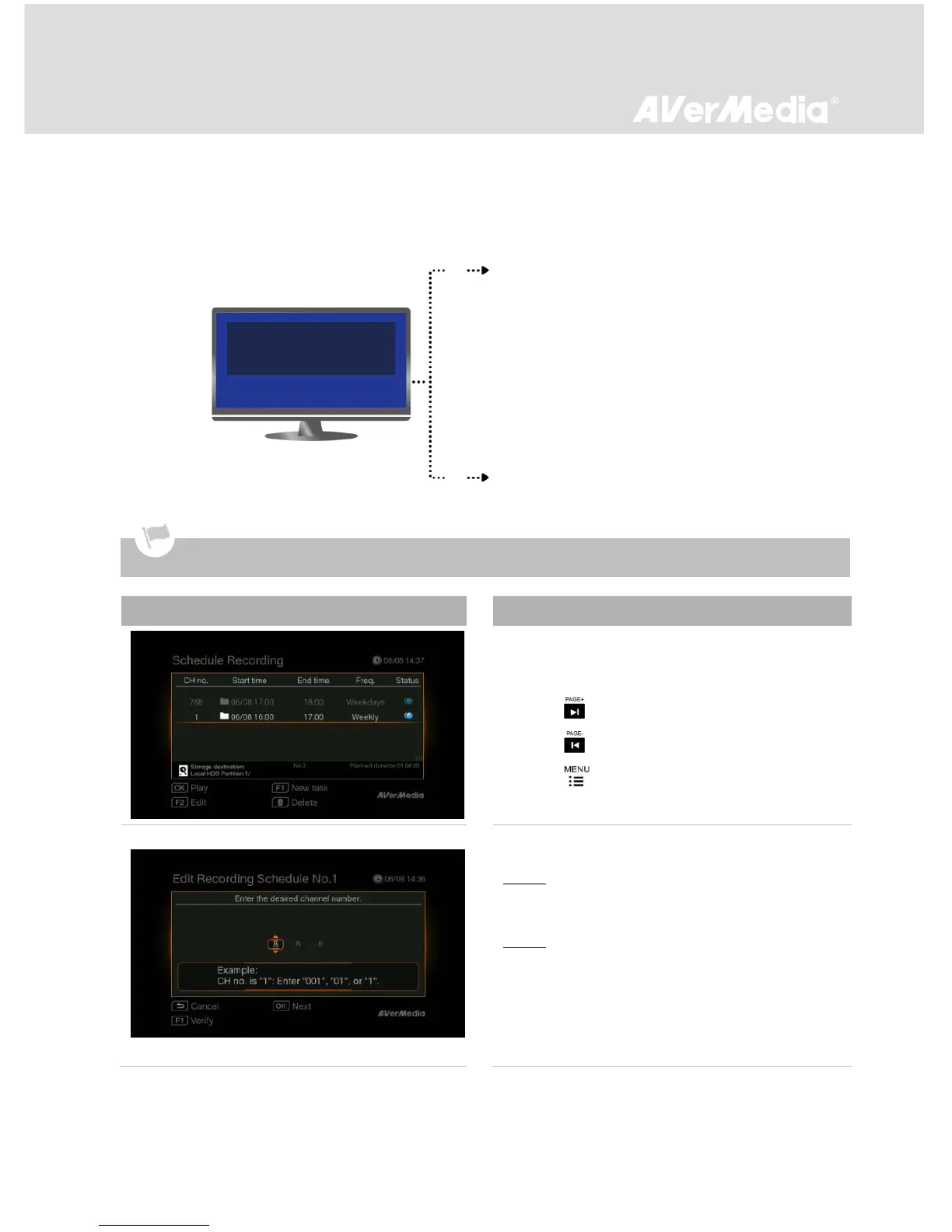
Check if the following screen appears:
Navigating
- Use ▲/▼ to select among preset schedules.
- Press to go to the next page.
- Press return to the previous page.
- Press to directly access the main menu.
Creating a New Schedule
Step 1:
- Press F1 to add a new schedule.
Step 2:
- Enter the desired channel number.
If “.” (decimal point) is skipped in IR Learning
process, you can enter up to 3 digits. For
example, to enter channel "1", key in "001", “01”
N o component input signal.
Check the followings:
1. Cables are properly connected.
2. Set-top box is ON.
STB does not output signal after powering off:
Your STB automatically powers on and then tunes
into specific channel before the scheduled start
time. After the task completes, the device
automatically power off. However, if your STB is
on before recording, it remains on after the task
completes.
STB still outputs signal after powering off
(Black screen appears):
Keep your set-top box ON before recording.
Your STB automatically tunes into specific
channel before the scheduled start time. After the
task completes, the STB remains on.
To avoid recording failure, stay tuned on the channel that you want to record when recording is in progress.


 To Next Page