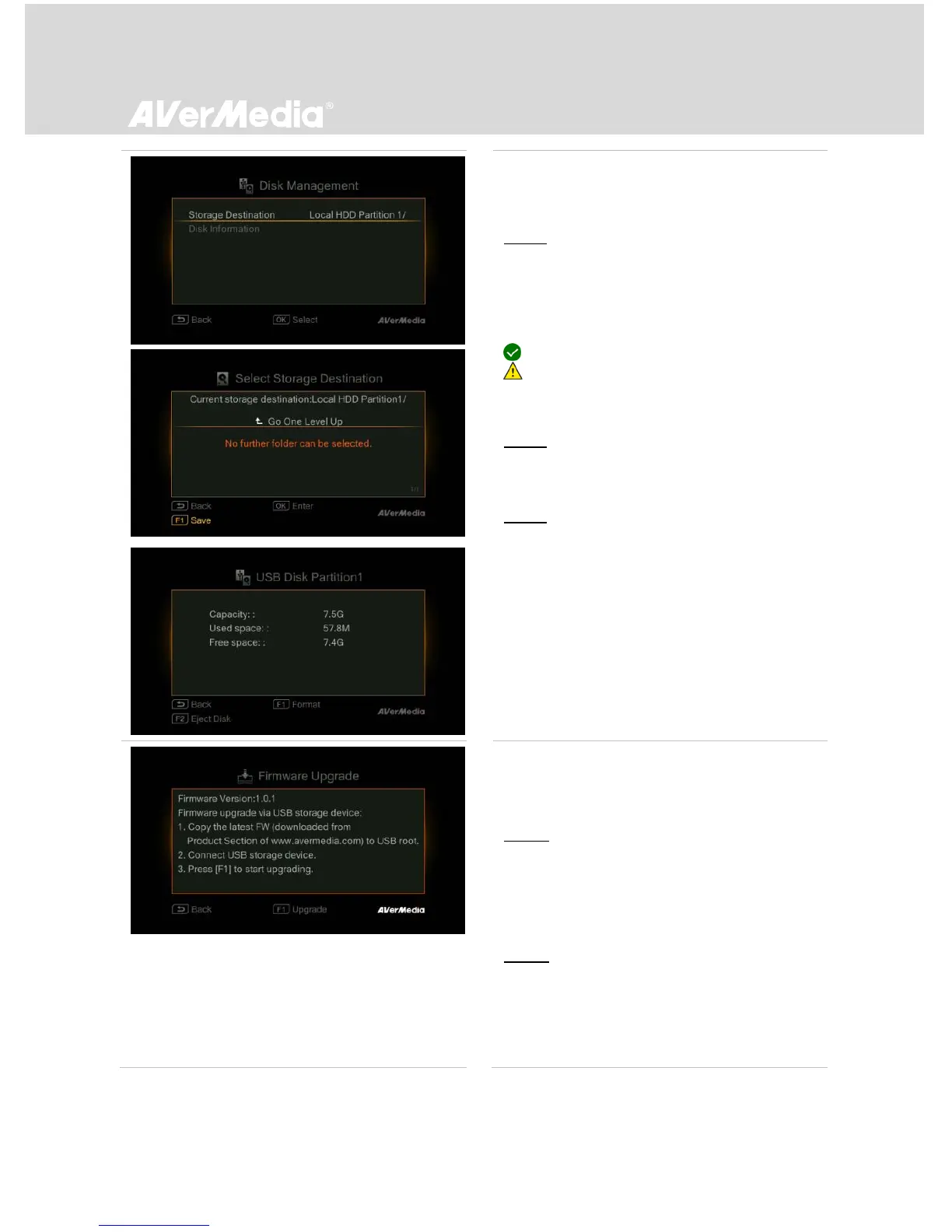
Disk Management
Storage Destination
Step 1:
Use ▲/▼ to select desired default storage disk
for both recorded files and snapshots. Press
OK to select a disk.
indicates normal write speed of selected partition;
indicates low write speed of selected partition. To
make sure recording functions properly, it is highly
recommended to select partition with normal write speed.
Step 2:
Use ▲/▼ to select a folder and press OK to
confirm.
Step 3:
Press F1 to save the setting.
Disk Information
This page displays the status of storage
capacity of the disk.
Press F1 to format the partition.
Press F2 to eject the disk.
Firmware Upgrade
Follow the steps below to upgrade the
firmware via USB storage device:
Step 1:
To download the latest firmware binary
package, please go to www.avermedia.com,
and then enter the model name in Product
Search field. Firmware file is available on the
product information page.
Step 2:
Extract the files by unzipping the package.
Copy the firmware files to the root directory
of your USB storage device, and then
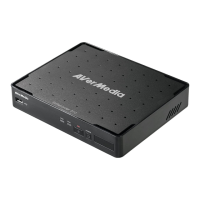
connect it to EzRecorder 310.


 To Next Page