Chapter 3: DADman Software
10
6 Configure the MTRX (or MTRX Studio) unit in turn with a unique IP address and the preferred network mask, for example 10.0.7.21
| 255.255.255.0. You can also configure IP audio network settings (if you are using an optional Dante IP Audio expansion card or
module) in this window.
7 When you are done you can connect additional MTRX (or MTRX Studio) units to the network. Connect and configure each addi-
tional unit one at a time. Each unit appears in the DADman Device List.
Automatic IP address
You must have a network with a DHCP server to allocate the IP addresses.
To use an automatic IP address:
1 Configure your computer IP address to DHCP using the Mac System Preferences or the Windows Control Panel.
2 Launch DADman.
3 Choose Settings > Device List.
4 Click Refresh to discover connected MTRX (and MTRX Studio) units on the network.
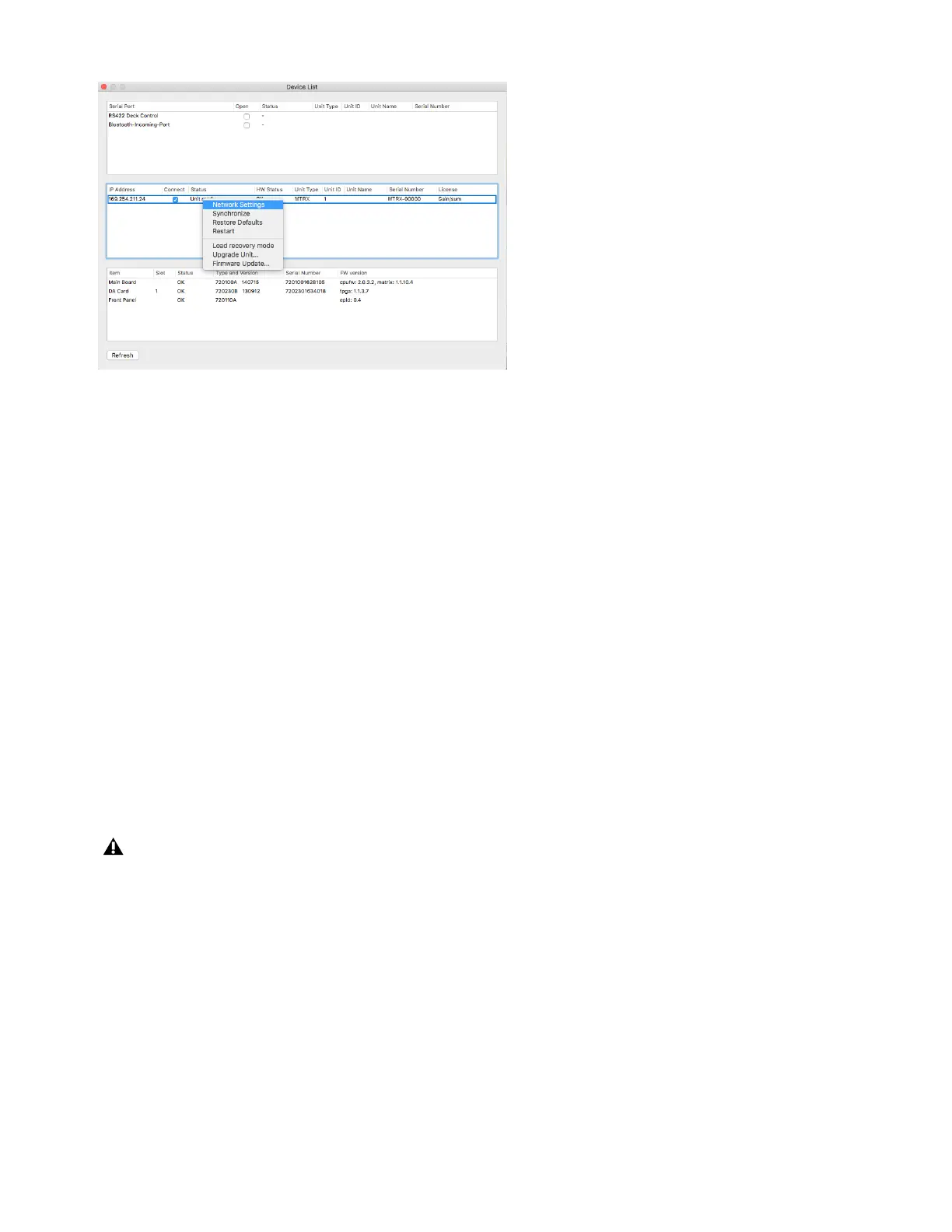
5 Right-click the MTRX unit you want and choose Network Settings.
6 Configure each unit in turn to use DCHP.
7 When you are done, you can connect more than one MTRX (or MTRX Studio) to the network, and they will all appear in the DAD-
man Device List.
Device List (Mac)
In order for MTRX to function properly, the router and sample rate must be correctly configured in DADman software.


 To Next Page