Chapter 3: DADman Software
11
DADman Menus
Use the DADman File and Settings menus to Save and Load Configuration files (.dms), and to access Settings on Windows. On Mac,
access
Preferences from the DADman menu.
Saving and Loading Configuration Files
When you have set up DADman as you like, you can save the configuration so it can be re-loaded later if necessary.
To save a Configuration file (.dms) in DADman:
1 Choose File > Save.
2 In the Save dialog, navigate to where you want to save the file and name the file (.dms).
3 Click Save.
To load a Configuration file in DADman:
1 Choose File > Load.
2 In the Open dialog, navigate to and select the Configuration file that you want to load.
3 Click Open.
Preferences and Options
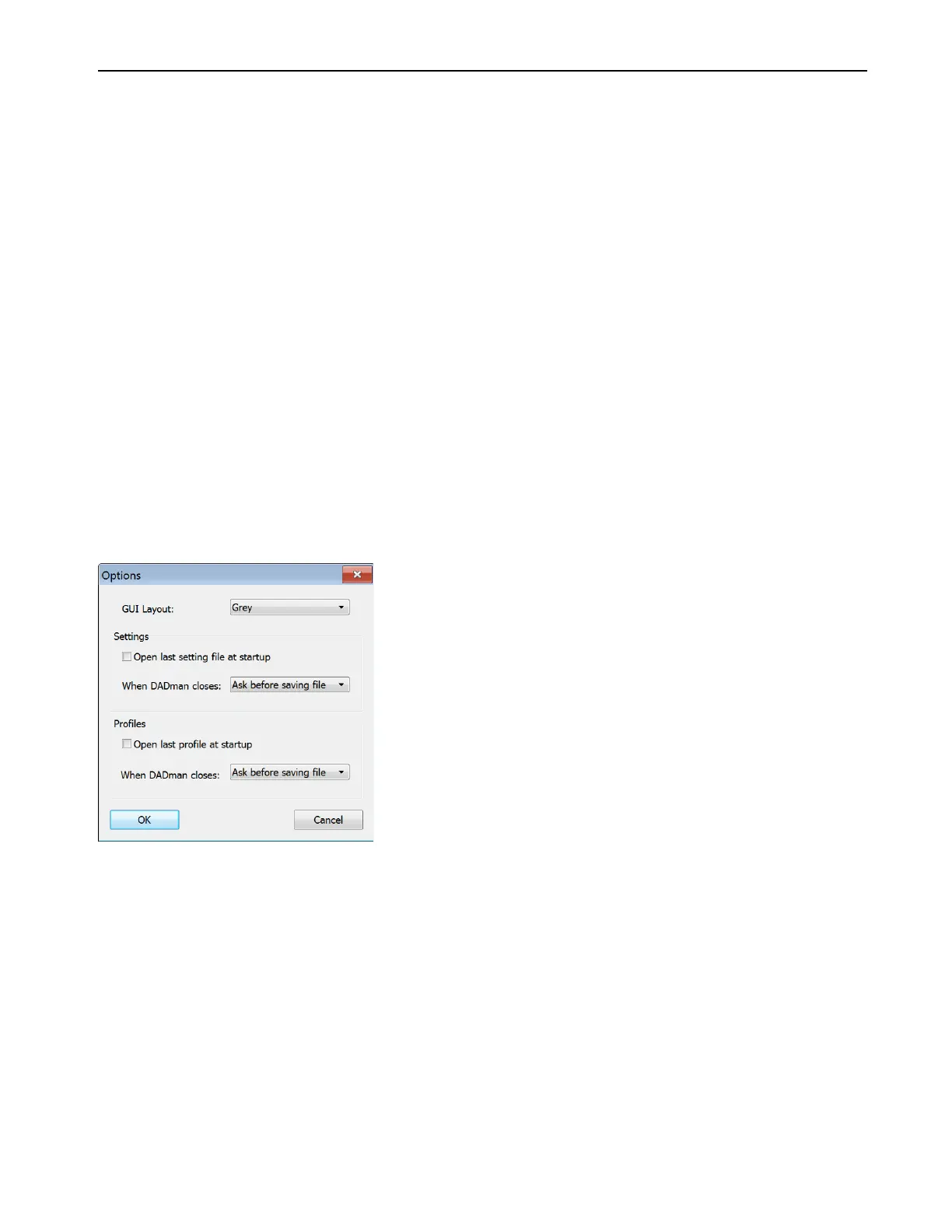
To set Preferences (Mac) or Options (Windows) for DADman:
1 Choose DADman > Preferences (Mac) or Settings > Options (Windows).
2 Configure the MTRX Preferences (Mac) or Options (Windows) as desired:
Open last file at startup
When enabled, DADman automatically loads the latest configuration file and downloads it to the MTRX. This
provides a well-defined starting point in case other users have changed the configuration of the MTRX. However, as multiple users can
operate the MTRX simultaneously, be careful to not disturb the work of other MTRX users on the network.
GUI Layout
Select a color scheme for DADman.
3 Click OK.
Options dialog (Windows)


 To Next Page