42
Assigning Monitor Sources on S6
S6 lets you assign up to 16 sources in the Monitoring screen.
To access additional sources:
1 Navigate to the Monitoring screen.
2 At the top of the screen, swipe the row of Sources to the left to display sources 9–16 (as available).
Configuring Sources for Pro Tools | MTRX
If you are using a Pro Tools | MTRX with S6, you need to first configure DADman software and then configure sources in the S6 Mon-
itoring page.
To configure DADman:
1 Launch DADman and make sure you complete each of the following steps before proceeding.
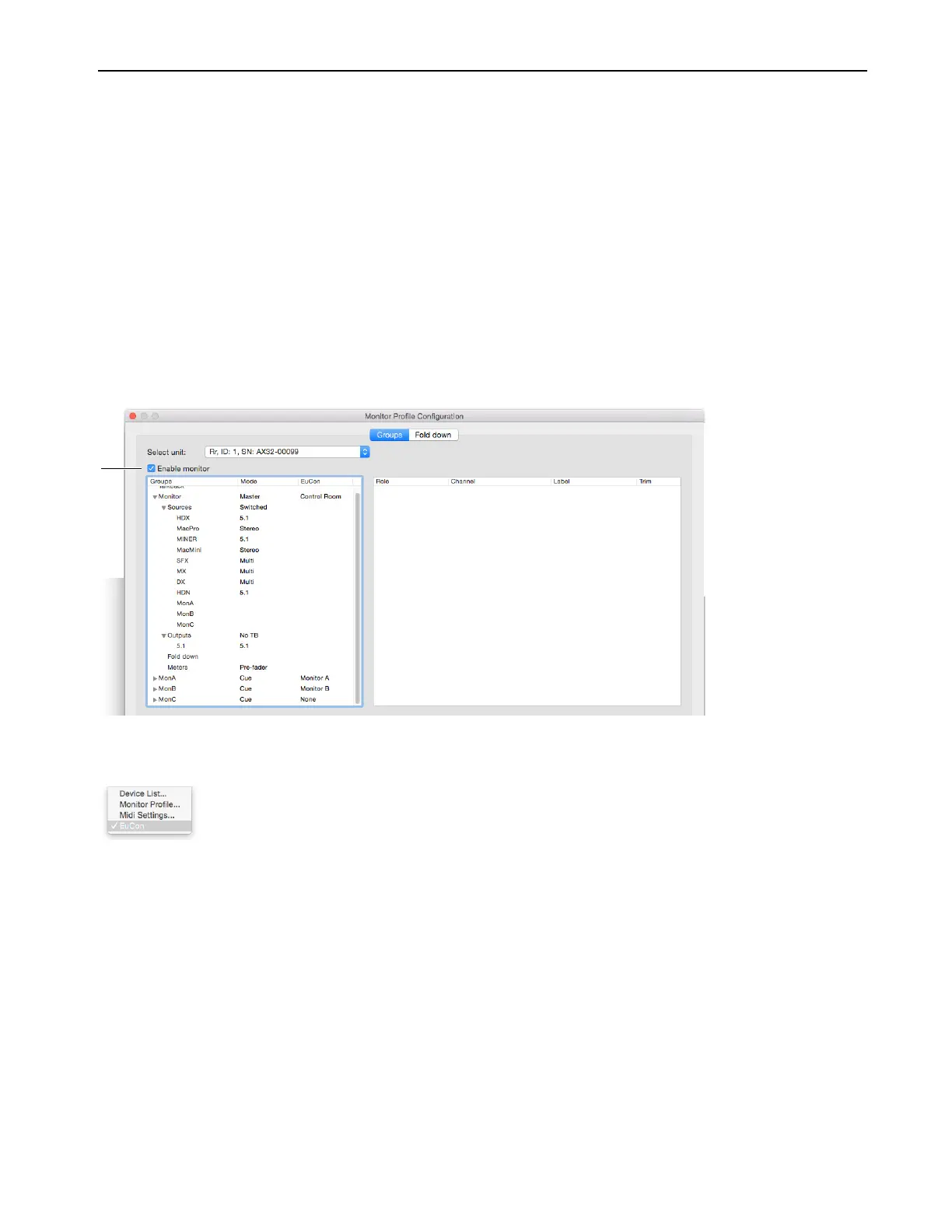
2 Choose Settings > Monitor Profile, then enable and create a monitor profile.
3 Enable EUCON by selecting it from the Settings menu.
Monitor profile enabled in DADman
EUCON enabled in DADman


 To Next Page