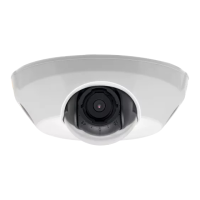
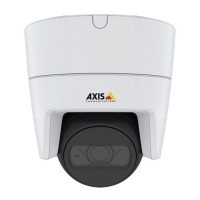
AXIS M3114-VE Network Camera
Video
Camera Settings
The Video > Camera Settings page provides access to advanced image settings for the Axis product.
Image Appearance
Increasing the Color level increases the color saturation. The value 100 gives maximum color saturation. The value 0 gives a
black and white image.
The image Brightness can be adjusted in the range 0–100, where a higher value produces a brighter image.
Increasing the Sharpness can increase bandwidth usage. A sha rper image might increase image noise es pecially in low light
conditions. A lower setting reduces image noise, but the whole image will appear less sharp.
The Contrast changes the relative difference between light and dark. It can be adjusted using the slidebar.
White balance
White balance is used to make colors in the image appear the same regardless of the color t emperature of the light source. The Axis
product can be set to automatically identify the light source and compensate for its color. Alternatively, select the type of light
source from the drop-down list. For a descr iption of each available setting, see the online help
.
Wide Dynamic Range (Dynamic Contrast)
Wide dynamic range (Dynamic Contrast) can improve the exposure when there is a considerable contrast between light and dark
areas in the image. In intense backlight conditions, enable WDR. Disable WDR In low light c ond itions for optimal exposure.
Note
This setting is only possible when using automatic exposure control.
Exposure Settings
Configure the exposure settings to suit the image quality req uirements in relation to lighting, frame rate and bandwidth
considerations.
Exposure value - Click in the bar to fine-tune the exposure.
Enable Backlight compensation - Enable this option if
a bright spot of light, for example a light bulb, causes other areas in
the image to appear too dark.
Exposure zones - This settings determines which part of the image is used to calculate the exposure. For most situations, the Auto
setting can be used. For particular requirement, select a predefined area.
Exposure priority - When Motion is prioritized and maximum Shutter time is set to a small value, motion blur in the image is
minimized. This can be useful
for recognitio n of moving objects such as people and vehicles. However, prioritizing motion may cause
an increase in image noise, especially in low light situations. When Low noise is prioritized and Gain is set to a small value, image
noise is minimized. The file size is reduced, which can be useful if storage space or bandwidth is limited. However, prioritizing low
noise may result in a very
dark image, especially in low light situations.
View Area
Aviewarea
is a cropped part of the full v iew. The view area is treate d as a vid eo source in Live View and has its own video
stream and PTZ s ettings.
To enable a view area, go to Video > Camera Settings and select Enable Vi ew Area.
When setting up a view area it is recomme nde d that the video stream re solution is the same size as or smaller than the view a re a
size. S etting the video s tream resolution larger than the view area size implies digitally scaled up video aft er sensor capture,
requiring more bandwidth without adding image information.
16


 To Next Page