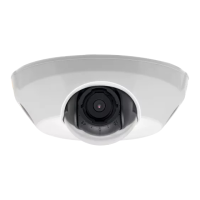
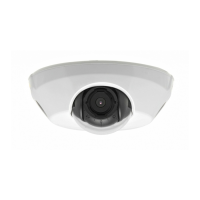
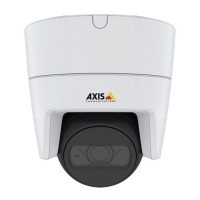
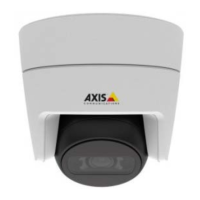
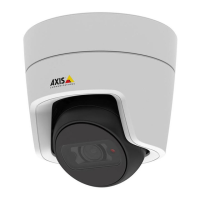
AXIS M3114-VE Network Camera
Events
• Record Video — record video to a selected storage.
• Send Images —sendimagestoarecipient.
• Send Notifications —sendanotification m essage to a recipient.
• Status LED — flash the LED indicator. This can for example be used to validate triggers such as motion detection during
product installation and configuration.
Convert Event Types to Action Rules
If the Axis product is upgraded to firmware version 5.40 or later, it is recommended to convert Event Types to Action Rules.The
legacy user Event Types in the camera will continue to work but will not be visible in the user interface of the camera. The Event
Types need to be converted to Action rules to become visible in the user interface.
To convert Event Types to Action Rules go to Events > Action Rules and click Convert.
Caution
This is not recomm ended when using a VMS based on the old Event Mana ge m ent System.
Setting Up an Action Rule
An action rule defines the conditio ns that must be met for the product to perform an action, for example record video or send email
notifications. If multiple conditio ns are defined, all must be met to trigger the action.
The following example describes how to set up an action rule to record video to a netwo rk share if there i s movement in the
camera’s field of view.
Set up motion detection and add a network share:
1. Go to Detectors > Motion Detection and configure a motion detection window, see page 23
2. Go to System Options > Storage and set up the network share, see page 38.
Set up the action rule:
1. Go to Events > Action Rules and click Add.
2. Select Enable rule and enter a descriptive name for the rule.
3. Select Detectors from the Trigger drop-down list.
4. Select Motion Detection from the drop-down list. Select the motion detection window to use.
5. Optionally, select a Schedule and Additional conditions,seebelow.
6. Under Actions, select Record Video from the Type drop-down list.
7. Select a Stream profile and con fi gure the Duration settings as described below.
8. Select Network Share from the Storage drop-down list.
To add add itional criteria, select the Additional conditions option and add additional triggers. To prevent an action from being
triggered repeatedly, a Wait at least time can be set. Enter the time in hours, minutes and seconds, during which the trigger
should be ignored before the ac tion rule can be activated again.
The recording Duration of some actions can be set to include time immediately before and after the event. Select Pre-trigger time
and/or Post-trigger time and e nter the number of seconds. When While the rule is active is enabled and the action is triggered
again during the post-trigger time, the recording time will be extended with another post-trigger time period.
For more information, see the online help
.
27


 To Next Page