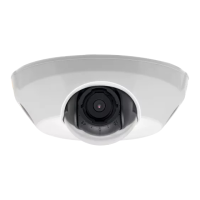
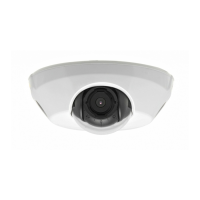
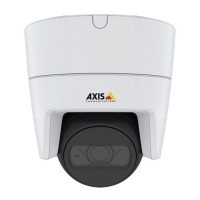
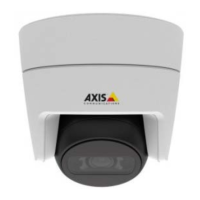
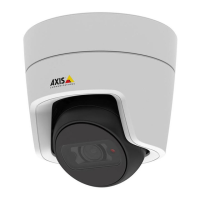
AXIS M3114-VE Network Camera
Video
To configure the view area:
1. Go to Video > View A rea.
2. Select an Aspect ratio and a Video stream resolution.
3. A new view area covers the whole image. Usethemousetomoveandresizetheviewarea.
4. Select Enable PTZ to enable digital PTZ for the view area.
5. Click Save to save the settings.
To modify the view area, modify the settings as required . Click Save.
Tip:
• The PTZ functionality is useful during installation of the Axis product. Use a view area to crop o ut a specificpartof
the full view.
Overlay
Overlays can be used to provide extra information and are superimposed over the video image. With overlay text it is possible to
include date and time or view the current bit rate as overlay text.
To include the current bit rate as overlay text go to Video > Video Stream > Overlay Settings, select the Include text check box
option, and enter the overlay code in the field. See the online help
for supported formats.
Overlay image
An overlay image can be used to provide ex tra i n forma t ion, or to mask a part of the video image.
To use your own image, such as a logo, firstuploadtheimagetotheAxisproduct.GotoVideo > Overlay Image, click Browse to
locate the file and then click Upload.ThefilecanthenbeselectedfromtheUseoverlayimagedrop-down list.
To place an overlay image at specific coordinates, go to Video > Video Stream and select the Include overlay image at coordinates
check box option and enter the X and Y coordinates.
For more information see the online help
Privacy Mask
A privacy mask is an area of solid color t hat prohibits users from viewing parts of the monitored a rea. Privacy masks cannot be
bypassed via the VAPIX® A
pplication Program ming Interface (API).
The Privacy Mas
kList(Video > Privacy Mask) shows all the masks that are currently configured in the Axis product and indicates
if they are enabled.
You can add a new mask, re-size the mask with the mouse,chooseacolorforthemask,andgivethemaskaname.
For more information, see the online help
17


 To Next Page