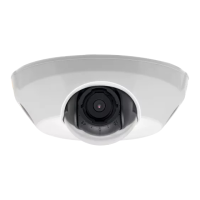
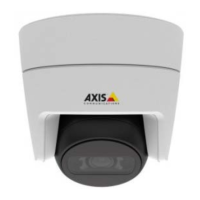
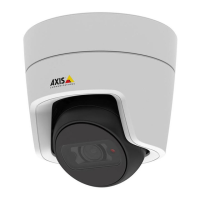
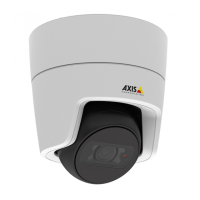
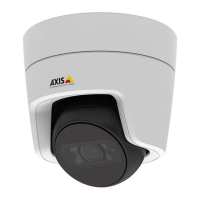
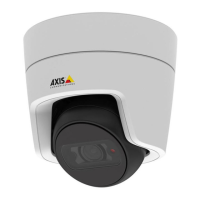
AXIS M3114-VE Network Camera
Accessing the product
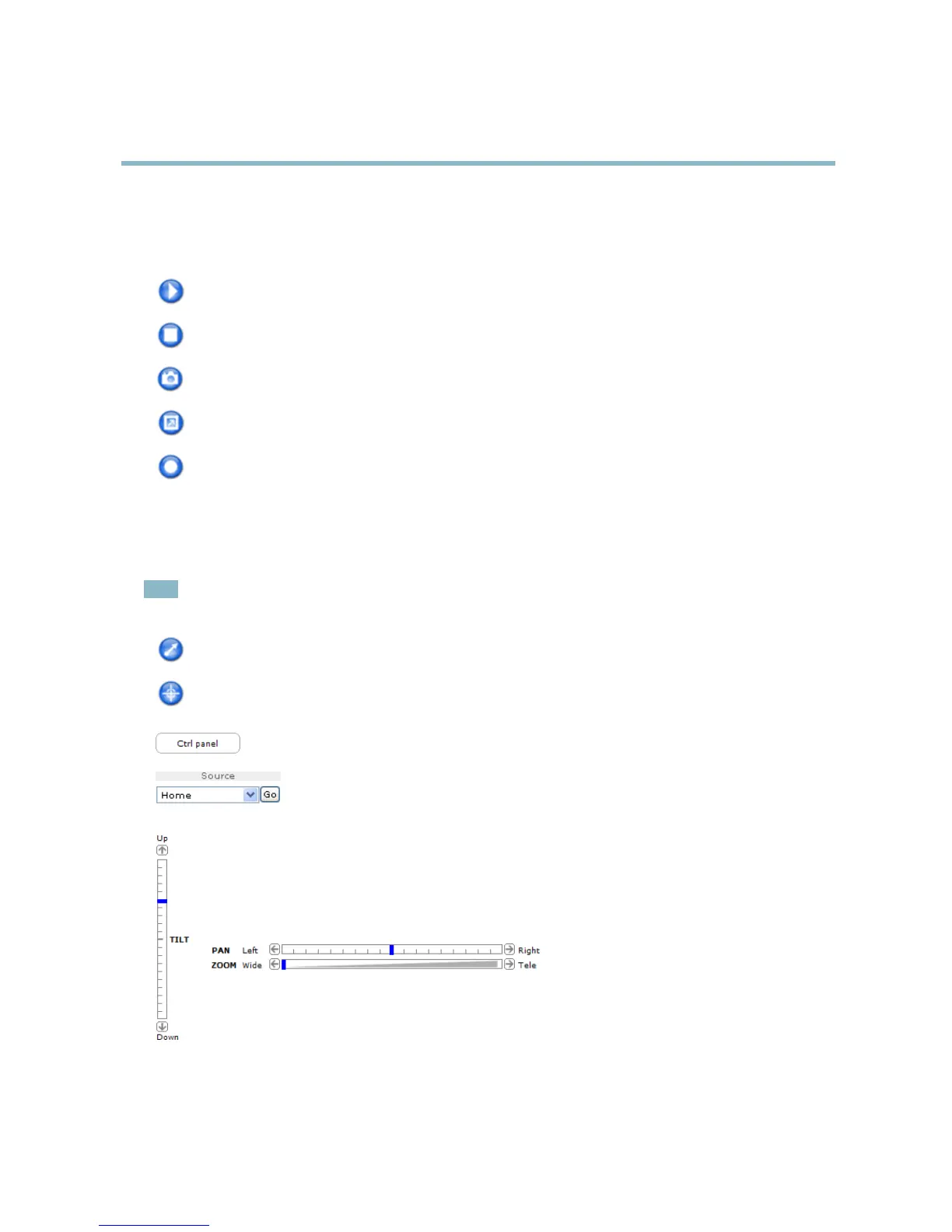
AXIS Media Control viewer toolbar
The AXIS Media Control viewer toolba r is available in Internet Explorer o n ly. See A XIS Media Control (AMC), on page 10 for more
information. The toolbar displays the following buttons:
The Play button connects to the Axis product and starts playing a media stream.
The Stop button stops the media stream.
The Snapshot button takes a snapshot of the video i mage. The location where the image is saved can be specified
in the AMC Control Panel.
Click the View Full Screen button and the video image will fill the entire screen. Press ESC (Escape) on the computer
keyboard to cancel full screen view.
The Record button is used to record the current video stream. The location where the recording is saved ca n be specified
in the AMC Control Panel.
PTZ Controls
The Live View page also displays Pan/Tilt/Zoom (PTZ) controls. The a dministrator can enable/disable controls for specified users under
System Options > Security > Users.
Note
These controls are available if digital PTZ is enabl ed in the selected view area, see View Area, on page 16.
Click the Emulate joystick mode button and click in the image to move the camera view in the direction of the
mouse pointer.
Click the Center mode button and click in the image to center the camera view on that p ositio n. The center mode
button could also be used to zoom in on a specific area. Click in the image and drag to draw a rectangle surrounding
theareatobemagnified. To zoom out, rotate the mouse wheel.
Click the Ctrl panel button to open the PTZ control panel which provides additional PTZ controls.
User-defined buttons can also appear in the Control panel. See Controls, on page 21.
Select a PTZ p res et position to steer the camera view to the saved position. See Preset Positions,
on page 20.
Pan and Tilt bars – Use the arrows to pan and tilt the camera view, or click on a position o n the bar to ste er the
camera view to that position.
Zoom bar – Use the a rrows to zoom in and o ut, or click on a position on the bar to zoom to that position.
The PTZ controls can be disabled under PTZ > Advanced > Controls,seeControls, on page 21.
9


 To Next Page