ENGLISH
14 BD LASER MAX Man. cod. B409652FG Class C Solutions Group
KEY SEARCH
6.1.4 Search by cylinder brand
This function is used when you know the bitting code of the key to be
copied or if you wish to search for it using the decoding process. The
menu makes it possible to search through the system’s database as
described below.
How to proceed:
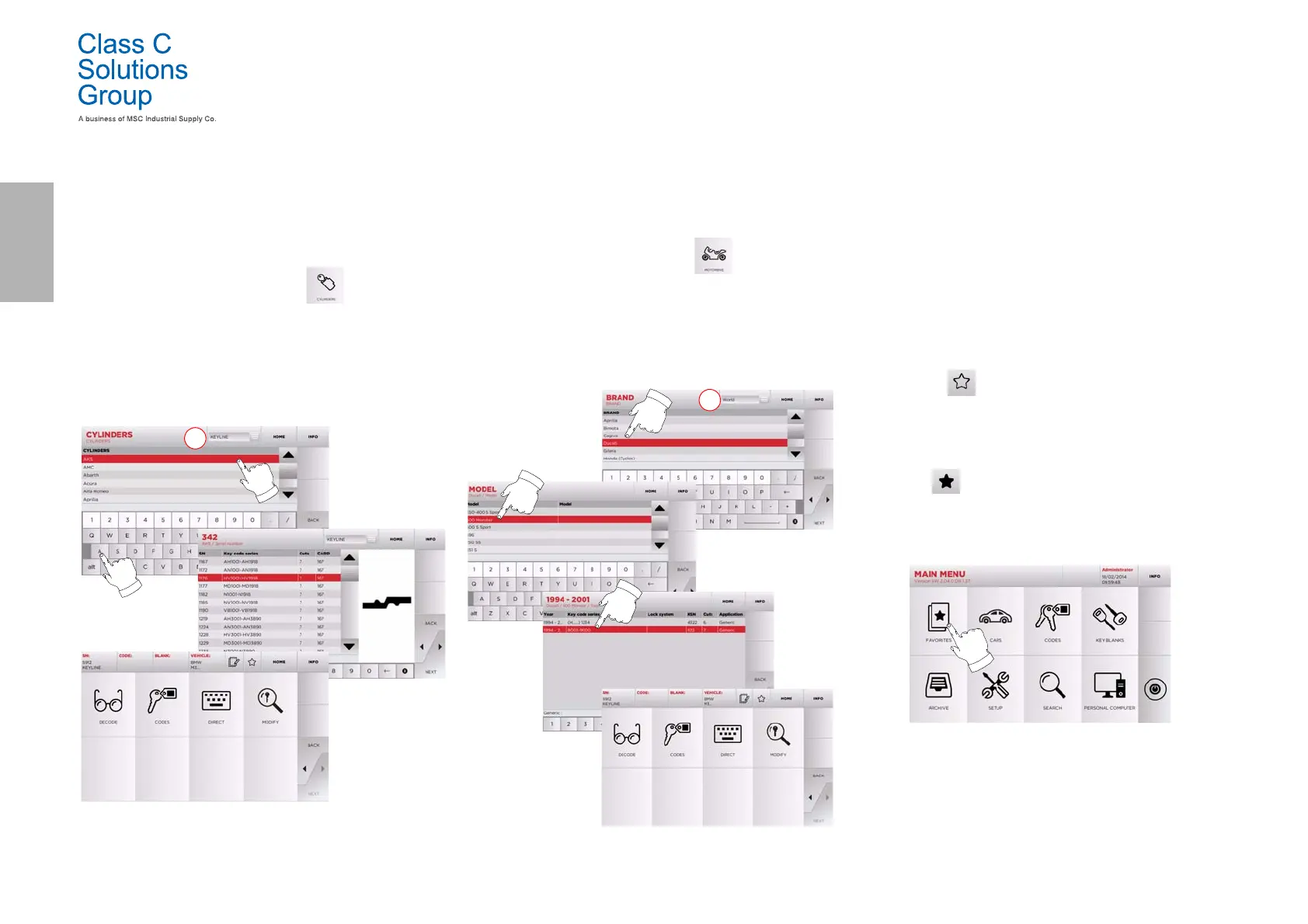
•From the "SEARCH" page, select: .
• Select one of the options in the top drop-down menu (A).
• Scroll the menu of available brands or enter the name and
choose the required one (e.g.: ACURA).
•Press “
►” to go to the list of blank keys and choose the
one most appropriate for the selected brand (e.g. 342),
then press “
►”.
• From the operating menu, choose one of the search or key
modification options: DECODE, CODE, DIRECT and MODIFY.
Note: From now on, please refer to chapter 7 on page15.
• To go back to the previous page, press the “
◄” key.
6.1.5 Search by motorbike brand
The “MOTORBIKE” menu makes it possible to search and duplicate a
key through a list of brands included in the database.
How to proceed:
•From the "SEARCH" page, select:
• Select one of the options in the top drop-down menu (A).
• Enter the brand or scroll the menu and select the required
one (e.g.: DUCATI), then press “
►”.
• Choose the car model first, then the year of production, and
press “
►”.
• From the operating menu, choose one of the search or key
modification options: DECODE, CODE, DIRECT and MODIFY.
Note: From now on, please refer to chapter 7 on page15.
6.1.6 Search by car brand
Note: This procedure is described in paragraph5.1.1 on page8.
6.1.7 Search by article
Note: This procedure is described in paragraph5.1.3 on page9
6.2.0 Bookmarks list
Every time a key is modified, irrespective of which database it comes
from, it is possible to save the changes in a specific "favourite keys"
database.
How to proceed:
• Press the button from “MODIFY” page after making
the necessary changes.
• Input the name for the subsequent searches, then press
“OK”.
• Confirm that you want to save by pressing "YES" and go
back to the "MODIFY" page.
The black icon shows that the key has been saved in the “FAVORI-
TES” database.
Later, the user shall be able to look for the key by accessing the “FA-
VORITES” menu from the main menu:
Note: This function must not be confused with the saving of a
key in the archive. The saving concerns all the
information that characterise a key (bitting, cutting
parameters, material, number of copies, etc.) for both
keys found in a database (coded) and read keys. This list,
instead, leads directly to a RN, that is to say, a technical
card for cutting a key (and so the bitting and other data
are not memorised).


 To Next Page