ENGLISH
16 BD LASER MAX Man. cod. B409652FG Class C Solutions Group
MODIFY AND CUT
7.4.0 Modify menu
The MODIFY MENU is used to modify the cut parameters for a key and
it also makes it possible to personalise some characteristics of the
key, according to the client's specific requirements.
How to proceed:
• From the key search sub-menu, select “ ”.
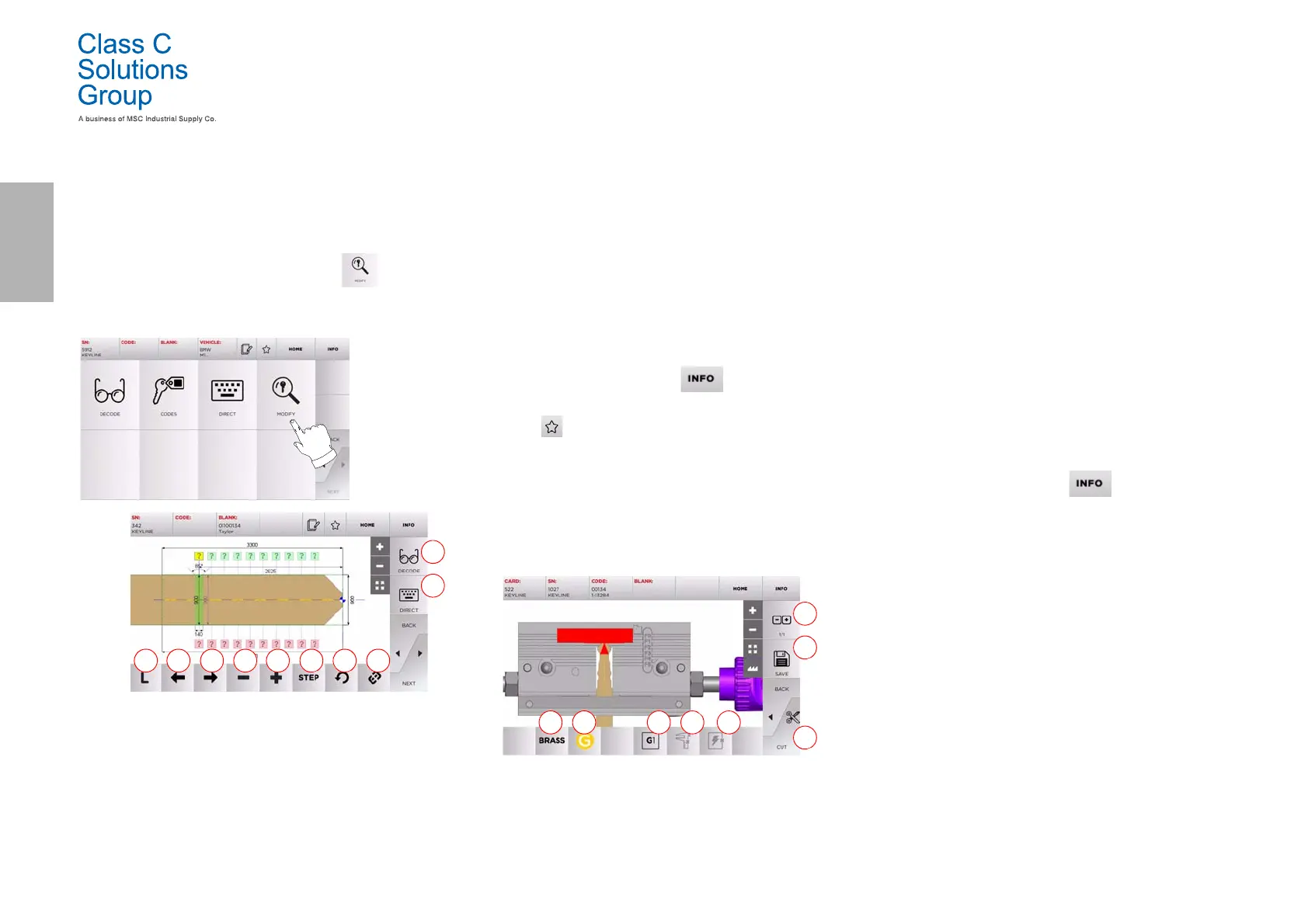
• This displays the technical sheet for the selected article and
makes it possible to change some of the key characteristics.
Options displayed:
1. With this button is possible to decode the key using the
selected key system.
2. With this button is possible to insert the cuts directly.
3. With the Cut Type button is possible to select between
the possible cut types for the selected key. For Flat keys
cut types are: Normal, Laser and Plane.
4. With the left arrow button is possible to scroll the spaces
moving to left direction.
5. With the right arrow button is possible to scroll the
spaces moving to right direction.
6. With the minus button is possible to decrement the depth
of the highlithed tooth.
7. With the plus button is possible to increment the depth of
the highlithed tooth.
8. This makes it possible to select the depth increase or
decrease rate when the + or - buttons are pressed. The
available options are: one STEP is either 0.1 mm or 0.01 mm.
9. With this button is possible to reset the modifications
made on the selected tooth.
10. With this button is possible to modify simultaneously all
the teeth.
• For further information select “ ” from the display .
Note: The “ ” symbol makes it possible to save the selected
key in the list of bookmarks. See paragraph6.2.0.
7. 5 .0 K e y c u t m e n u
Once the key to be copied has been searched using the relevant func-
tions in the Database menu, the programme will direct the user to the
CUT screen, that makes it possible to duplicate the desired key.
Options displayed:
1. With this button is possible to set the amount of copies
that need to be cut.
2. With this button is possible to save the key.
3. Starts the key cutting process.
4. With this button is possible to change the default
material. The selectable material are: BRASS,
ALUMINUM, STEEL, NIKEL SILVER, CUSTOM. Each
material has a dedicated set of parameters for the
movement speed and cutter speed for optimizing the
quality of the cut and ensure the life of the cutter. The
custom material can be customized on the Parameters
Panel of the Setup Menu.
5. With this button is possible to select the Jaw that has to
be used to cut the key, only compatible Jaws will be
selectable.
6. Displays the type of stop to be used to cut the key.
7. With this button is possible to enable or disable the
measure of the dimension of the key.
8. With this button is possible to enable or disable the
measure of the width of the key, this measure is faster
respect of the complete measure and is useful to
optimize the cut procedure but when using blank keys
with precuts the complete measure is preferred .
• For further information select “ ” from the display .


 To Next Page