54
>>> NAVIGATION MODE
> D
> GB
> F
> I
> PL
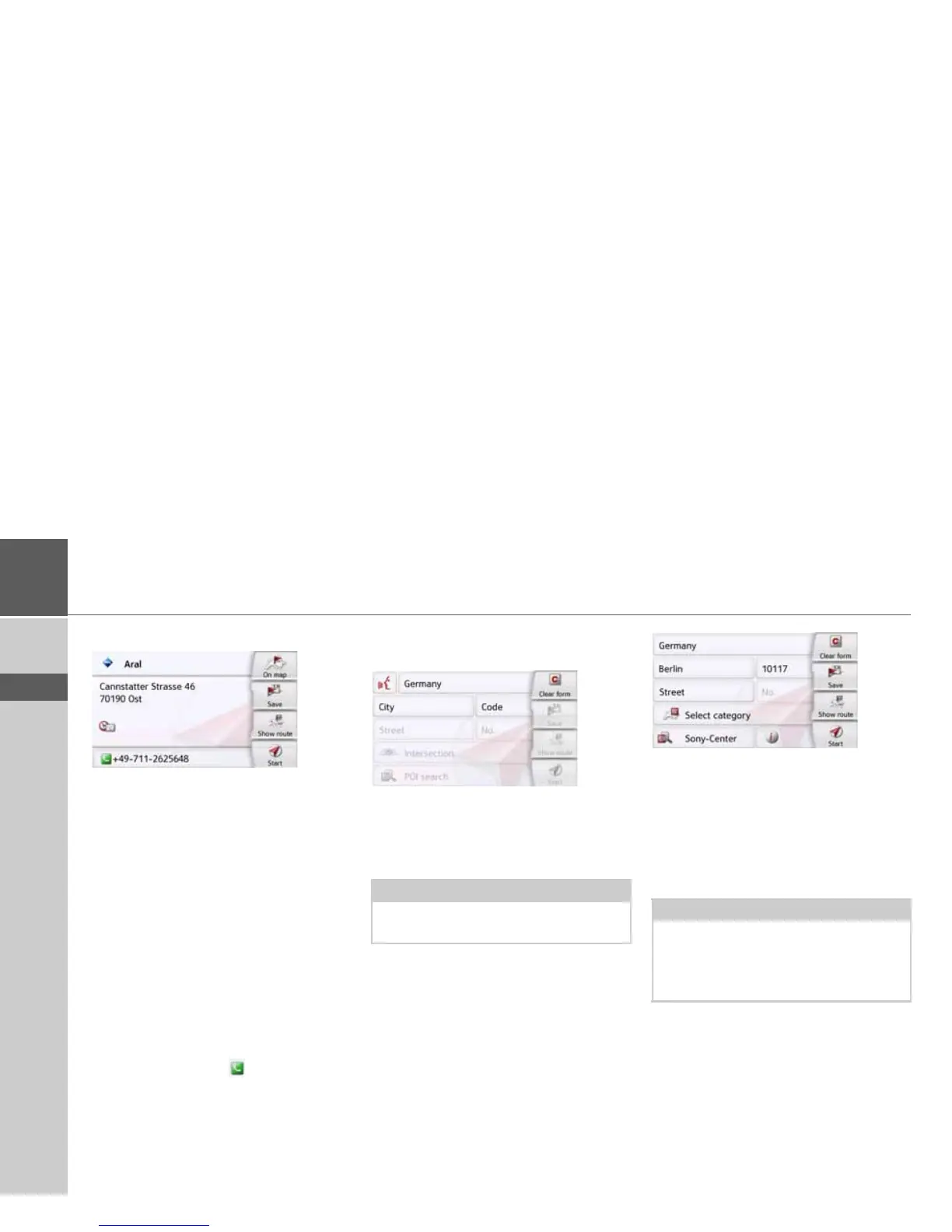
> Select the desired point of interest.
You will now receive additional
information about your chosen
destination.
> Press the
Start button to begin route
guidance to the point of interest
directly.
In addition, the selected point of interest
can be:
• displayed on the map (
On map),
• saved in fast access mode (
Save),
• used for displaying a route to the POI
(
Show route),
• if a telephone is connected and a
phone number is available by pressing
the button with the symbol.
(depending on the model)
Point of interest near to an address
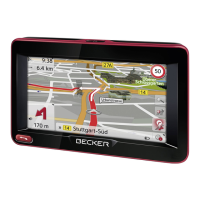
> Press
POI near location.
> Select the desired country.
> In the
City or Code field, enter the town
where you wish to search for a point of
interest.
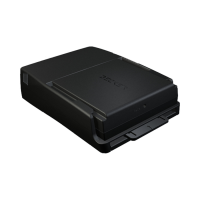
> Press the
Select category button.
The available Points of interest
categories for the city entered will be
displayed.
> Select the desired point of interest as
described under "Point of interest in
the vicinity" on page 53.
> Press the
Start button to begin route
guidance to the point of interest
directly.
However, you can also store your
chosenpoint of interest in fast access
mode (
Save) or display the route to the
point of interest (
Show route).
Note:
If you have already entered an address,
this address will appear by default.
Note:
Your can also press the
Select Point of
Interest
button. An input menu will then
open and you can enter the name of a
point of interest directly and confirm it.



 To Next Page